Computer skills from scratch·The first sitting·Lesson 3 of 180
Your hands on the keyboard
 Ellis Dennis GrahamFounder, Cyber Elias Academy 2026-01-18 5 min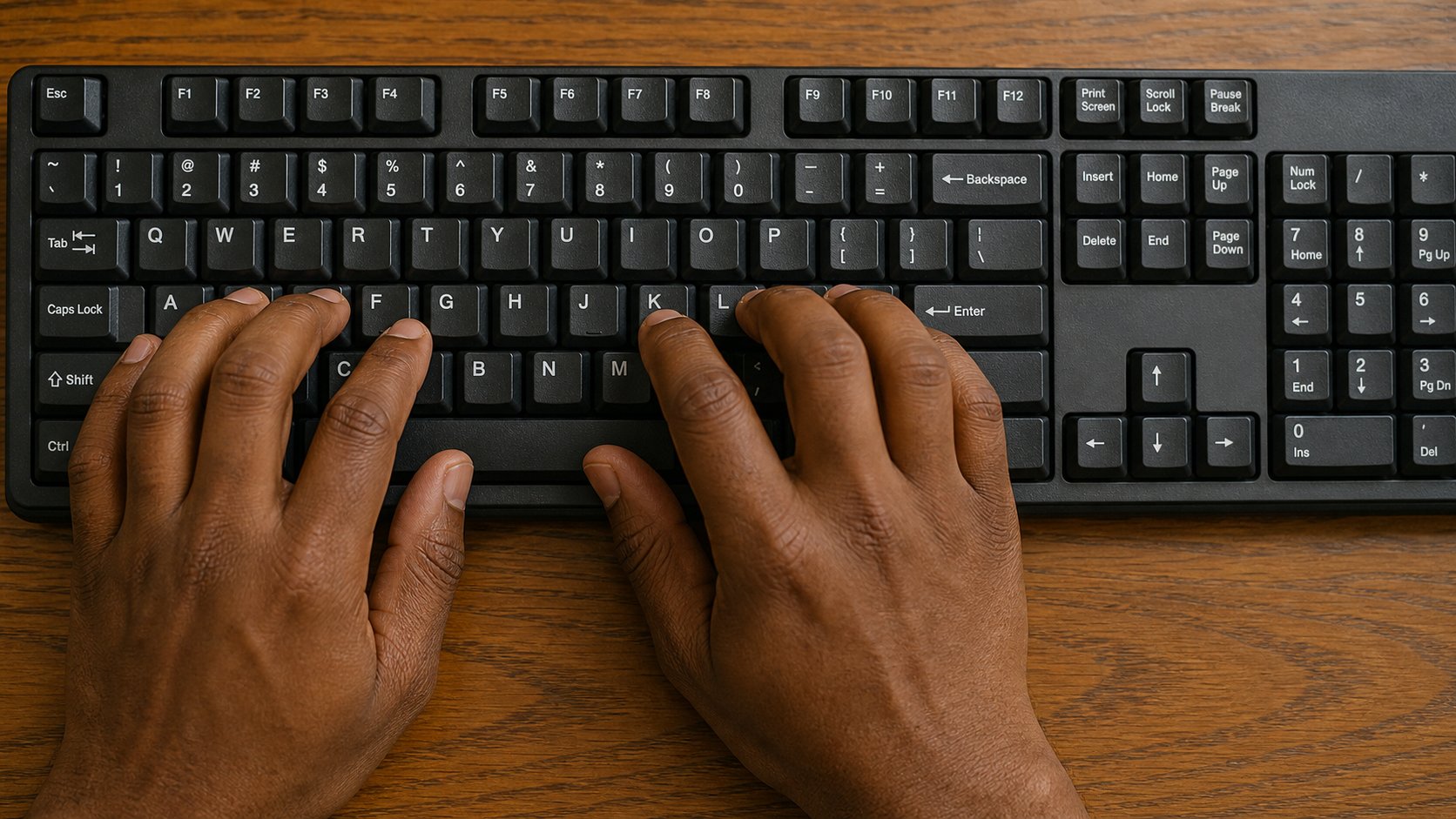
Hunt-and-peck works until it does not. Home row, the keys that edit, and the two shortcuts that copy a world. Ten honest minutes a day beats a course you never open.
Watch someone who has used a computer for years. Their eyes stay on the screen. Their fingers drop without looking. That is not talent. It is a map they built in the hands. You already have a map for your phone: you can type a name in WhatsApp without staring at every letter. The keyboard is a larger version of that map, and the first week feels clumsy because the keys are farther apart than a glass screen.
Hunt-and-peck — one finger, eyes on the keys — will write a form. It will not write a letter you are proud of, because the thinking keeps breaking to find M. The cure is not speed. The cure is a resting place for the fingers, called home row, and a promise to return there after every stretch.
Home row, said slowly
Sit so your elbows can rest near your sides and your wrists are not climbing over the edge of the desk. Place the four fingers of your left hand on A, S, D and F. Place the four fingers of your right hand on J, K, L and the semicolon. The index fingers should feel a tiny ridge on F and on J. Those ridges are not decoration. They are the only landmarks on a dark keyboard at night. Thumbs rest on the space bar. That is home. Every other key is a reach, then a return.
Try this without looking down. Type the word asdf with the left hand, one finger each, then jkl; with the right. Delete it with Backspace. Do it again. It will feel theatrical. That is the point. You are teaching the hands a chair to sit in. After a few days the chair is automatic, and the rest of the keyboard becomes a set of short walks.
The keys that edit, not just write
Letters make words. A handful of other keys make the words usable. Enter starts a new line, the way a typewriter's carriage return did. Backspace rubs out the character to the left of the blinking cursor. Delete, if your keyboard has it, rubs out the character to the right. Space inserts a gap. Shift, held down while you tap a letter, makes a capital — and then you let Shift go. Caps Lock is the trap. It leaves every letter large until you press it again. If your sentence suddenly SHOUTS, look for a light on Caps Lock and tap it once.
Shift plus a number key is how you get the symbols printed on the upper half of those keys. Shift and 1 is often !. Shift and 2 may be @, which you will need for email. The exact symbols change slightly by keyboard, so look at the key itself. Tab jumps the cursor forward, useful in forms. Escape, usually top-left, dismisses a box you did not mean to open. You will use Escape more than you expect.
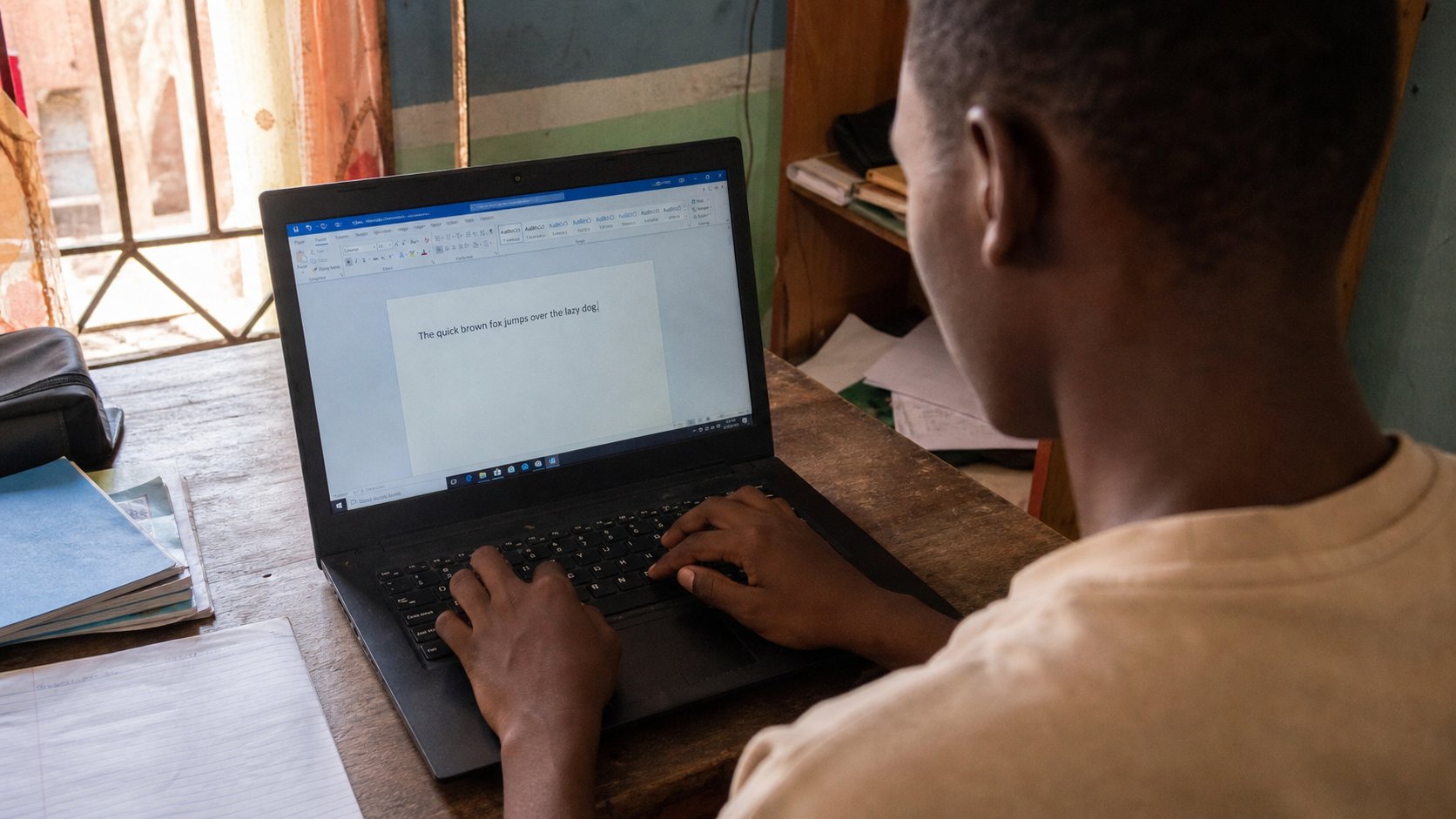
- Open Notepad or TextEdit. Return your fingers to home row.
- Type: The rain in Port Harcourt drums on the zinc.
- Use only Backspace to correct mistakes. Do not reach for the mouse yet.
- Press Enter twice. Type your name. Press Shift for the capitals, not Caps Lock.
- Save the file as typing-practice in Documents. Ten minutes is enough. Stop while you still like it.
Two shortcuts that change everything
Highlight a word by dragging the mouse across it, or by holding Shift and tapping an arrow key. When the word is selected — it will sit on a coloured block — press Ctrl and C together (Command and C on a Mac). Nothing looks different. You have copied. Click where you want the word to appear and press Ctrl and V. The word arrives. C is copy. V is paste. X, used the same way, is cut: copy and remove. You can paste into a different document, into an email, into a form. This is how a person stops retyping their own address fifty times a year.
Ctrl and Z is undo: take back the last thing you did. If you deleted a paragraph by accident, undo before you panic. You can often undo several times. Ctrl and A selects everything in the window. Be careful with that one around Delete. If you do press Delete on everything, undo immediately.
A rule you can keep
Ten minutes a day, on a blank page, with home row, beats a two-hour binge on Saturday. Type sentences from a newspaper, or from a hymn, or from a message you would send anyway. Do not chase speed. Speed is a side effect of not looking down. Looking down is allowed in week one. By week three, try a paragraph with a paper over your hands. You will miss keys. That is the lesson arriving.
If your wrists ache, the desk is too high or you are stabbing. Rest the heels of the hands, press the keys, do not punch them. A cheap keyboard is enough. What matters is returning to F and J until the ridges feel like home even in the dark.