Computer skills from scratch·Keeping the machine·Lesson 20 of 180
When the computer is slow
 Ellis Dennis GrahamFounder, Cyber Elias Academy 2026-03-01 4 min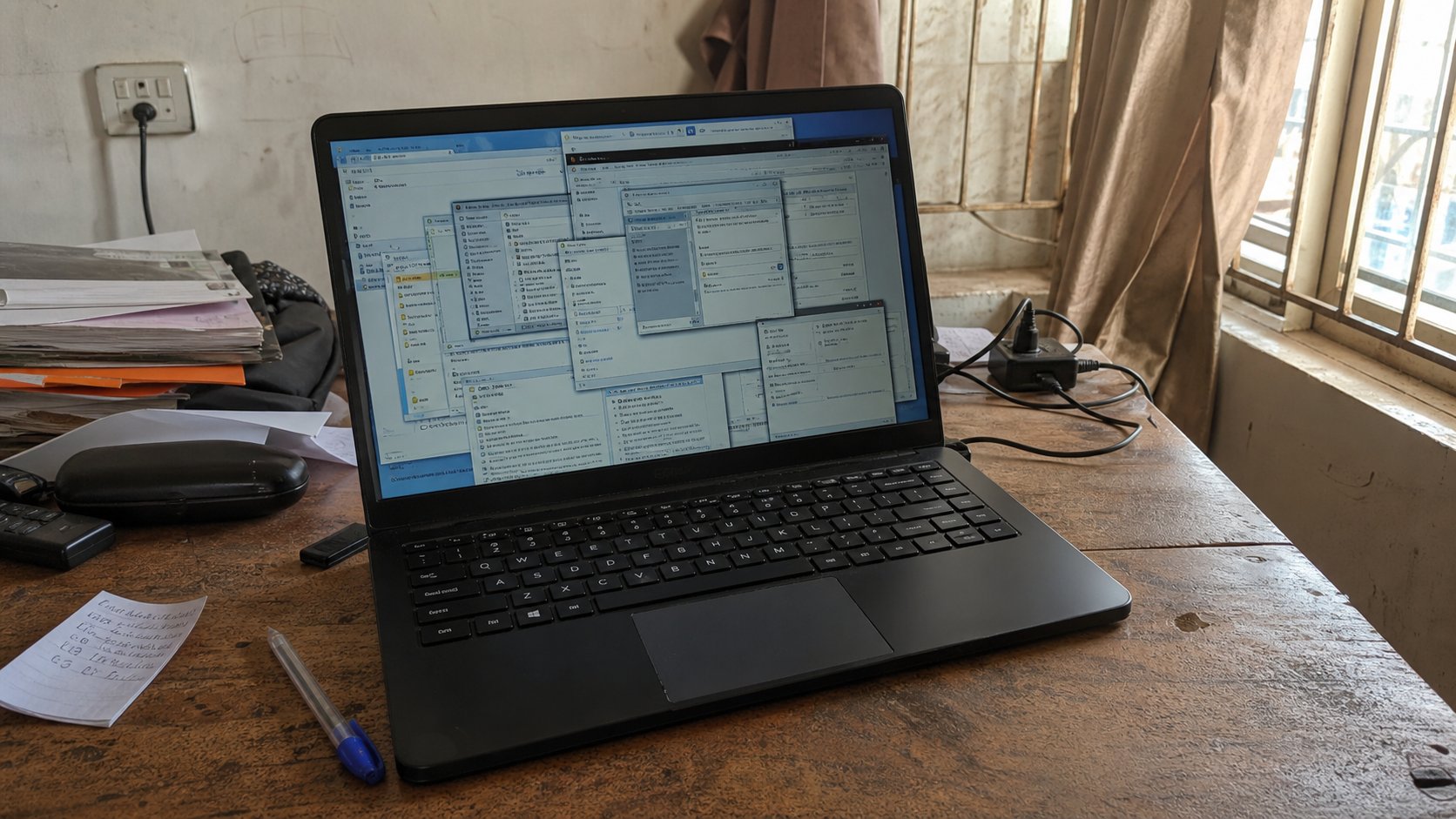
Slow is usually a crowd, a full disk, or a dying drive. Close windows you cannot see. Restart is the polite medicine. A pop-up that sells a “cleaner” is not.
A slow computer feels like insult. You click, nothing, you click again, then three windows open at once. Before you spend money, name the usual causes. Too many programs standing up at the same time. A disk so full the machine has no room to think. A browser with forty tabs, each a live market. Dust and heat, so the fan screams and the processor walks. Or a drive that is actually dying — clicks, freezes, a long stare at a blank desktop. This lesson is the cheap checks, in order, before a shop formats you into a new life.
Heat first, because it is physical. If the laptop is on a bed or a cloth, the vents are eating fabric. Put it on a table. Feel the underside. If it is too hot to rest a hand, shut down, let it cool, then start again. A desktop's vents fill with dust in a year of Port Harcourt air; a careful vacuum at the grilles, machine off and unplugged, is allowed. Do not pour water. Do not open the case if you have not been shown.
Close the crowd
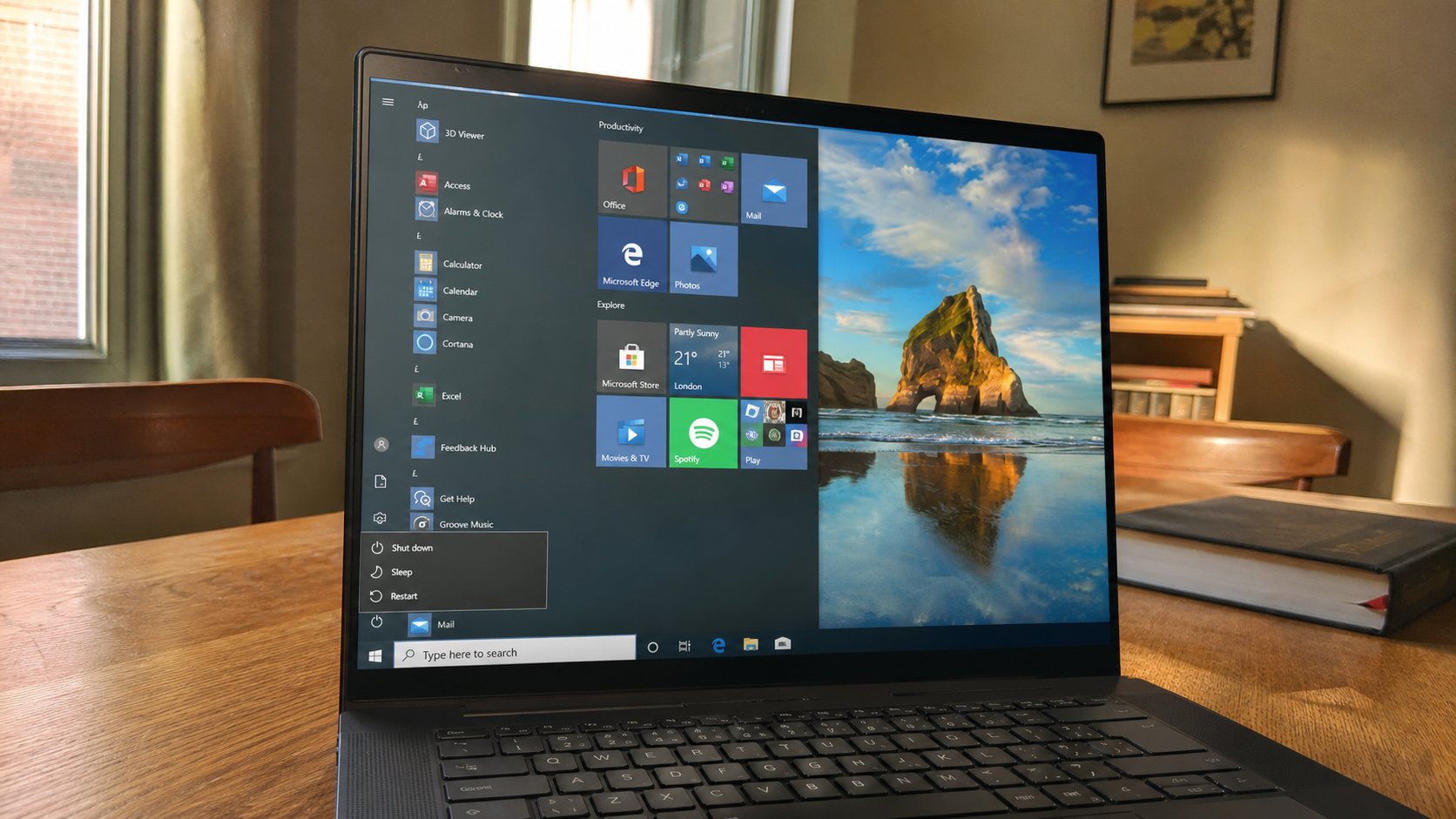
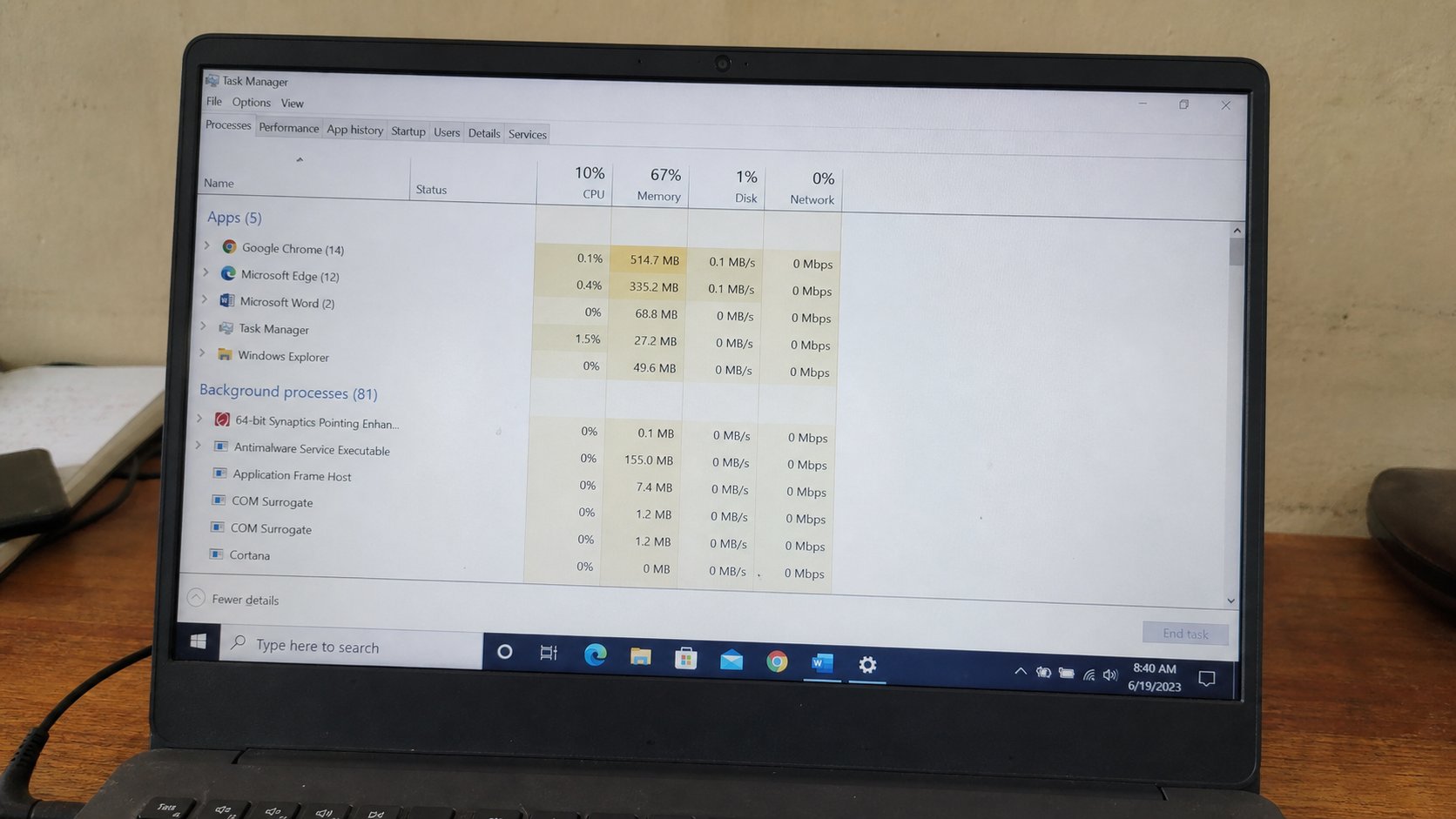
Look at the taskbar — the strip along the bottom. Each icon is a program. Close the ones you are not using: the X on their window, not just a smaller bar. Browsers: close extra tabs. One tab of a video left playing overnight will slow tomorrow. On Windows, Ctrl+Shift+Esc opens Task Manager. You will see a list. CPU and Memory columns are the crowd noise. If a name you do not recognise is using 90 percent, select it, End task. Do not End task on anything called Windows Explorer or your unsaved Word until you have saved. When in doubt, restart instead.
Restart, as you learned, is the polite medicine. Save, Start, Restart. A surprising number of “my computer is finished” stories end there. If slowness returns in ten minutes, it is not a mood. It is a program that starts itself, or a disk that is full.
Room on the disk
This PC, then the C: drive. If the bar is red, or “a few GB free,” the machine is writing on the last scrap of paper. Empty Recycle Bin after you have looked. Delete installers in Downloads you have already used. Move photographs to the USB you use for backup. Do not delete folders named Windows or Program Files because they look large. They are the house. A shop “cleaner” advertised in a pop-up is the cousin of the fake update. You know that trap.
- Save your work. Restart. Use the machine for ten minutes. If it is fine, you had a crowd.
- If it is still slow, open This PC and look at the C: bar. If it is red, move pictures to a USB.
- Open Task Manager. Note the top two names. Close those programs the ordinary way if you recognise them.
- If the disk clicks, or the machine freezes while saving, copy your Documents off today. That is a dying drive, not a mood.
When it is the drive, and when it is a salesman
A dying disk has a personality: long pauses, files that corrupt, a restart that hangs on the manufacturer's logo. Backup first — the whole point of the earlier lesson — then a shop. Tell them the files are copied. Ask them not to format until you say. A slow-but-healthy machine after a restart and a cleaner disk can live for years. Adding memory (RAM) helps some older laptops; that is a shop conversation with a price, not a pop-up.
Ignore banners that say “your PC is 82 percent infected.” Real Windows Security lives in Settings, not in a flashing count. If a relative installed three toolbars and a lottery of free PDFs, those programs are the crowd — Uninstall from Settings, Apps, one by one, names you recognise as extras. When the machine is honest again, it feels like a different object. Usually it was only tired.