Computer skills from scratch·Keeping the machine·Lesson 18 of 180
Filling a form on a website
 Ellis Dennis GrahamFounder, Cyber Elias Academy 2026-02-24 4 min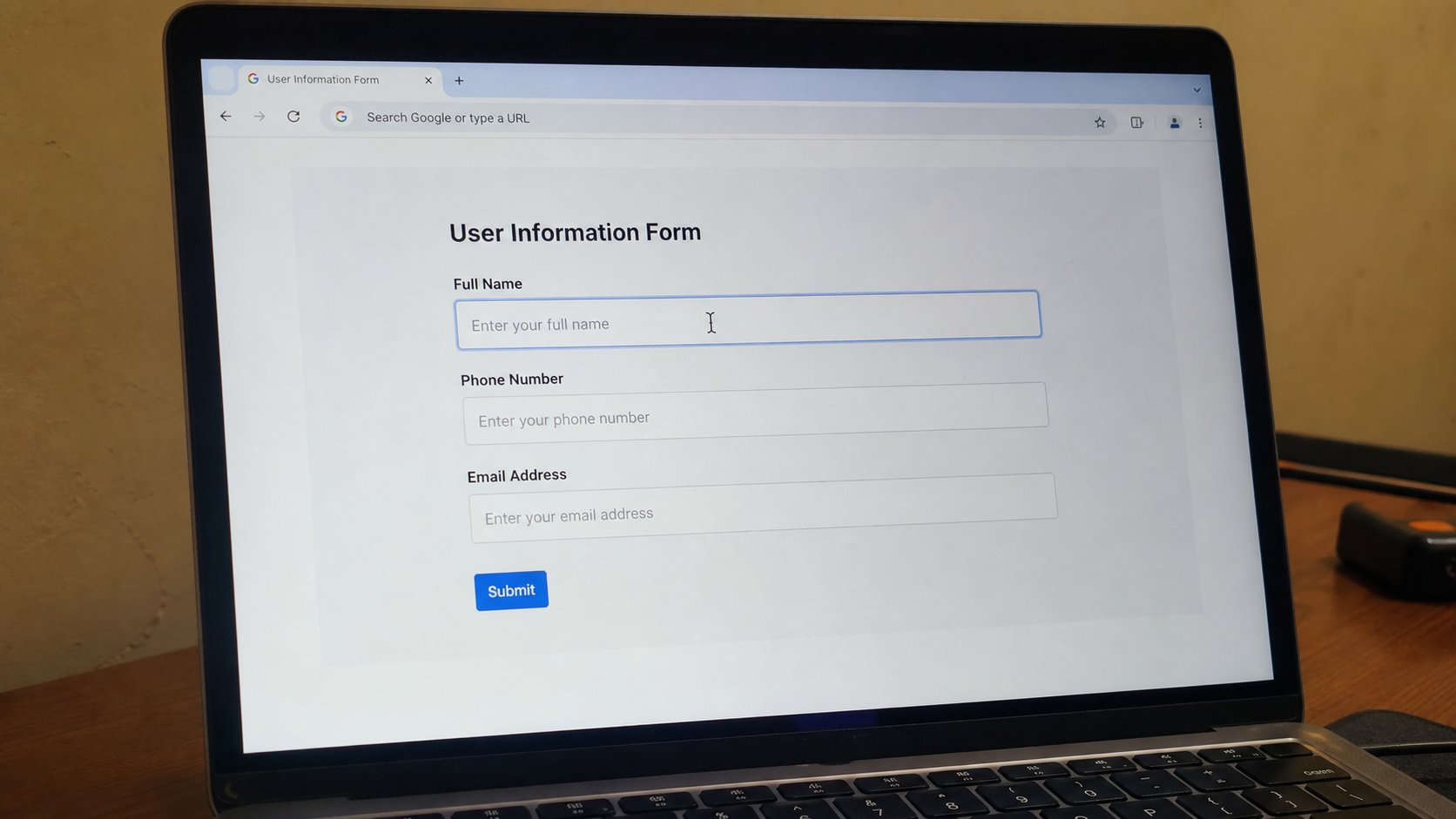
A form is a paper with boxes. Tab moves to the next box. A red star means required. Submit once, then wait. The back button is how people pay twice.
A website form is a paper with boxes that send themselves. School applications, JAMB, NYSC, bank KYC, the academy's own apply page — they all ask you to type into rectangles and then press a button that says Submit, Continue, or Pay. The fear is that a wrong click will send the wrong life. The usual disaster is smaller and more common: you press the button twice, or you leave a required box empty, or you use the back button in the middle of a payment. This lesson is how to treat the page like a clerk who can only read what is in the boxes.
Walk to the real address yourself, as you learned. Bookmark it if you will return. Do not start a government form from a WhatsApp link you did not ask for. Have the paper beside you: ID, names as they appear on the ID, phone number, email you can open, a passport photograph already on the computer in Pictures. Hunting for a scan in the middle of a form is how sessions expire.
Moving through the boxes
Click the first box. Type. Tab — the key left of Q — jumps to the next box. Shift+Tab jumps back. That is faster than the mouse and less likely to click Submit by accident. Drop-down lists need a click, then an arrow key, then Enter. Date fields are troublemakers: some want day-month-year, some want you to pick from a calendar icon. Look at the grey example inside the box, if there is one. Do not invent a format.
Checkboxes are squares; tick them only if you mean the sentence beside them. Round ones are radio buttons — one choice in the family, not all. CAPTCHA — “select the traffic lights” — is a gate against machines. Do it slowly. File upload boxes want Choose file, then the house you already know: Pictures, Documents. The name of the file should appear beside the button. If it does not, you have not attached anything. Look before you continue.

Required, errors, and the red text
When you press Continue and the page jumps, look for red text or a box outlined in red. That is the clerk pointing. Often it is a missing digit in a phone number, an email without the @, or a password that is “too short” by their rule, not yours. Fix the pointed box. Do not start the whole form again unless the page has gone blank. If the page has gone blank, your session may have expired — too many minutes idle. Open the real address again. Keep the paper. You are not starting your life over. You are typing.
- Open a practice form — the academy apply page, or a site you already trust.
- Fill three boxes using Tab. Attach nothing you would not send.
- Leave one required box empty on purpose. Press Continue. Find the red text. Fill it.
- Do not press Submit twice. Watch the button. If it says Please wait or becomes grey, the clerk has the paper.
Submit once, especially when money is involved
The last button is the one that files you, or takes money. One click. Then wait. A slow network will tempt a second click. A second click is how people are charged twice or create two applications. If the page seems dead, look at the tab's little spinner. Count to sixty. If nothing, do not Back. Back in a payment is famous. Open a new tab, go to the same real site, and look for a dashboard, a receipt, or “already submitted.” If money left the bank and the site is silent, you have a receipt in the bank SMS — keep it, then use the site's own contact, not a number from a pop-up.
Save or screenshot the success page if the site does not email you. Pictures, named. The form is finished when you have evidence, not when you feel finished. And if a page asks you to create a password for this one form, use a new sentence, write the hint, and do not recycle the Gmail key. Each house its own key. You have heard that before because it keeps being true.