Computer skills from scratch·Files that travel·Lesson 21 of 180
Installing a program on purpose
 Ellis Dennis GrahamFounder, Cyber Elias Academy 2026-03-04 3 min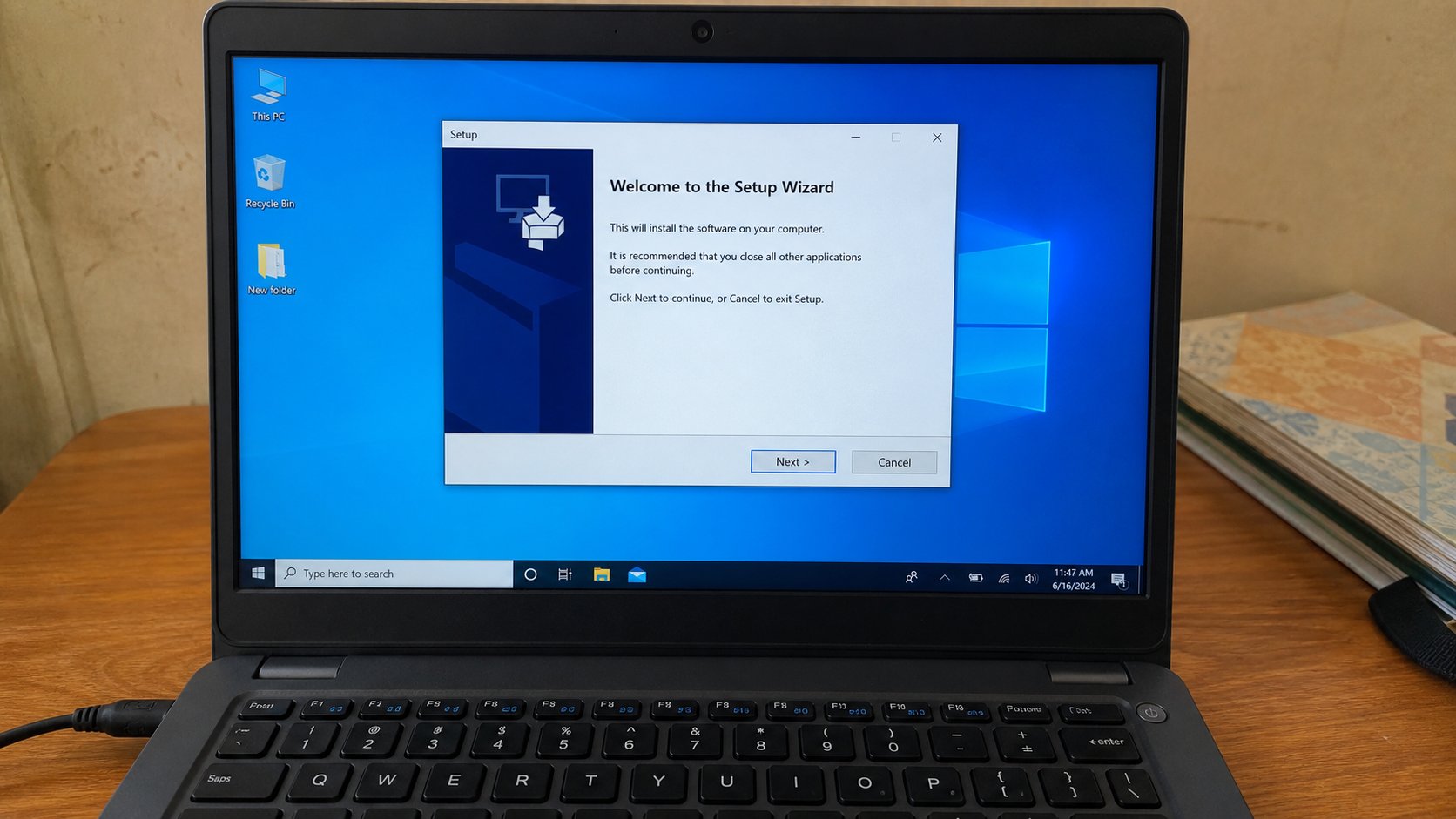
An installer is a guest you invited. Next is not the same as I agree to extra toolbars. Download from the real street, then walk through the boxes with your eyes open.
A program is a tool that was not on the machine when you sat down. Word, a browser, a video player, the academy's own software if a course needs it. Installing is inviting that tool into the house. Uninvited guests arrive as pop-ups, “free converters,” and a shop that loaded three extras while fixing the screen. This lesson is the invited kind: you chose it, you fetched it from the real street, and you watch the boxes instead of tapping Next in a trance.
You already know downloads land on the mat. An installer is usually a file named Setup, or the program's name plus .exe on Windows, or .dmg on a Mac. Double-clicking it starts a short conversation of windows. Those windows are not decoration. They are where extra toolbars, extra browsers, and a “partner offer” try to sit down beside the guest you wanted.
Fetch it from the real street
Open the browser. Type the address you already trust — the maker's own site, or the academy's instruction — not the first advert for “VLC free download fast.” You have met that cousin. If a page shouts DOWNLOAD in three colours, look at the address bar. A small, boring button on the maker's own page is usually the real door. Save the file. Open Downloads. Confirm the name looks like the program you asked for, not “setup_bundle_free.”
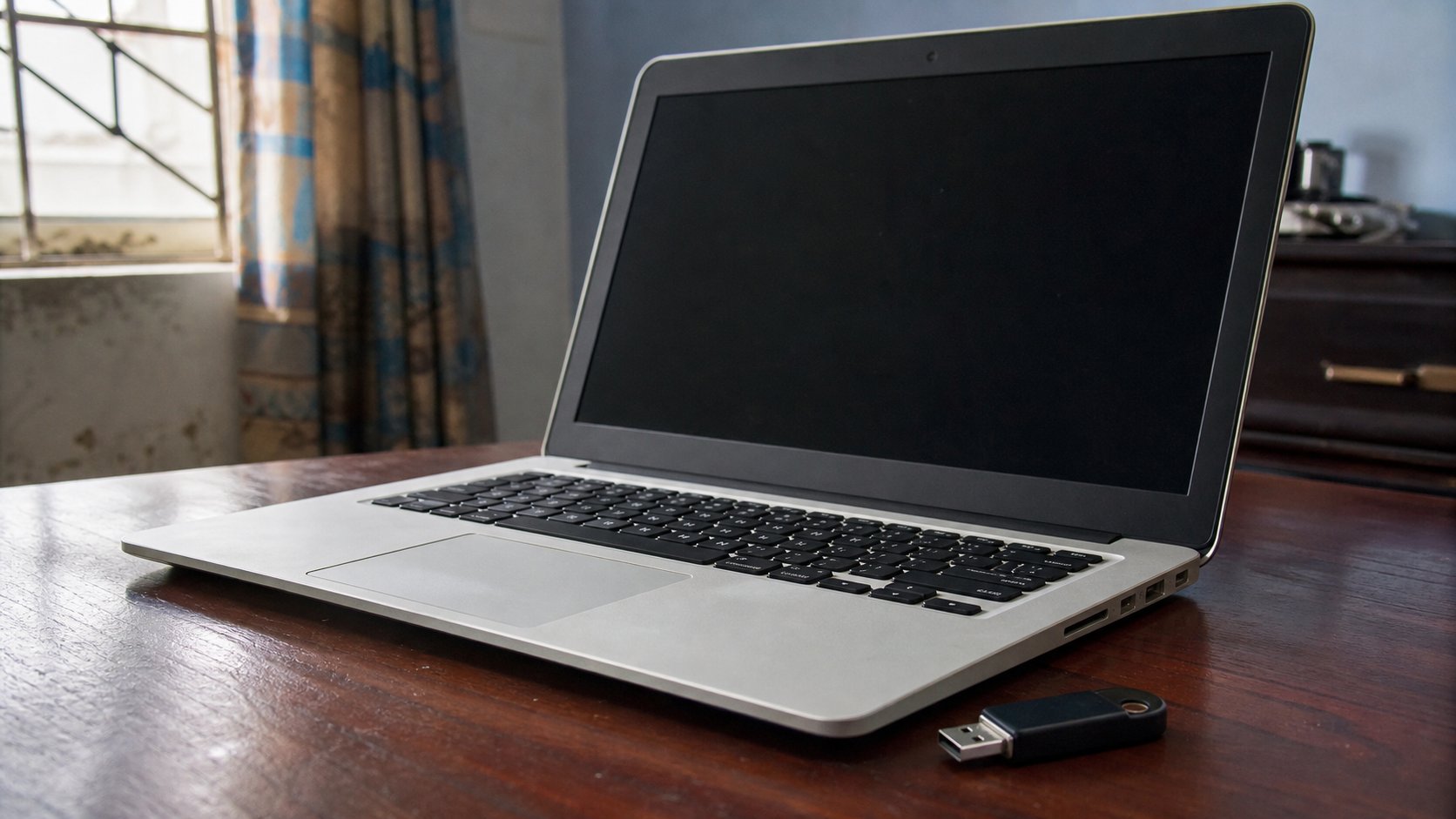
Windows may then warn: “Do you want to allow this app to make changes?” That is User Account Control, a locked door. If you started the installer on purpose, Yes. If a window you did not start is asking, No. A Mac will similarly ask you to drag an icon into Applications, or to open a file from the internet; Open is fine when you fetched it. Do not fetch installers from a WhatsApp stranger. A USB from a friend is only as safe as that friend's habits.
The boxes, walked slowly
Typical pages: welcome, licence, where to put the files, extra offers, install, finish. Licence is legal wallpaper; you will not understand it all. You should still notice a ticked box that says “set as default browser” or “install this toolbar.” Untick extras. Choose Custom or Advanced if the window offers Typical versus Custom — Typical is how extras hide. The folder it suggests, usually Program Files, is fine. Do not browse to Documents. Programs are not letters.
- Pick one program you actually need — VLC for video, or LibreOffice if you have no Word. Walk to its real site.
- Download. Open the installer. Untick anything that is not the program's name.
- Finish. Find the new icon in Start. Open it once to prove it is the guest you invited.
- Delete the installer from Downloads if you like, after it works. The program now lives in the house, not on the mat.
When Windows blocks it, and when you should listen
SmartScreen may say “Windows protected your PC.” If you are on the maker's real site and you recognise the name, More info, then Run anyway. If you do not recognise the name, Close. That warning is not always a liar. It is a cautious clerk. Treat unknown installers as you treat unknown links.
After install, a browser may have a new homepage you did not want. That is the extra guest. You will remove it in the next lesson. For today: one program, one purpose, eyes on the ticks. Installing is not dangerous because it is technical. It is dangerous because Next is easy.