Computer skills from scratch·On your own·Lesson 105 of 180
The file that goes up
 Ellis Dennis GrahamFounder, Cyber Elias Academy 2026-01-19 3 min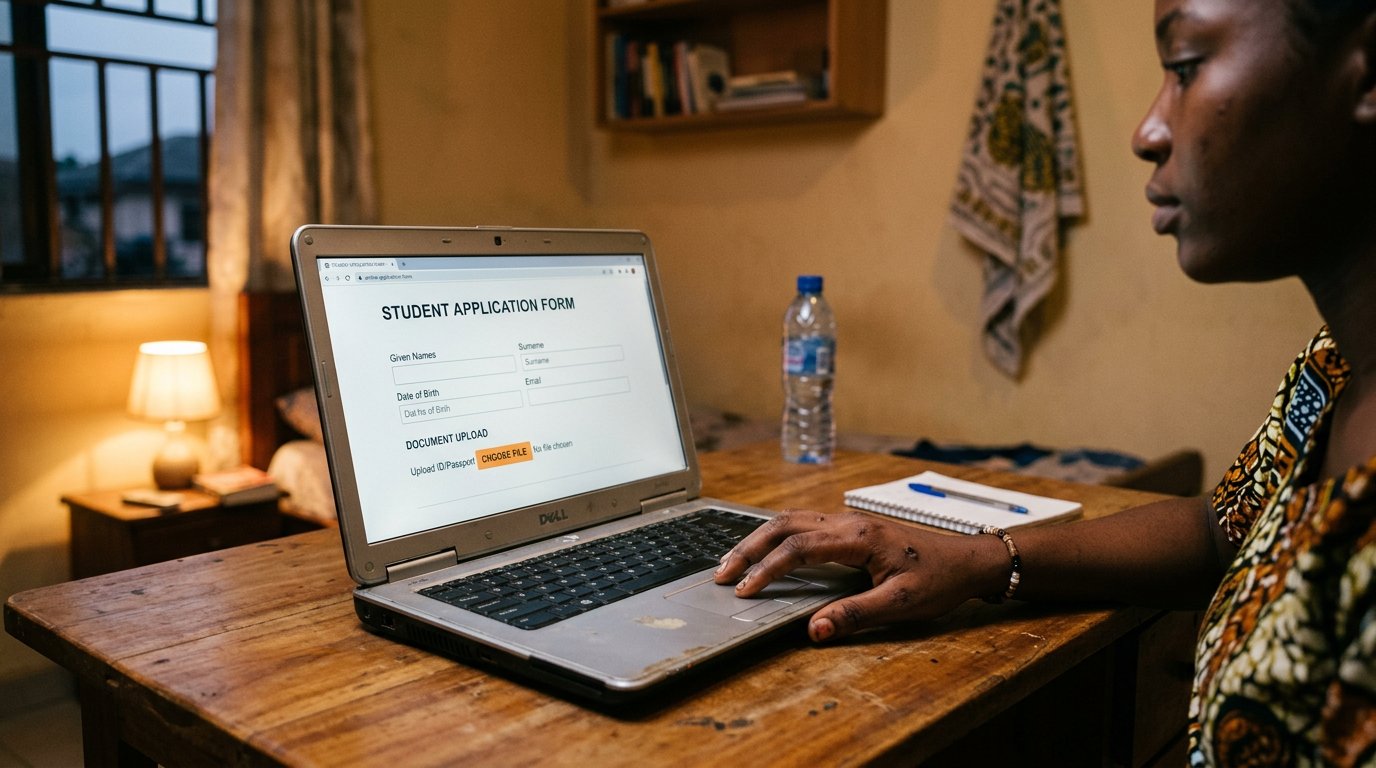
Downloads taught where files land. Applications need the other direction: choose the file, watch the bar finish, keep the slip. Uploading, done calmly.
The Downloads lesson was about files coming down — parcels landing on the mat. The other half of an online life is files going up. A job portal asks for your CV. A school asks for the certificate. A form asks for a passport photograph. Each is the same small act: the machine asks you to choose a file, you choose it, it travels up. People fear this moment more than any other in a form, and it does not deserve the fear. It deserves a slow hand.
The button has many names — Choose file, Upload, Attach, Select — but one behaviour. Tap it and a window opens onto your own rooms: Documents, Pictures, the Downloads mat. Walk to where the file lives, tap it once, and its name appears beside the button like a label on a parcel. That is the whole act. What frightens people is not the choosing. It is the size limits and the waiting.
Size limits, and the bar that must finish
Portals state limits the way airlines state luggage: maximum 500 KB, maximum 2 MB. You already know what KB and MB mean, and you already know how to shrink a photograph. When a form refuses a file for size, the answer is to shrink the file — not to blame the school, not to send the document to a stranger who offers help. When the file is accepted, a bar begins to move. Let it finish. Closing the page mid-upload is hanging up mid-sentence: the form arrives, the paper does not, and nobody writes to tell you. Wait for the word done, the green tick, or the file's name resting quietly in its slot.
On the phone, the chooser offers three doors: Camera, Files, Drive. Camera takes a fresh photograph — right for a form that wants your face today. Files walks to the scan you already made. Drive reaches what you have parked in the cloud, which the next lesson turns into a system. For papers that exist as scans, choose Files. Fresh photographs of old certificates come out crooked, with shadows like bruises.
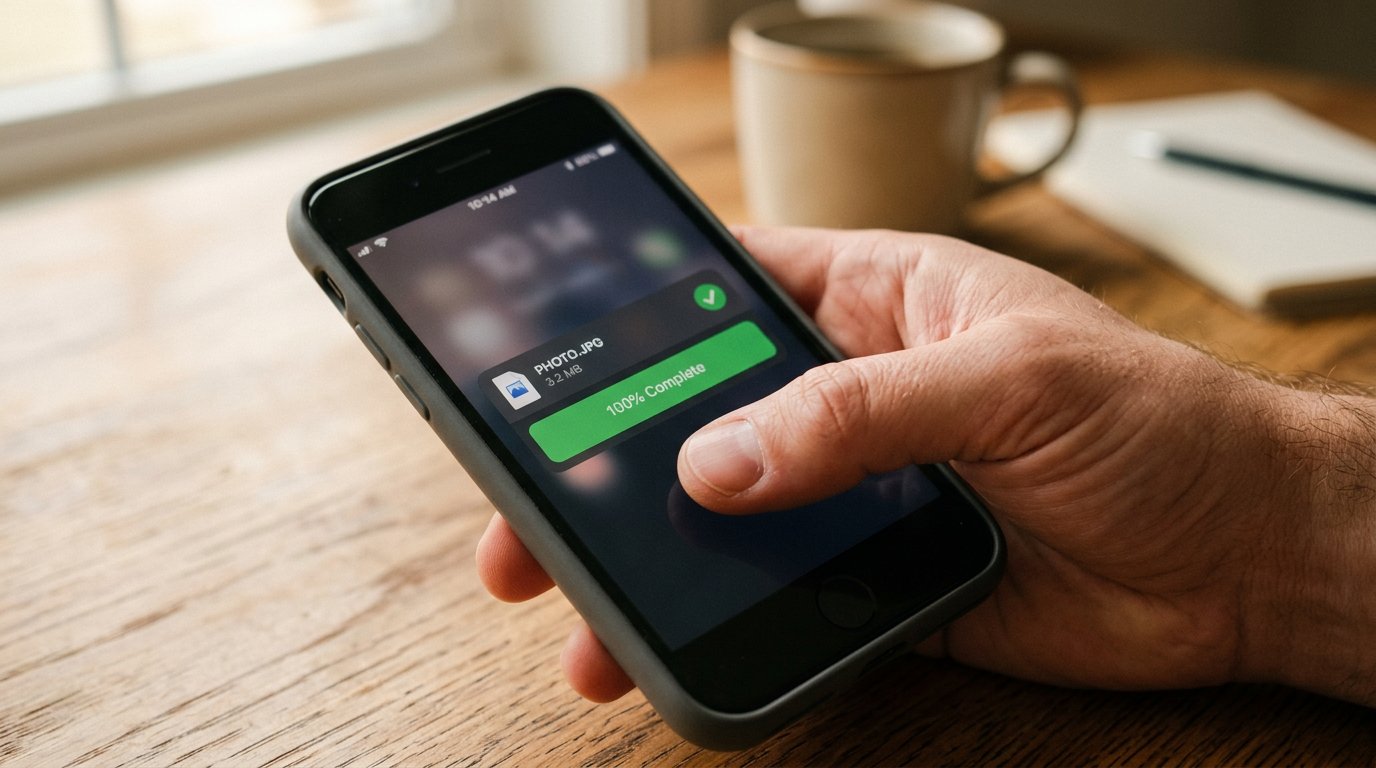
- Practise once where nothing is at stake: upload a photograph to any profile that asks. Walk the whole road for exercise.
- Before a real application, check the size limit first, then check your file's size. Match the luggage to the airline.
- Never close a page while a bar is moving. Go and wash a plate instead.
- When the tick comes, screenshot it. The slip is the proof you were there, on time, complete.
The slip is the receipt
Most portals, after an upload, show the file's name, or let you download what you submitted. Do download it, once, and look at it with your own eyes. The wrong file — the scanned WAEC where the birth certificate should be — has travelled farther than most lies, and the portal will judge it without pity. Then print or PDF the final confirmation page, the way you keep a teller's slip at the bank. Applications are lost not at the choosing but in the last ten seconds: the bar abandoned, the wrong parcel posted, the slip never kept. You are past all three now.