Computer skills from scratch·Files that travel·Lesson 27 of 180
Taking a screenshot
 Ellis Dennis GrahamFounder, Cyber Elias Academy 2026-03-19 3 min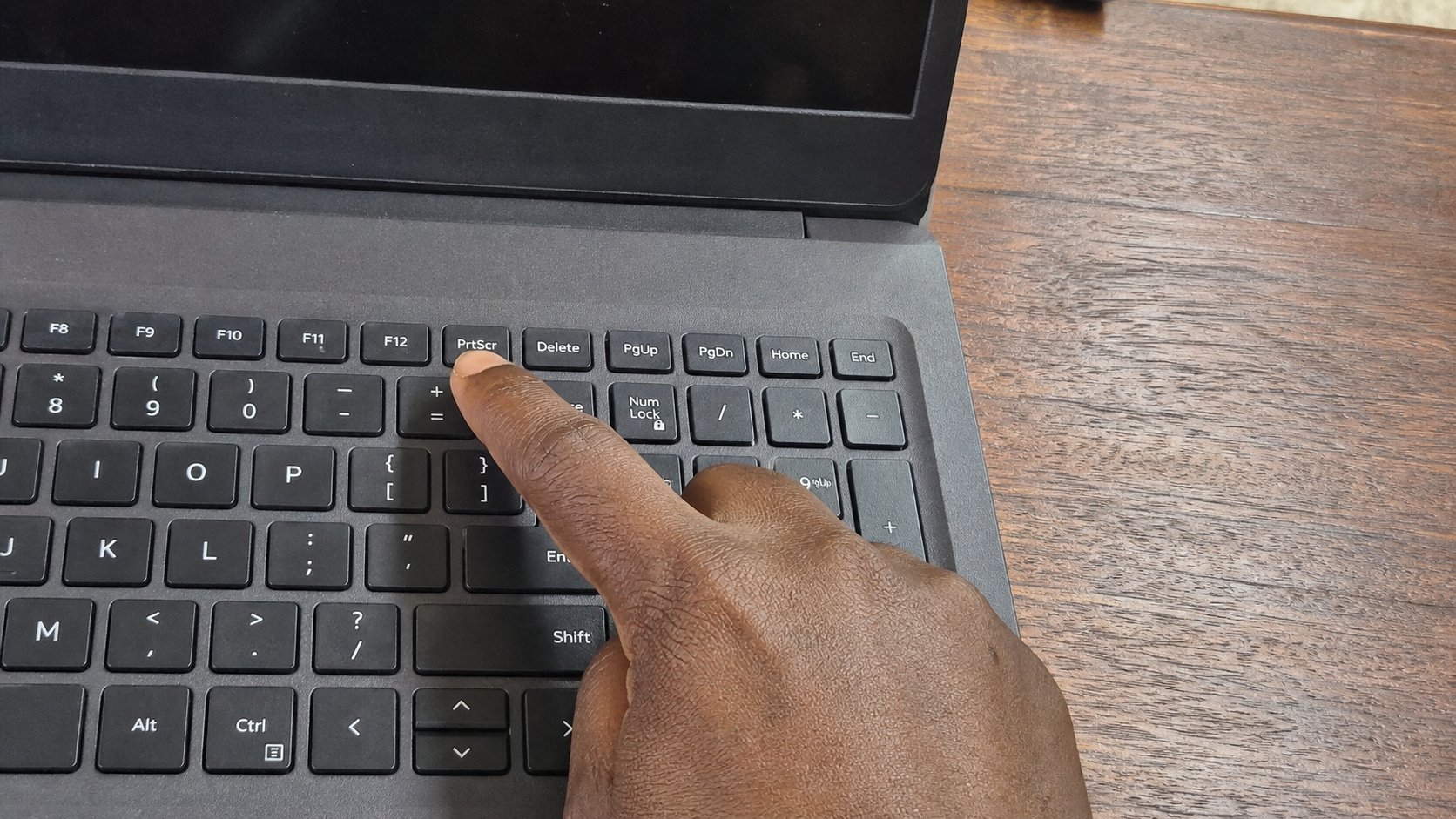
The screen can photograph itself. Print Screen is the shutter. Snipping Tool is the crop. Save it in Pictures with a name, not as a rumour in the clipboard.
A screenshot is a photograph of the screen, taken by the machine. Receipts that will not download, an error message a shop should see, a timetable that exists only as a page — the shutter is faster than a phone pointed at the laptop, and sharper. People use the phone anyway because nobody named the key. The key is Print Screen, often PrtSc, PrtScn, or a camera-and-screen symbol. This lesson is that shutter, the crop, and saving so the picture is a file.
A screenshot is not a scan of a paper. For an ID or a signed letter, a scan or a careful photo of the paper is still better. For something that already lives on the screen, photograph the screen from inside. You avoid glare, crop, and a thumb in the corner.
The whole screen, and one window
Press PrtSc (with Fn if needed). On older Windows, that only copies to the clipboard — the plate from the last lesson. You must paste into Paint or Word and then Save, or the photograph dies when you copy something else. On newer Windows, PrtSc may open Snipping Tool. Windows+Shift+S is the reliable crop: the screen greys, you drag a rectangle, the snip sits on the plate and often as a notice you can click to save.
Alt+PrtSc copies the active window only — the one you last clicked — not the whole desktop. Useful when the desktop has a mess you do not want in the picture. Windows+PrtSc, on many machines, saves a file immediately into Pictures, Screenshots. That is the kindest version: a file, a folder, a name the machine chose. Rename it.
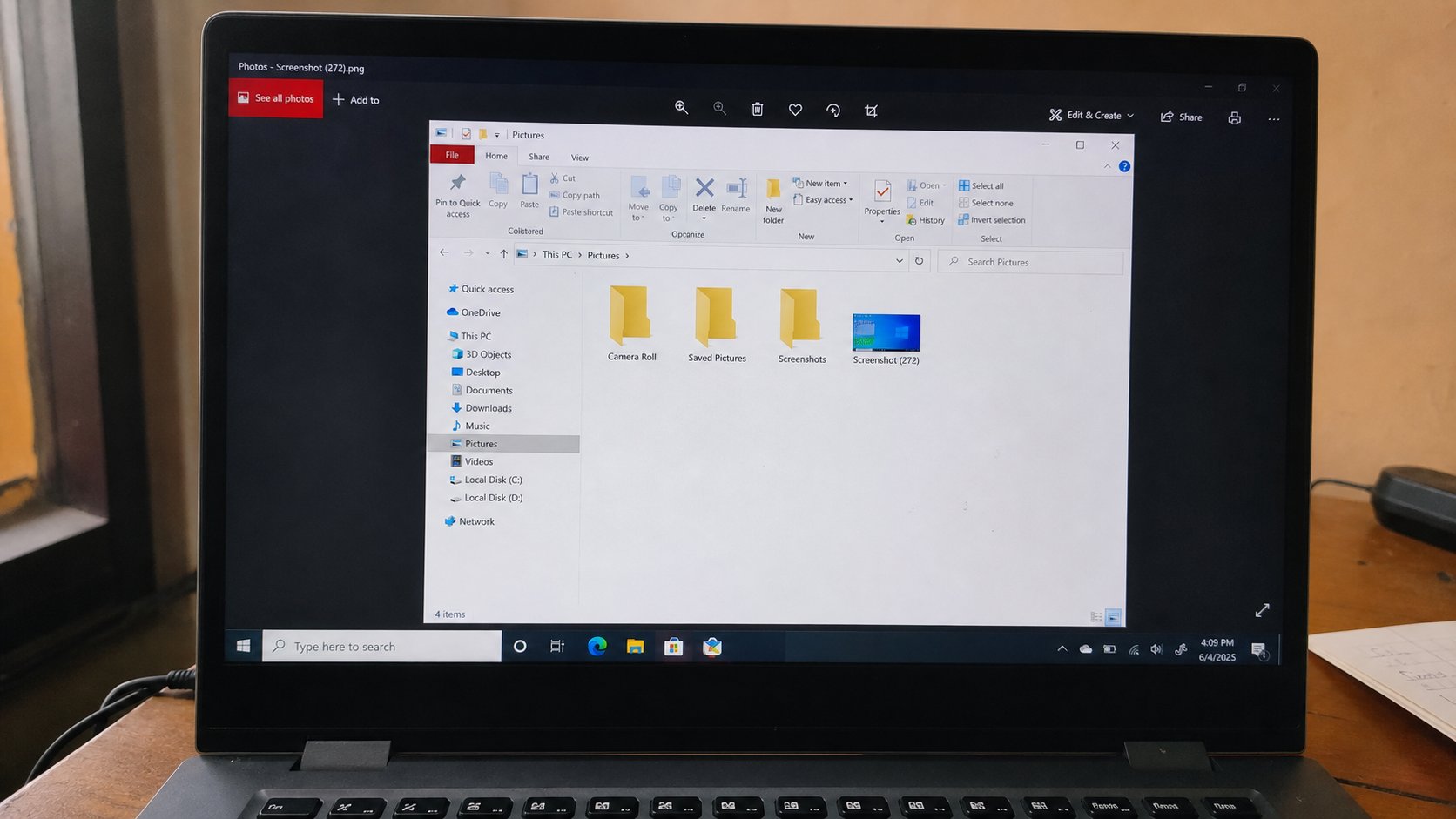
- Open a simple page. Press Windows+Shift+S. Drag across the bit you want.
- Click the notice if it appears, or open Paint and Ctrl+V.
- Save as practice-snip in Pictures. Close everything. Open the file. That is proof.
- Try Windows+PrtSc if your machine has it. Look in Pictures/Screenshots.
Errors, receipts, and what not to photograph
When something fails, screenshot the error before you click OK. The OK dismisses the only sentence a helper can use. When a payment page shows a reference, screenshot before you leave. When a form refuses a file, screenshot the red text. Do not screenshot a password, an OTP, or a bank balance to send in a group. Crop if you must send proof of a transfer — amount and reference, not the whole dashboard.
Phones already know this gesture: volume down and power, or a swipe. Same idea. For a laptop problem, a laptop screenshot is clearer than a phone photo of the laptop. Save it, name it, then send it as a document if the other person must read the words. WhatsApp will squash it if you send it as a camera picture. You have heard that warning. It still applies to snips.