Computer skills from scratch·Finding your way·Lesson 34 of 180
The Start menu and the taskbar as a map
 Ellis Dennis GrahamFounder, Cyber Elias Academy 2026-04-06 3 min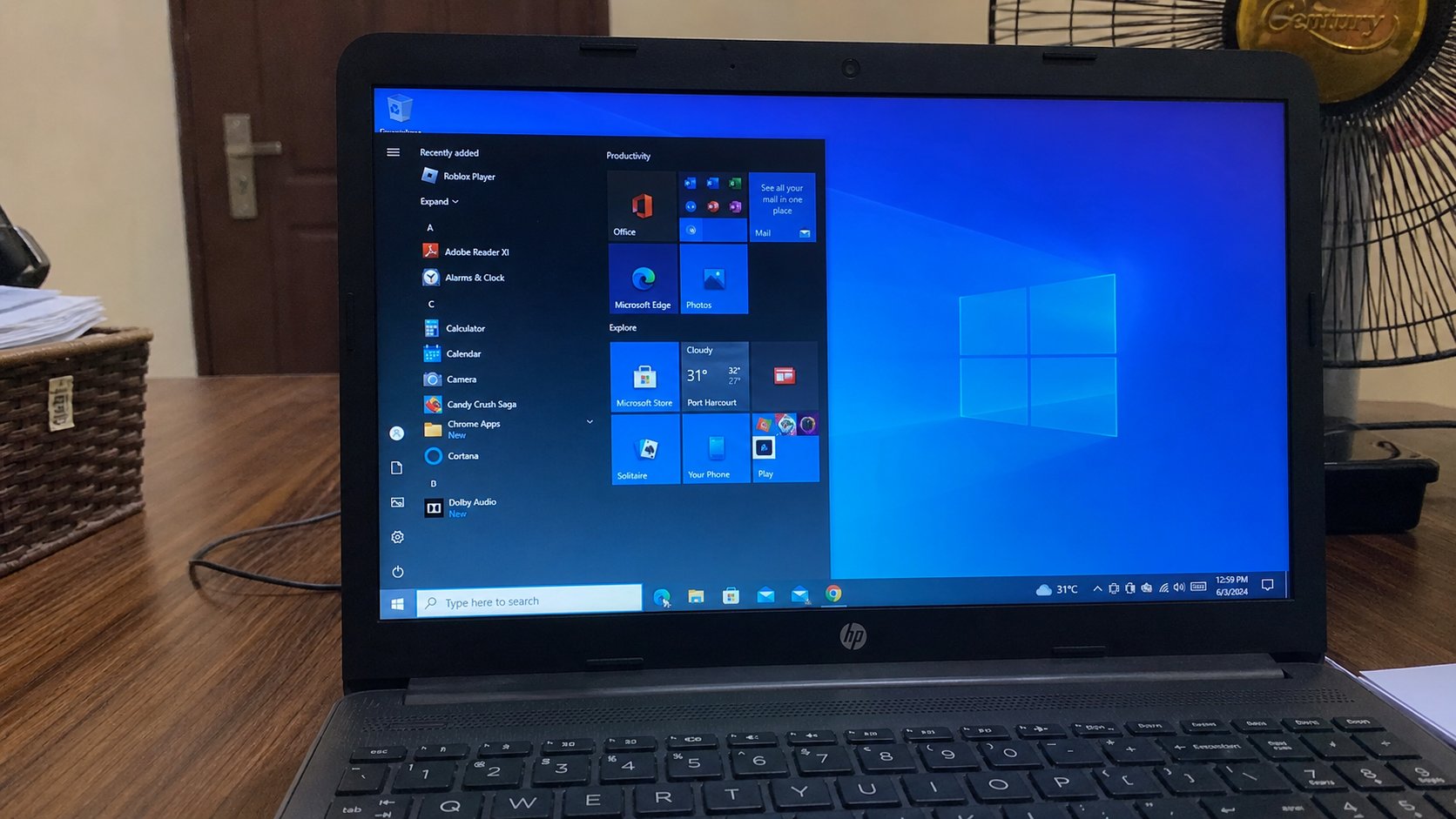
Start is the front door. The taskbar is the row of rooms you are in. Pin what you use. Do not confuse a pin with the program itself.
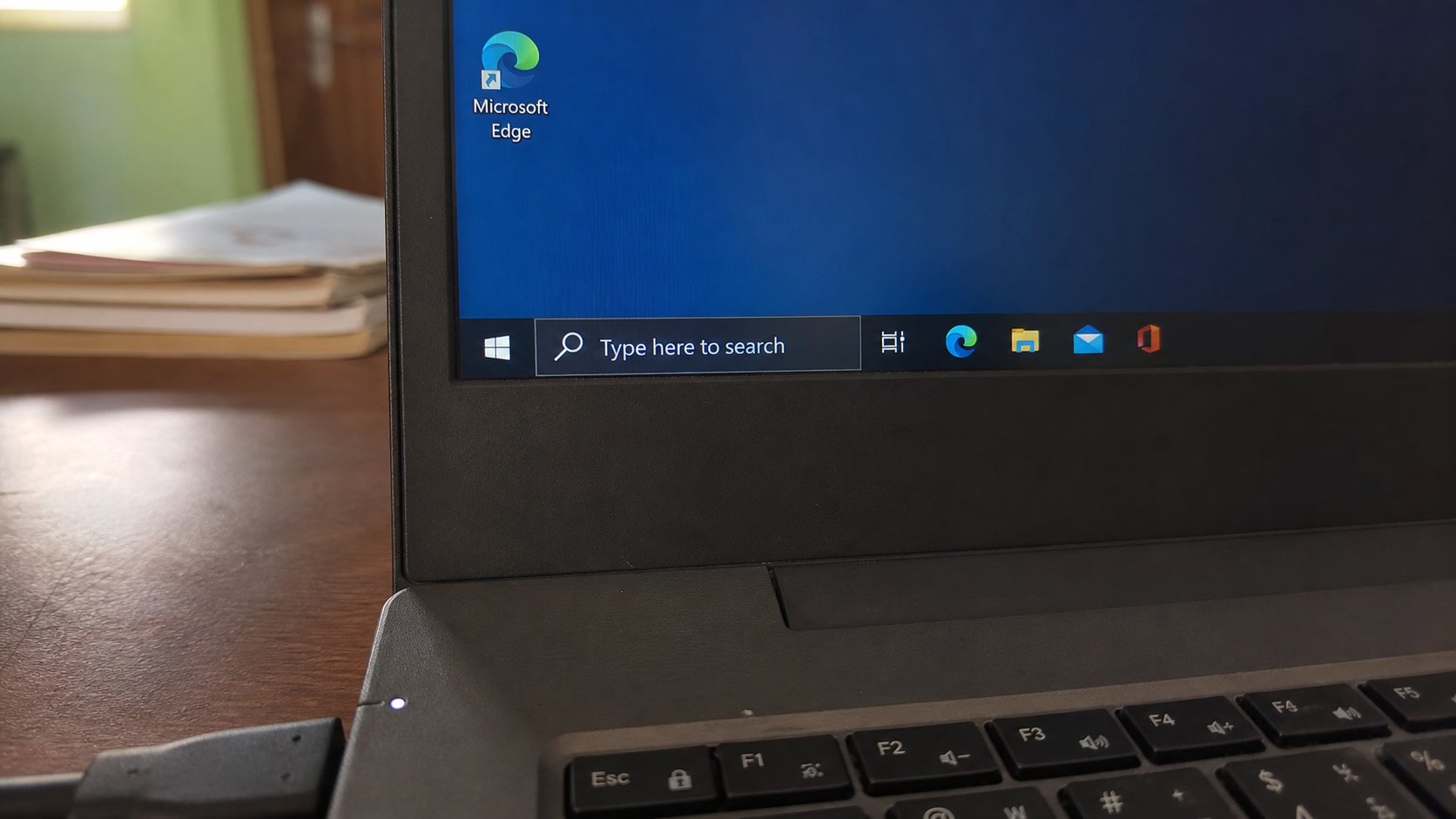
Windows hides most of the house until you open the front door. That door is Start — the four squares, or the Windows logo, bottom-left. The strip along the bottom is the taskbar: clocks, Wi‑Fi, and the programs that are open or pinned. People hunt on the Desktop for Word because they can see icons there. Word may never have lived on the Desktop. It lives behind Start. This lesson is the map of the ground floor.
Click Start. A list, a search box, a power button you already used to shut down. Type the first letters of what you want — word, excel, chrome, settings — and Enter. That search is faster than scrolling a mural of tiles. If you do this every day for one program, pin it, so the door remembers.
Pin, unpin, open
Right-click a program in Start, Pin to Start, or Pin to taskbar. Taskbar pins sit on the strip even when the program is closed. Start pins sit in the menu. Neither moves the program; both are signs on the street, like shortcuts. Unpin if the strip is crowded. Right-click, Unpin. The program is still in the house. You have only taken down the sign.
Open programs show a little line or a glow on their taskbar icon. Hover to see the window. Right-click the icon for a jump list — recent files in Word, extra windows. Clicking the icon of an open program minimises it, which is hiding, not closing. Click again to bring it back. The X on the window is close. The line on the taskbar is still in the room.
- Open Start. Type notepad. Enter. Close it.
- Open Start, type notepad again, right-click, Pin to taskbar.
- Click the new taskbar icon. Close Notepad with the X. The icon stays. That is a pin, not an open program.
- Right-click, Unpin when you are done practising, or keep it if you write every day.
The tray, and a missing taskbar
The far right is the system tray: volume, network, battery, hidden extras behind a small arrow. Those extras are background guests. You met them when the machine was slow. You do not need to empty the tray tonight. Know that the fan of Wi‑Fi lives there, and the clock, and sometimes a tiny USB-eject icon.
If the taskbar vanished, it may be set to hide: move the pointer to the bottom edge. If Start vanished after a shock, Ctrl+Esc often opens it, or the Windows key. If the whole bar is on the side, you or a helper dragged it; drag it back to the bottom from an empty stretch, after unlocking it if Windows asks. The map is ordinary. When it moves, it is almost never gone. It is only standing somewhere you are not looking.