Computer skills from scratch·Finding your way·Lesson 33 of 180
Searching the computer for a lost file
 Ellis Dennis GrahamFounder, Cyber Elias Academy 2026-04-03 3 min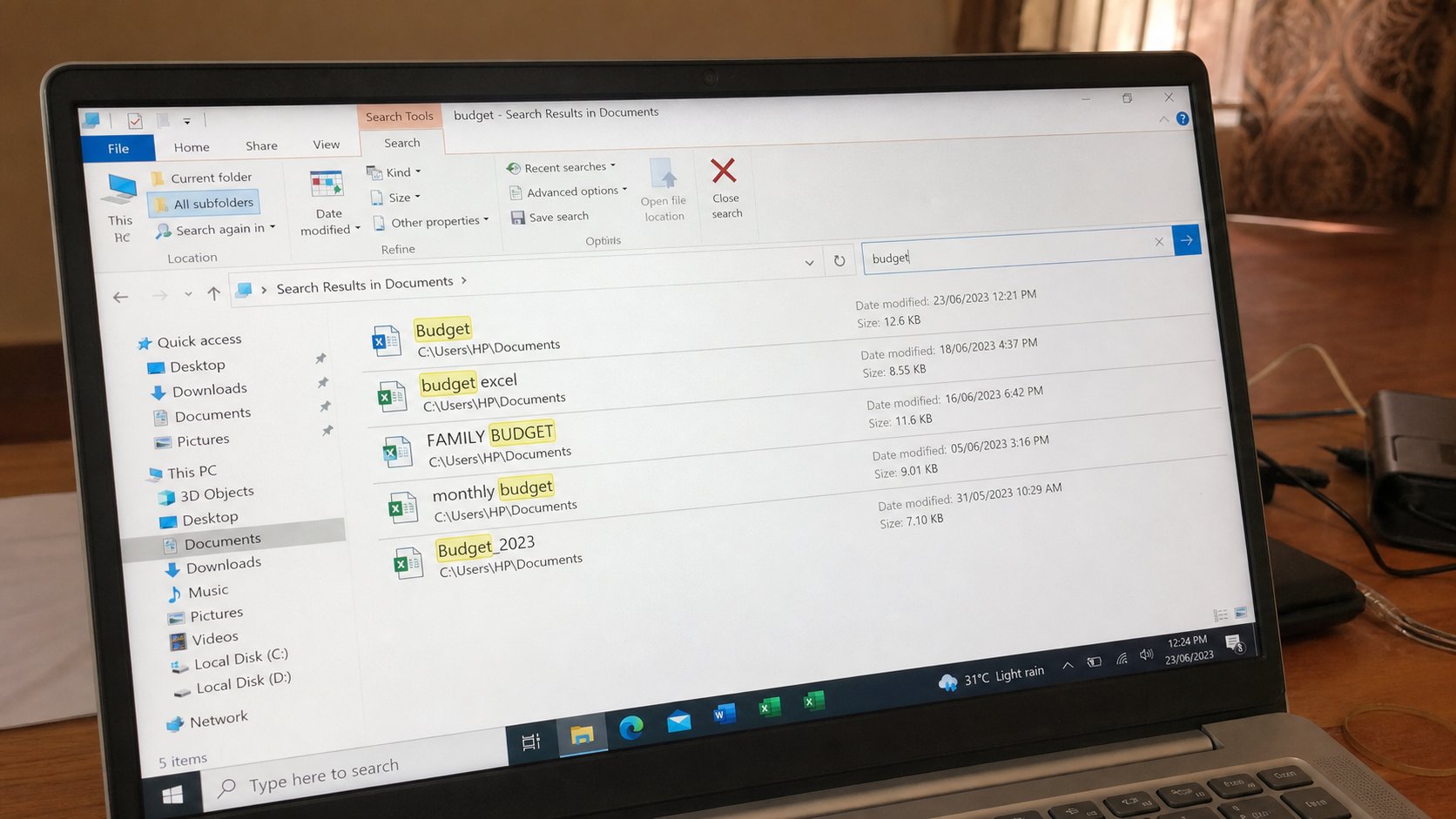
Search is a clerk who can spell part of a name. Start in Documents, not the whole disk. One word you remember is enough if you named it like a human.
A lost file is usually not lost. It is in Downloads, or on the Desktop, or in a folder you made in a burst of virtue and then forgot. Panic-clicking makes a second copy, then a third. Search is slower in the hands and faster in the outcome. This lesson is the search box, where to stand when you search, and what to do when the clerk shrugs.
Windows has two clerks. The taskbar search looks at programs, settings, and some files. File Explorer's box, top-right of a folder window, looks in the room you are standing in, and its inner rooms. Start Explorer in Documents, then search. If you start at This PC, you will wait while it rummages through Windows itself, which is a large house of parts you do not want.
Stand in the right room
Open Documents. Click the search box. Type a word you are sure of. Wait for the green bar to finish. If nothing, try Downloads. Then Desktop. Then Pictures. Those four rooms hold almost all human work. If you used a USB last week, plug it in and search there too. A file on a flash drive is not in Documents, however much you remember saving “on the computer.”
If you remember when, Explorer can sort results by date. If you remember it was a PDF, type .pdf in the box after a space, or use the filter chips Windows offers: Kind, Document. A word plus a type is a short question: fees .pdf. That is enough.

- Save a file named find-me-practice in Documents/School if you have that room, or in Documents.
- Go to Desktop. Search find-me. Confirm it does not appear, or appears as a path pointing at Documents.
- Go to Documents. Search find-me. Open it from the result.
- That is the difference between the whole market and the right stall.
When search finds nothing
You may have named it document. Search cannot invent a name you never gave. Think of a word inside the file — Windows can search inside many documents, slower. Think of the program: Word's Recent list, Excel's, the browser's downloads history. The last is a list of what landed on the mat, with dates. A bounced download may never have landed.
Recycle Bin next, as you learned. Then the USB. Then ask: did I save at all, or only type? If the computer restarted without Ctrl+S, there is no file. That is not a search failure. After you find it, move it to the room it should have lived in, and rename it so next term's clerk has something to hold. Search is a rescue. Rooms are how you stop needing rescue every Friday.