Computer skills from scratch·Keeping the machine·Lesson 12 of 180
Getting photographs off the phone
 Ellis Dennis GrahamFounder, Cyber Elias Academy 2026-02-09 3 min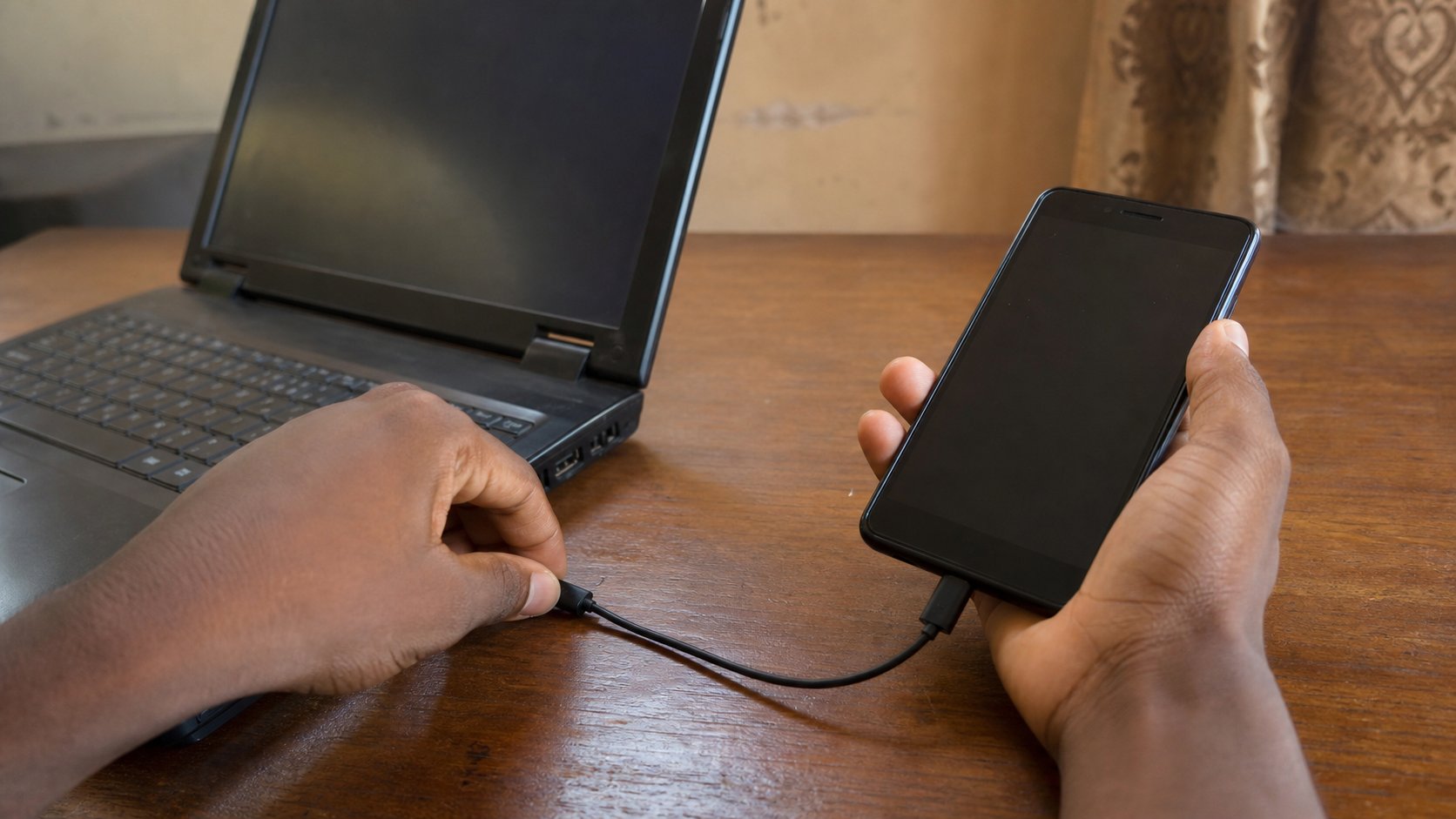
The gallery is a pocket. The computer is a drawer. A cable, a folder called Pictures, and names that will still make sense when the phone is gone.
The phone is a camera you already know. The gallery fills until the phone is slow, or until it falls in a basin, or until the shop formats it “to repair the screen.” Photographs that live only in the pocket are not kept. They are borrowed. This lesson is how to move them into the Pictures drawer on the computer, name a few that matter, and leave the rest without drowning.
Three ordinary roads exist. A USB cable from the phone to the laptop. A cloud — Google Photos, iCloud — if you already signed in and the data can stand it. Bluetooth, which is slow and fine for three pictures, not for a wedding. Start with the cable. It does not need airtime. It does not compress the file into WhatsApp soup.
The cable, said slowly
Unlock the phone first. A locked phone often shows as an empty drive. Plug the cable into the phone and into a USB port on the computer. On Android, a notice usually appears: charging only, or file transfer. Choose file transfer, or MTP, or the words that mean “share files.” On an iPhone, the computer may ask you to trust this computer; tap Trust, then the passcode. Wait. A new device should appear in File Explorer or Finder, with a name like the phone's model.
Open that device as you would a USB drive. On Android you will often walk through Internal storage, then DCIM, then Camera. That Camera folder is the roll. On an iPhone, pictures may appear in a Photos app on the computer rather than as ordinary files — follow that window; it is still a drawer. Do not start dragging yet. First, on the computer, open Pictures and make a folder with a human name: 2026-family, or church-harvest, or id-scans. Then copy.
Copy, do not cut
Select the photographs you want. Click the first, hold Shift, click the last, for a block. Or hold Ctrl and click to pick. Copy — Ctrl+C — then open your new folder and paste. Wait until the progress box finishes. A phone cable that wiggles will corrupt a file in the middle, the way a yanked USB does. When the copy is done, open two or three photographs on the computer to prove they are really there. Only then may you delete from the phone, and only if you need the space. Copy is the safe verb. Cut is how people empty a pocket into a hole.
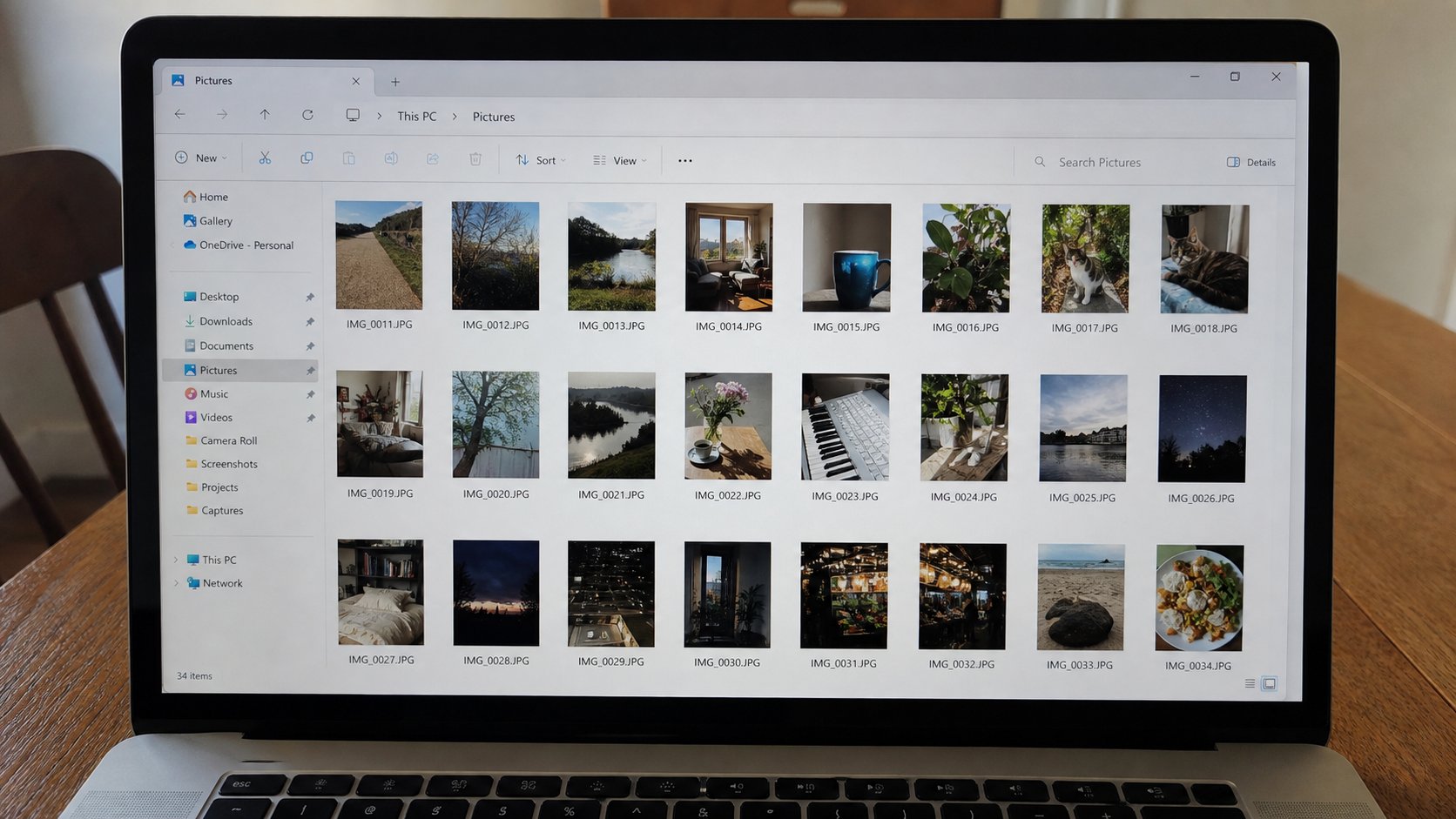
- Plug the phone in. Unlock it. Choose file transfer if asked.
- On the computer, make Pictures/practice-roll.
- Copy five photographs into it. Open one. Confirm you can see it with the cable unplugged.
- Rename one file to something you would search for. Leave the rest until you care.
What to keep, what to leave
You do not need every blurry plate of rice. You need the passport, the receipt, the group photograph from a funeral, the child's first day. Those get names. Screenshots of a bank OTP can go. WhatsApp images that were compressed twice can go if the original is already in Pictures. A full dump of DCIM is fine as a first backup; sorting can wait. What cannot wait is one copy off the phone.
If there is no cable that works, email a few originals to yourself as documents, or use the computer's phone-link app if it already exists. Do not send the wedding through WhatsApp to “save them.” You will save a fog. And when the copy is on the computer, the next lesson but one — backup — is how that drawer survives a stolen laptop. For today: pocket to drawer, cable, copy, look, then maybe delete.