Computer skills from scratch·Spreadsheets and sharing·Lesson 74 of 180
Drag and drop without losing the file
 Ellis Dennis GrahamFounder, Cyber Elias Academy 2026-07-16 3 min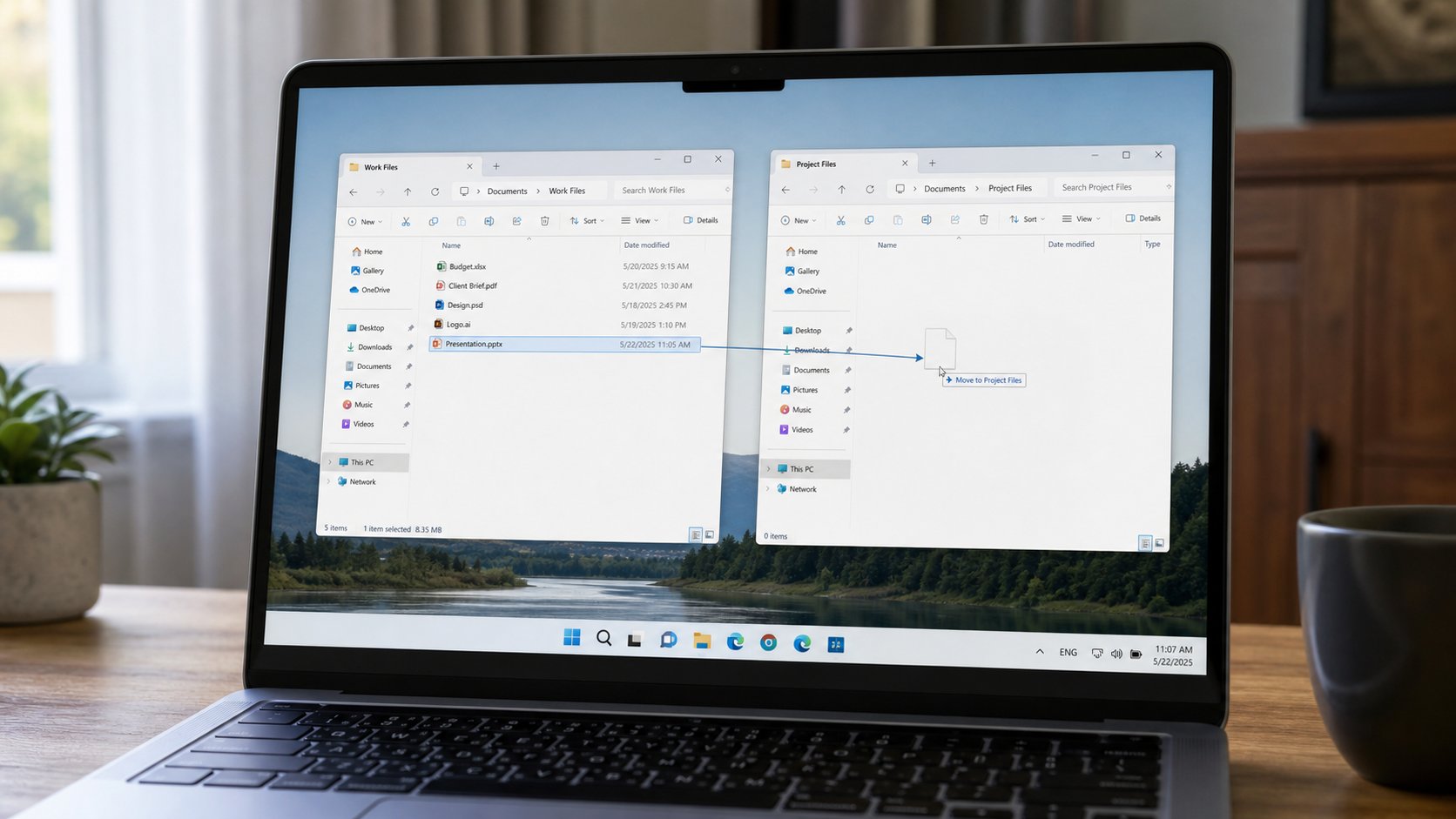
Hold, move, release. Inside one disk, that is often a move. Onto a USB, it is often a copy. Watch the ghost icon. Drop on a folder, not on a hole.
Drag and drop is pick up, walk, put down. Click a file, keep the button held, move, release on a folder. The file goes, or a copy goes, depending on the walk. People drop onto the gap between windows and the file vanishes into a path they did not mean — Desktop, a neighbour folder, Recycle Bin if they drifted onto the Bin. This lesson is a deliberate drop, the difference between move and copy, and what to do when the ghost icon lies.
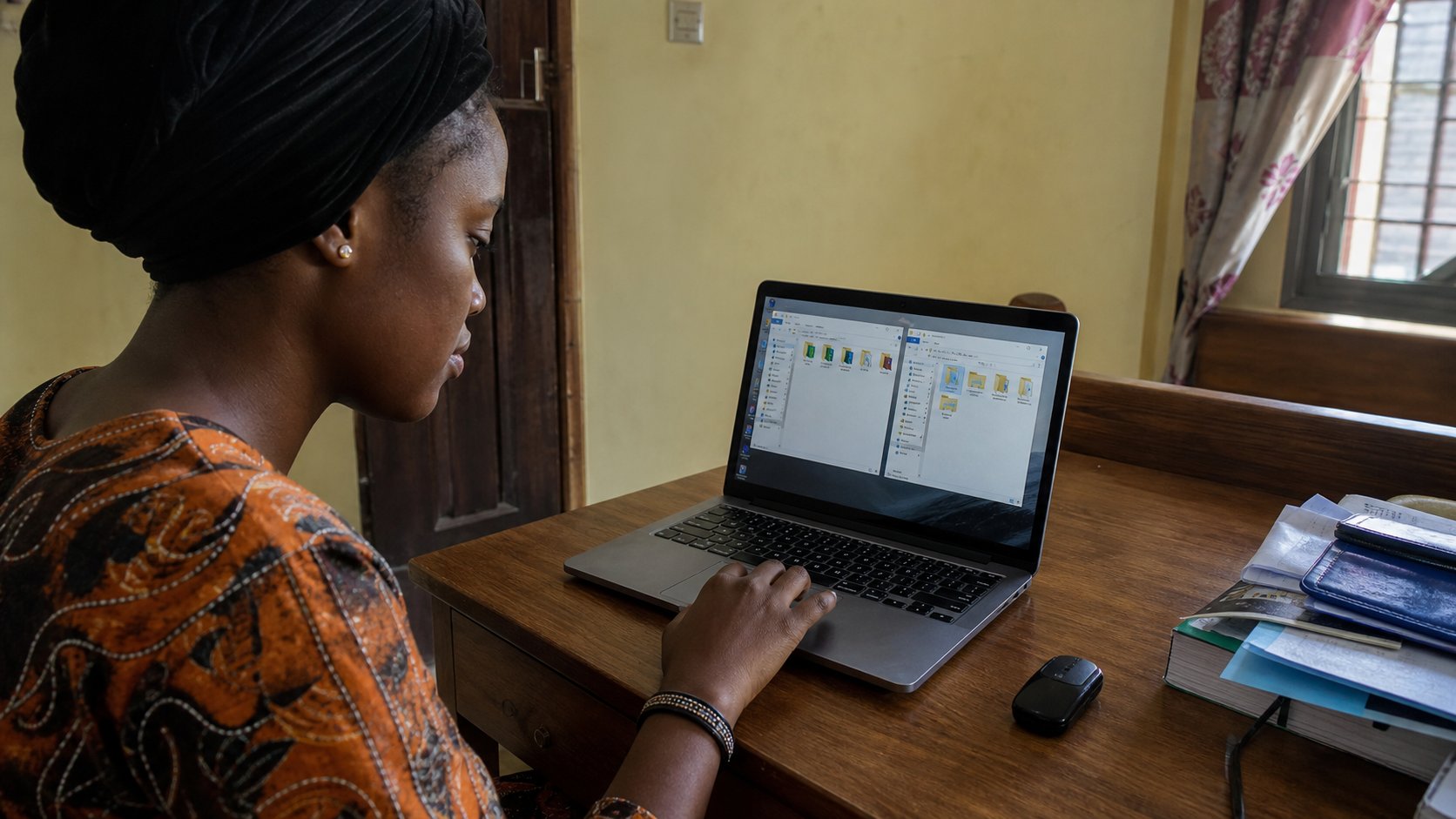
Open two windows: Documents on the left, the USB or School/2026 on the right. Click the file in the left. Hold. Drag until the right folder is highlighted — a box or a name that lights. Release. If you are walking inside the same disk, Windows often moves: the original leaves the first room. If you are walking to a USB, it often copies: both rooms have it. A small plus sign on the ghost means copy. No plus can mean move. Hold Ctrl while you drop to force a copy. Hold Shift to force a move. If you cannot remember, copy with Ctrl+C and paste. The long way is still correct.
When it disappears
Undo in the folder — Ctrl+Z — can put a moved file back, once, if you have not done something else. Search the rooms you know. Check Desktop. Check Recycle Bin if the path crossed the Bin. Check the USB. A drop that looked like a copy to a stick that then ejected early can corrupt, as a yanked USB does. Wait for the progress box. Then open the file from the new room before you delete the old one. Copy, look, then delete, is still the religion. Drag is only a faster copy or move.
Dragging a file onto a Word window may insert it as a picture or an attachment inside the letter. Dragging onto a browser may upload it to a site you did not mean to feed. If you did not mean that, undo in Word, or close the tab without sending. Drag onto folders, not onto programs, until you are sure.
- Copy a practice file first, so the original is safe.
- Open Documents and a second folder. Drag the copy. Confirm which room it lives in now.
- If it moved and you wanted both, copy it back. Next time hold Ctrl, or use Ctrl+C.
- Do not drag the only wedding folder onto a USB and then empty the laptop before you have opened a photo from the stick.
On a trackpad, and on a phone
Trackpads make drag fussy: the finger lifts, the drop fires early. A mouse is kinder for this one act. On a phone, hold a photo, then a share sheet — that is not the same as a Windows move. Do not practise drag with files you cannot replace. Practise with delete-practice, zip-practice, the names you already made. When the drop is boring, you have learned it. Boring is the goal. Drama is a file in a hole.