Computer skills from scratch·Other people’s computers·Lesson 46 of 180
Bookmarks you can find again
 Ellis Dennis GrahamFounder, Cyber Elias Academy 2026-05-06 3 min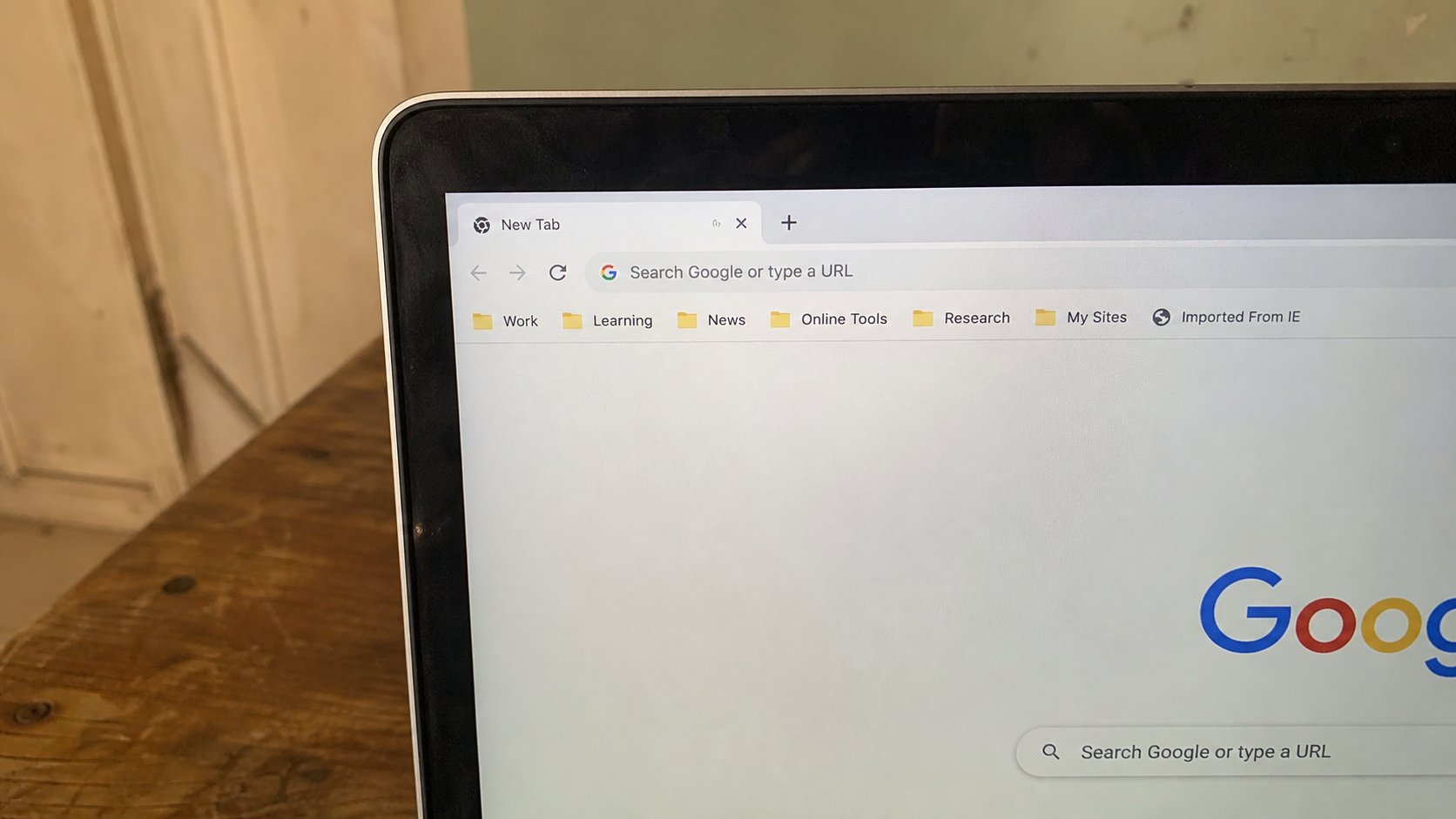
The star is a pin in a map. Name it. Put it in a folder. The address bar's memory is not a filing cabinet. A bookmark is.
You already know the address bar and the real street. A bookmark is how you stop searching for your own bank every Saturday. The star at the end of the address bar saves the page you are on. People click the star, then never look at Bookmarks again, then search, then click the wrong result. The pin was made. The map was never opened. This lesson is naming the pin, putting it in a room, and finding it on purpose.
Click the star. A small box: name, and a folder. The name should be a word you would say — First Bank, JAMB, CEA, WAEC — not the long title the site gave itself. The folder is Bookmarks bar if you want it on the strip under the address, or Other, or a folder you make: School, Money, Church. Confirm. The star fills in. That is the pin dropped.
The bar, the menu, the folders
Right-click under the address bar if you cannot see the strip: Show bookmarks bar, Always. Drag a pin left or right. Right-click a pin to rename or delete. Delete removes the pin, not the website. The bank still exists. You only took the pin out of your map.
Folders on the bar are envelopes. A folder called School can hold CEA, JAMB, the portal. Click the folder, then the name. That is the same idea as Documents/School. If you bookmark on a phone, that pin may live in the Google account if you signed the browser in. On a Guest window, bookmarks die when Guest closes. You learned that bag.
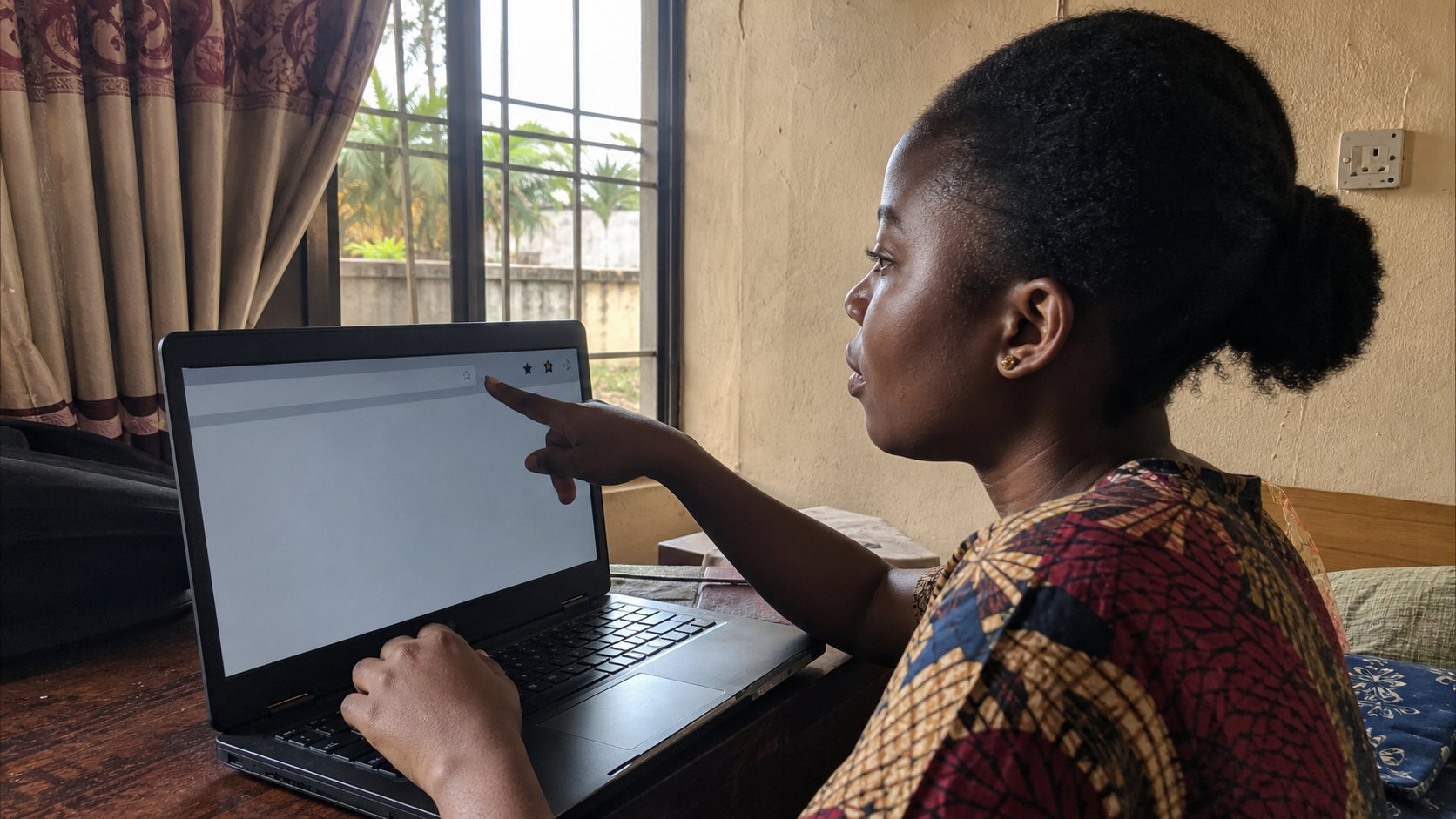
- Open cea.ng. Click the star. Name it CEA. Put it on the bookmarks bar.
- Open a second site you actually use. Star it. Name it in one word.
- Click the CEA pin. Confirm you arrive without typing.
- Delete a pin you made by accident. Confirm the site still opens if you type the address. The pin was not the house.
What not to pin
Do not pin a page you reached from a strange link. Pin the real street after you typed it. Do not pin “login” pages that are really searches. Do not pin fifty news articles; that is history, next lesson. A bookmark is for a door you will use again. An article is a room you visited.
If the bar vanished after an update, it is hiding, not gone. Right-click, show it. If pins duplicated, delete the extras. If you use two computers, signing the browser into your Google account can copy pins. That is useful and it means the bag travels. On a shared computer, do not sign the house browser into your account just for pins. Type the few addresses, or use your profile. The star is a servant. It is not a reason to leave the keys on the table.