This lesson shows you where your data goes. You will read the usage screen, find the apps that spend most, and change three settings that stop a bundle disappearing in a week.
Data is spent in the background as well as in front of you. Updates, photo backups, and automatic video play continue while the phone sits in your pocket.
What you will need
- A phone with data that runs out faster than expected.
- The network's bundle size, which you should write down.
- About twenty minutes.
Read the usage screen
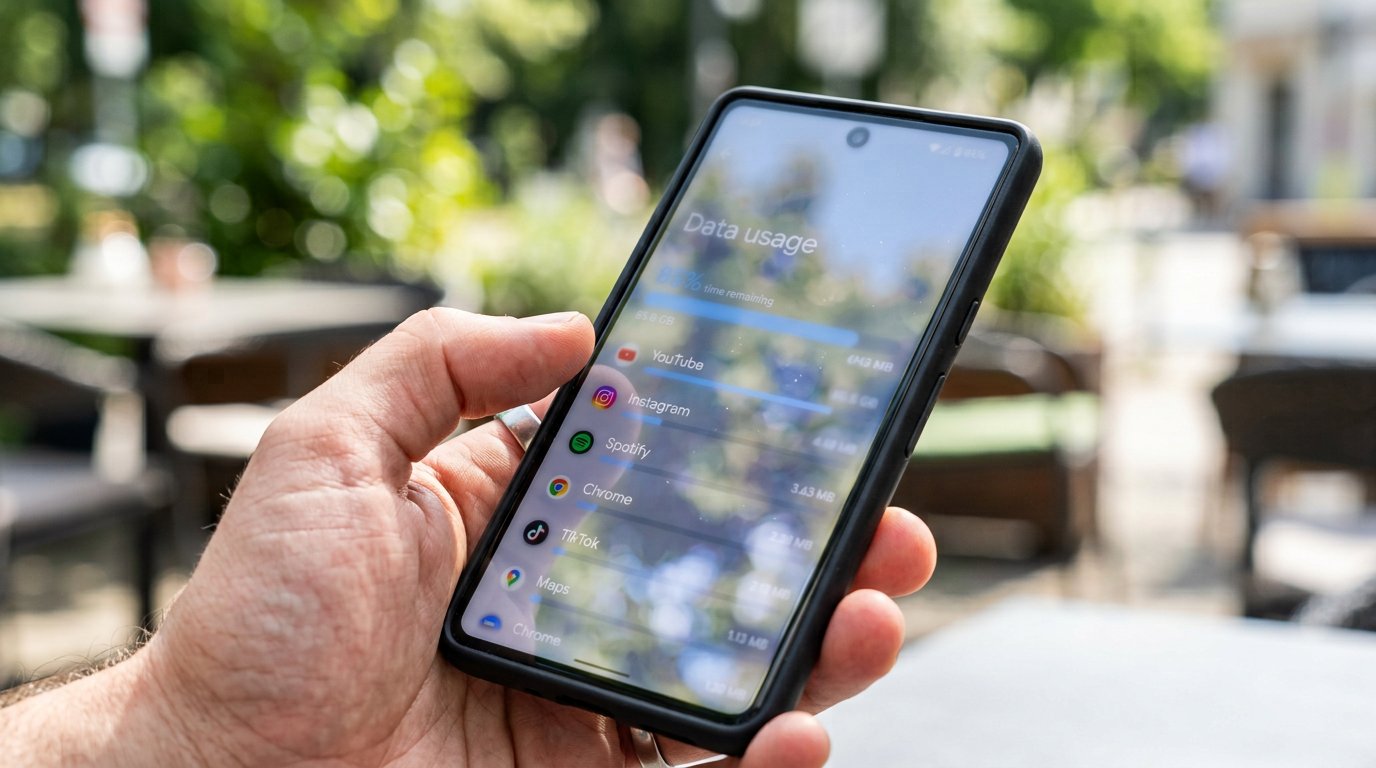
- Open Settings, then Network, then Data usage, on Android.
- On an iPhone, open Settings, then Mobile Data, and scroll down the list.
- Set the cycle date to the day your bundle renews, so the count matches.
- Read the list from largest to smallest.
- Tap an app to see how much was background use.
- Compare the total with the bundle size, which is the number that matters.
You will see one or two apps far ahead of the rest, usually video, social media, or a messaging app with automatic downloads. That short list is the whole problem in most cases.
It looks like browsing uses little and video is the cost. That is mostly true, and automatic video play in a social feed is where a bundle goes without a single deliberate video.
The three settings that save most
- Turn off automatic media download in WhatsApp, under Storage and data.
- Set social apps to play video only on wifi, which stops silent spending in a feed.
- Set app updates in the store to wifi only.
- Turn on data saver, which tells apps to wait for wifi.
- Set a monthly warning at eighty per cent of your bundle.
- Restrict background data for the two largest apps.
The data saver icon will appear in the status bar, usually a small ring, which tells you it is working. Some pictures will load only when you tap them, and that is the saving.

A notebook that settles arguments
Write the bundle size and the date you bought it. When it finishes early, the notebook tells you whether the phone or the network is at fault.
- Date bought, bundle size, and the price paid.
- The date the bundle finished, and how many days it lasted.
- The usage screen total on that date.
- Any day when you used the hotspot, since that spends fastest.
- A note on what the network's app reported, if it differs.
- One line on what you will change next month.
None of this needs a data-tracking app. The phone's own screen plus a page in a notebook answers almost every question.
Do not worry about losing features by turning things off. Pictures and videos still load when you tap them, and the saving happens quietly in the background.

Troubleshooting
There is a way through each one.
- The bundle finished in two days: check the hotspot, which spends fastest.
- The usage screen and the network disagree: the network counts from a different date, so compare the same days.
- Data is used while you sleep: background updates. Restrict them for the largest apps.
- The phone shows no usage at all: the cycle date is wrong, or the SIM was reset.
- Video plays by itself in a feed: set the app to wifi only, which is one switch.
- A bundle vanished after one video call: calls use a great deal. Use wifi for long calls.
Your turn
Do the three settings, then record one week.
- Set the cycle date to your renewal day.
- Turn off automatic media download in WhatsApp.
- Set the store to update on wifi only.
- Write down the bundle size and today's date.
- Check the total in seven days and compare.
You can now see and control what your data buys. In the next lesson you will use a card and an ATM without giving anything away.
Free browser practice lab
Query datasets in SQL DataLab
Run SELECT, JOIN, and GROUP BY queries on Nigerian orders and payments.