Computer skills from scratch·Finding your way·Lesson 39 of 180
USB devices that are not flash drives
 Ellis Dennis GrahamFounder, Cyber Elias Academy 2026-04-18 3 min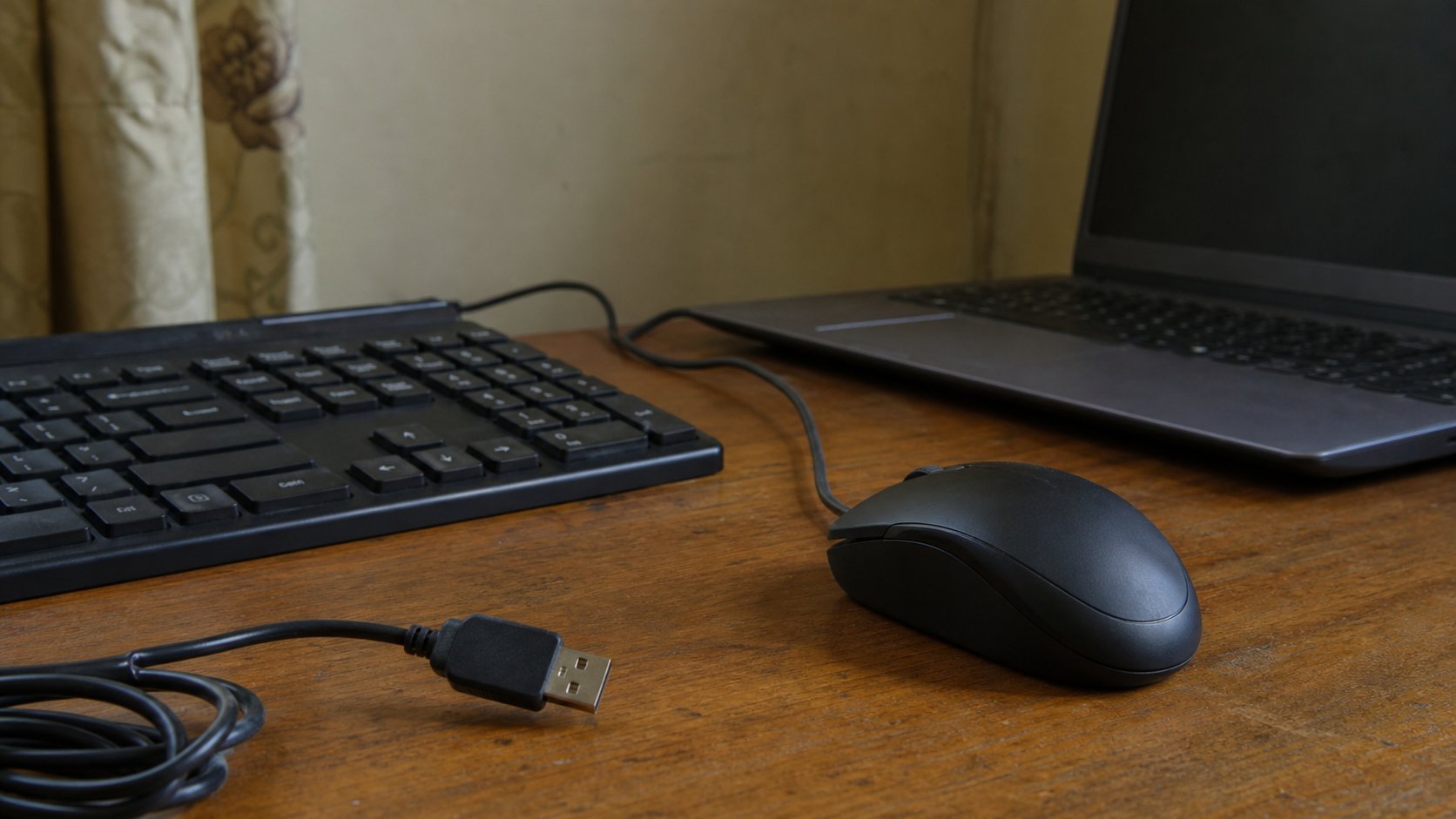
The same hole takes a mouse, a keyboard, a printer, a dongle. Plug in, wait, look at the lights. The computer usually knows the guest. You still have to seat the plug.
You used USB for a flash drive and for a phone cable. The same rectangular hole takes other guests: a mouse, a keyboard, a printer, a Wi‑Fi dongle, a camera. People buy a wireless mouse, lose the tiny USB nub, and declare the mouse dead. The nub was the radio. This lesson is plugging in a guest that is not a suitcase of files, waiting for Windows to nod, and what to do when the hole is too small.
USB-A is the older wide plug. USB-C is the small oval that goes in either way. A mouse with USB-A will not fit USB-C without a cheap adapter. The adapter is not a trick. Ports on the left and right of a laptop are often the same family; one may be marked SS or a lightning bolt for charging. A printer usually wants a USB-A on the computer end and a square USB-B on the printer end. The cable is specific. The phone cable you already own may only charge, not talk, as you learned with photographs.
Plug in, wait, do not stack panic
Turn the device on if it has a switch. Plug in. Wait ten seconds. A mouse should move the pointer. A keyboard should type in Notepad. A printer may install quietly, then appear in Print. Windows may say “setting up a device.” Let it. If nothing, try another hole. Try another cable for printers. Wireless mouse: the dongle is often in the mouse itself, in a slot, for storage. Pull it out. Plug the dongle into the computer, not into a USB hub that is already full of hungry disks.
A red X on a USB device in Device Manager is for later. For now: another port, another cable, restart. Bluetooth mice pair like earphones; they are not USB. Do not hunt a dongle that was never in the box. Read the carton once.
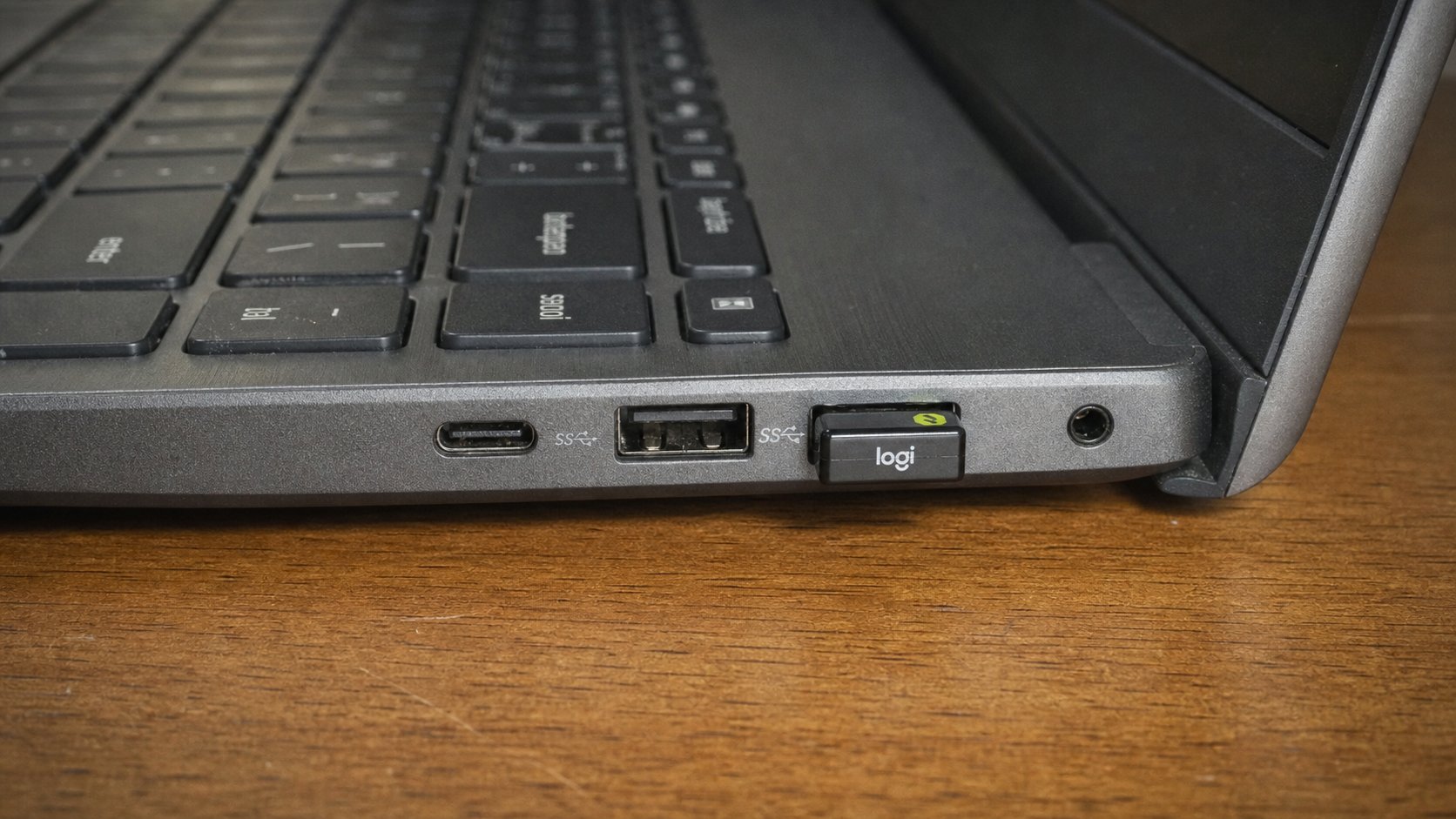
- Plug in a mouse if you have one, or unplug and replug the one you use. Confirm the pointer.
- If you have a spare keyboard, unplug the laptop's thought of an external one by seating it fully.
- Look at every port. Count the dongles. A spare hole is for the next guest, not for dust if you can help it — but a cover is fine.
- Do not force a plug upside down. USB-A only fits one way. USB-C fits both.
Printers, hubs, and power
A printer on USB still needs power of its own. Cable to the computer, power to the wall, paper in the tray, as in the printing lesson. A USB hub — one hole becoming four — is useful and can starve a hungry disk. Plug the disk into the laptop directly if it keeps disconnecting. Some hubs need their own power brick. That is written on the hub, not on Windows.
Unplug by holding the plastic, not the wire. You already eject flash drives; a mouse does not need eject. A printer might — but closing the queue and turning the printer off is enough at this level. If Windows asks for a disc that did not come in the box, cancel and let Windows use its own driver first. A random driver from a banner is an old acquaintance. The hole is simple. The guest is simple. The wait is the skill.