Computer skills from scratch·Finding your way·Lesson 38 of 180
A second screen or a projector
 Ellis Dennis GrahamFounder, Cyber Elias Academy 2026-04-16 3 min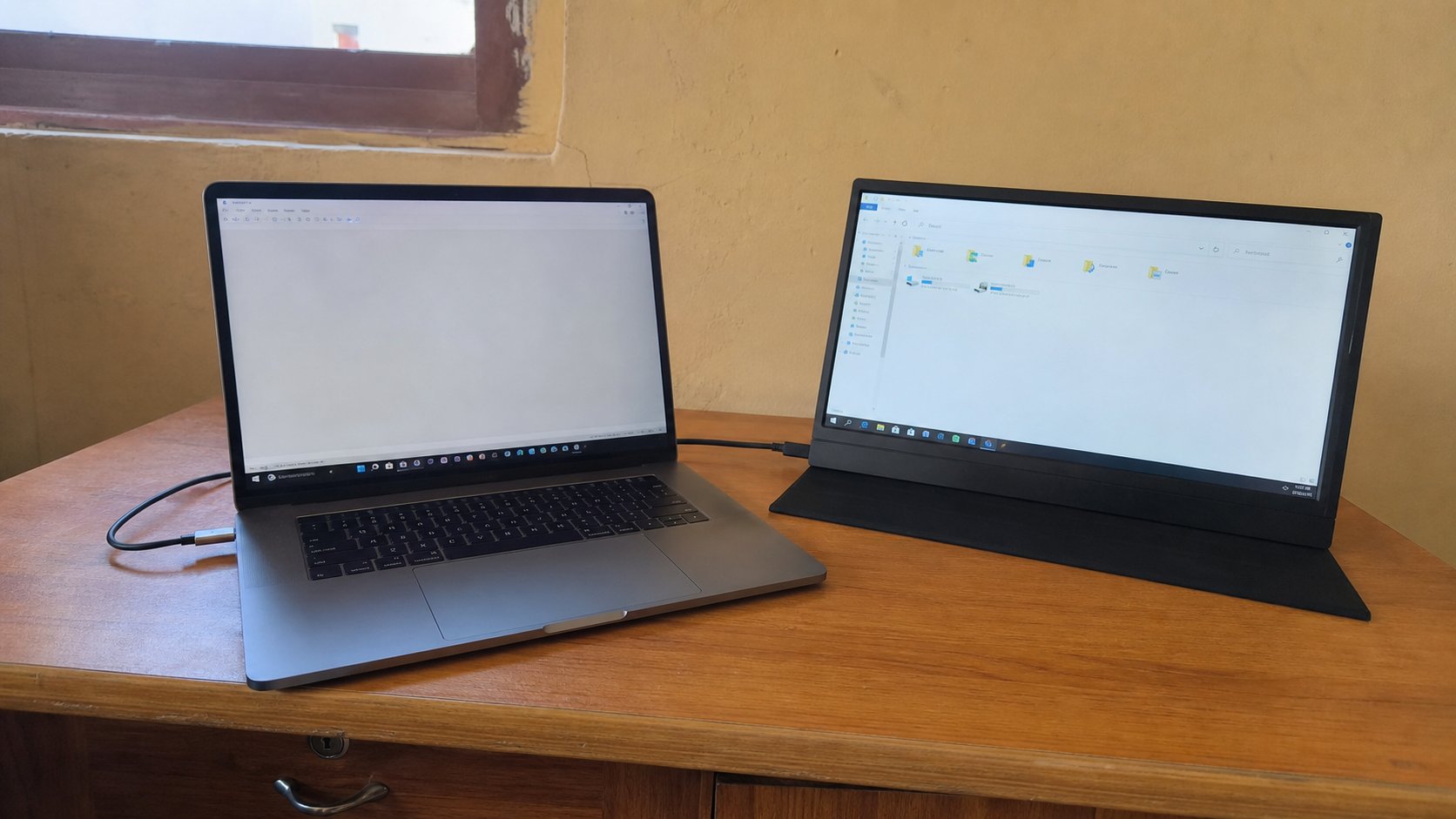
The picture can leave the laptop. Duplicate is the same page twice. Extend is two desks. The projector is just another screen with a long cable.
A laptop has a screen. It can also send the picture down a cable to a monitor, a classroom projector, or a television. The first time, the extra screen is black, or the laptop goes black, or the picture is on the wall but the pointer is lost. None of that is failure of the course. It is a missing choice: duplicate, extend, or second screen only. This lesson is the cable, the key, and those three words.
Look at the side of the laptop for HDMI — a wide, flat, notched plug — or USB-C. The projector or monitor uses a matching cable. Seat it fully. Turn the extra screen on. Wait. Windows may notice and copy the desktop by itself. If nothing, Windows+P. A small menu: PC screen only, Duplicate, Extend, Second screen only. Duplicate is what a class usually wants: the same page on the wall and on your desk. Extend is two desks — a pointer can vanish onto the wall while you look at the laptop. Second screen only blacks the laptop. PC screen only ignores the wall.
Duplicate for a room, extend for you
Teaching, church, a meeting: Duplicate. You see what they see. If the wall is cropped, the extra screen's resolution is different — Windows will often letterbox. That is all right. Extend is for spreading Word on one side and a browser on the other at a desk. The taskbar may run across both. Drag a window until it appears on the wall. If you lose a window, Windows+P, PC screen only, then Duplicate again. The window comes home.
Sound may follow the picture to a television and leave the laptop silent. The volume lesson applies: tray speaker, choose the laptop speakers if you want the sound here. A projector in a hall often has no useful speakers; use the laptop or a cable to the hall sound if someone has set that up. You do not have to invent it on the morning of the talk.
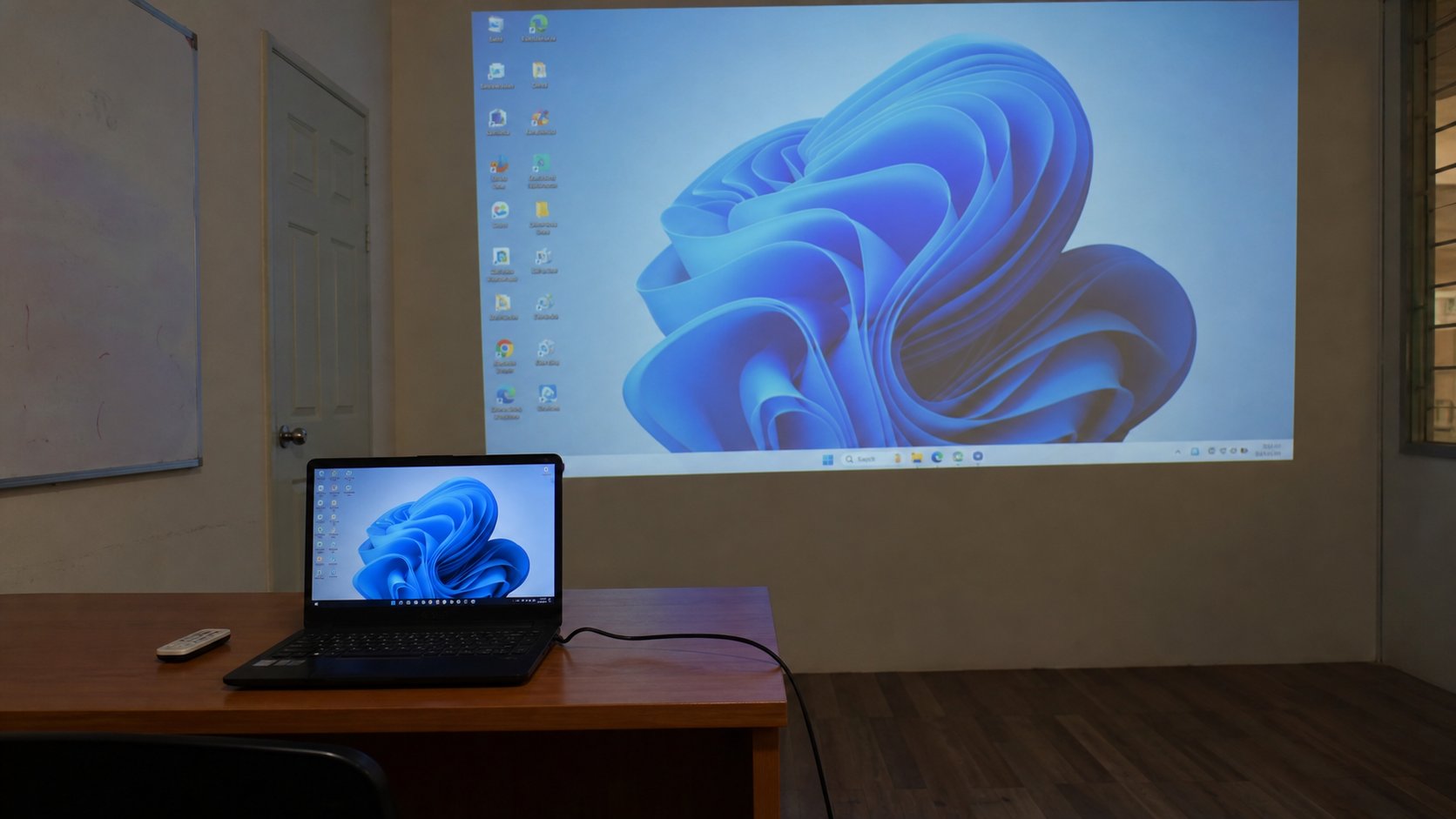
- If you have no extra screen today, still press Windows+P and look at the four words. Esc to leave.
- When you do have a cable: plug in, power the extra screen, Windows+P, Duplicate.
- Confirm the same picture in both places. Move the pointer. It should appear on both in Duplicate.
- When you unplug, the picture should return to the laptop. If the laptop stays black, Windows+P, PC screen only.
When the laptop goes black
Second screen only, left on after you unplug, is a famous black laptop. Windows still thinks the picture lives on a wall that has gone home. Windows+P, then the down arrow, then Enter on PC screen only — even if you cannot see it, it often works. Or close the lid, wait, open, or plug the extra screen back in to undo the choice. Do not format. Do not hold power yet.
A church projector on VGA — older, blue, screws — may need an adapter on a new laptop. Adapters fail quietly. Try another cable before you blame Windows. And arrive twenty minutes early. The second screen is easy when it is easy, and a teacher of patience when the hall lights and the HDMI handshake disagree. Duplicate, then teach. Extend later, at your own desk.