What you will learn
- Reverse accidental edits immediately using Ctrl+Z (or Cmd+Z on Mac).
- Restore an undone change using Redo (Ctrl+Y or Cmd+Shift+Z).
- Know when Undo stops working and where deleted files go instead.
In this lesson you will learn to undo a mistake and redo it if you change your mind. You will learn the two shortcuts, how far back they reach, and the mistakes they cannot fix. If you have ever deleted a paragraph by accident, this is the key that brings it back.
Most programs keep a list of your recent actions. Undo walks backwards through that list. Redo walks forwards again. The list only covers actions inside the program, and it only lasts while the program stays open.
You will see the last change disappear from the page each time you press the keys, and the text return exactly as it was.
Before you start
- Any document you are happy to practise on.
- About five minutes.
The two shortcuts
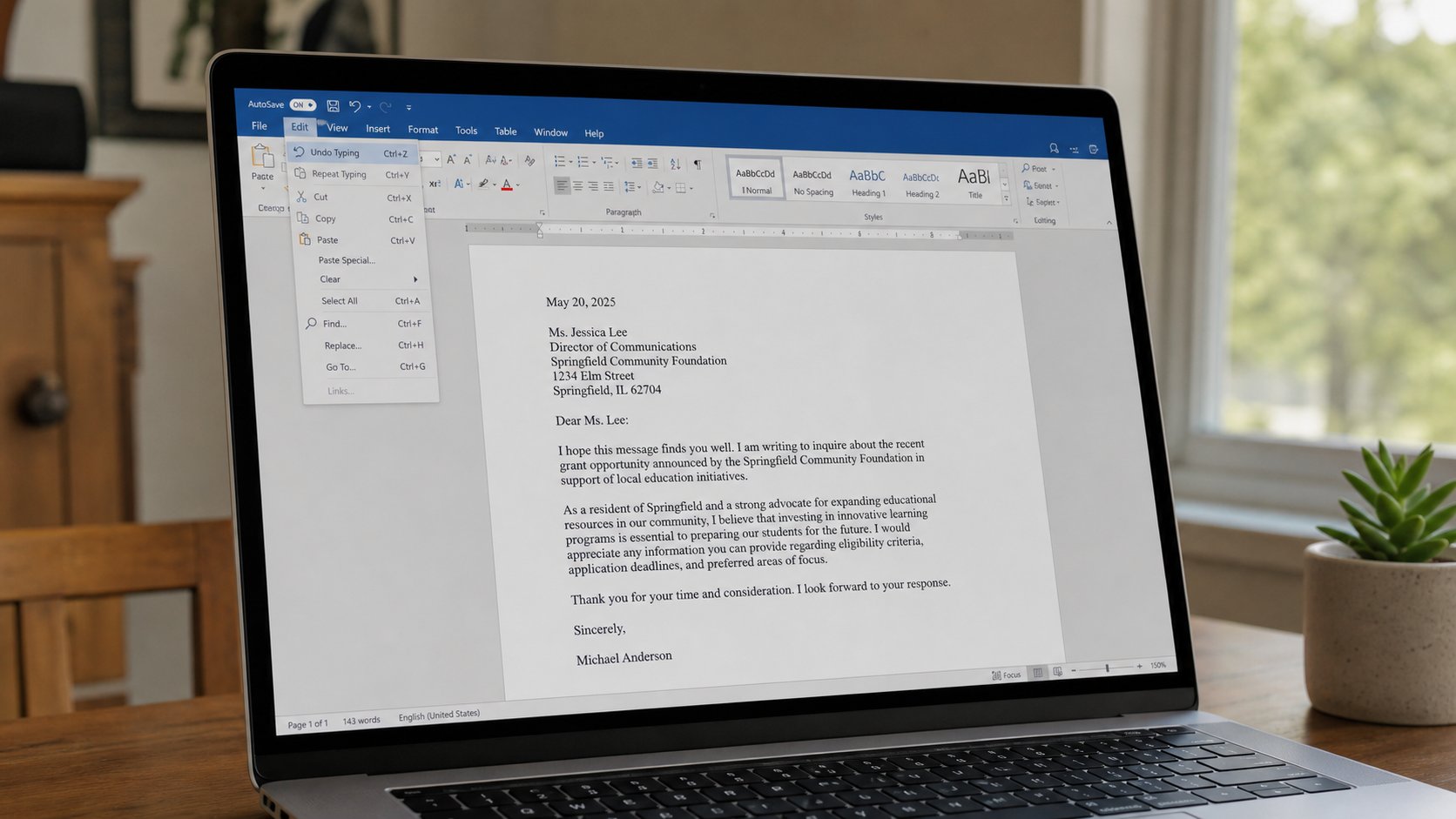
- Press Ctrl and Z to undo the last thing you did.
- Press it again to undo the one before that, and so on.
- Press Ctrl and Y to redo, which puts back what you just removed.
- On a Mac, use Command and Z, and Command and Shift and Z for redo.
- Look for the curved arrow buttons at the top of the window if you prefer clicking.
- Press Ctrl and Z the moment you notice a mistake, not after three more edits.
You will see the change disappear as you press the keys, one step at a time. If nothing changes, there is either nothing to undo or the program does not support it, which happens in a few simple viewers.
It looks like undo only works once. It works repeatedly, and the limit is the program's memory rather than your patience, usually at least twenty steps.
What undo will not bring back
Undo is powerful inside a program and powerless outside it. Knowing the boundary saves an hour of pressing a key that cannot help.
- A file you closed without saving is gone, because undo lives in the open window.
- A file deleted from a folder is a Recycle Bin matter, not an undo matter.
- A mail you already sent cannot be undone from the mail program.
- A change made on another computer is not in your undo list.
- A paste that replaced text can be undone, but only if you have not closed the file.
- An action in a different program is undoable in that program, not in this one.
None of this is a reason to fear editing. It is a reason to press Ctrl and S often, because a saved file is what makes recovery possible after the window closes.

When the rope is cut
There are moments when undo cannot help, and each of them has a different answer.
- The program closed suddenly: reopen it, since many programs offer to recover the last version.
- You saved over a file you needed: look for version history in the program or the cloud folder.
- You emptied the Recycle Bin: stop using the machine and ask a repairer about recovery.
- You sent an email with a mistake: send a short correction at once, which is normal in offices.
- You deleted a file on a shared drive: tell the owner at once, because they may have a history of it.
- You cannot remember what changed: compare the file with your backup, if you have one.
Do not worry about losing an afternoon to a single slip. The habit of saving often, plus the Recycle Bin, covers almost every case in the list above.
If it goes wrong
None of these is a dead end.
- Ctrl and Z does nothing: the program does not support it, or there is nothing to undo.
- You undid too far: press Ctrl and Y to redo, one step at a time.
- The redo stopped working: you made a new edit after undoing, which clears the redo list.
- You undid a change in the wrong program: switch to that window and press Ctrl and Z again.
- The whole document became blank after undoing: press Ctrl and Y at once, or close without saving and reopen.
- You cannot remember how many steps back: use the dropdown beside the undo arrow to see the list.
Practice
Five minutes of deliberate mistakes, and the reflex is built.
- Type three sentences in a blank document.
- Delete the middle sentence, then bring it back with Ctrl and Z.
- Undo three more times, then redo three times.
- Open the dropdown beside the undo arrow and read the list.
- Close the document without saving, reopen it, and notice which changes survived.
You can now take the fear out of editing, because almost everything is one key press away from being reversed. In the next lesson you will select exactly the text you want, instead of fighting the mouse.