This lesson is about a laptop that runs hot and noisy. You will find the cause, clear the dust that produces most of it, and change the habits that keep a machine cool. Overheating shortens a laptop's life and slows it down long before it fails.
A fan spins faster when the inside is hot. That noise is the machine asking for help, and dust is the usual reason it cannot breathe.
What you will need
- The laptop, and a place with good light.
- A soft brush or a clean paintbrush.
- A can of compressed air if you can get one, or a hair dryer on cool.
- About thirty minutes.
Find the heat
- Feel the underside after ten minutes of work, away from the vents.
- Notice where the warm air leaves the machine, usually at the back or the side.
- Check whether the vents are blocked by a cushion, a bed, or a cloth.
- Listen for the fan starting the moment you open a browser.
- Watch whether the noise follows one program, such as a video call.
- Note the room temperature, since a hot afternoon changes everything.
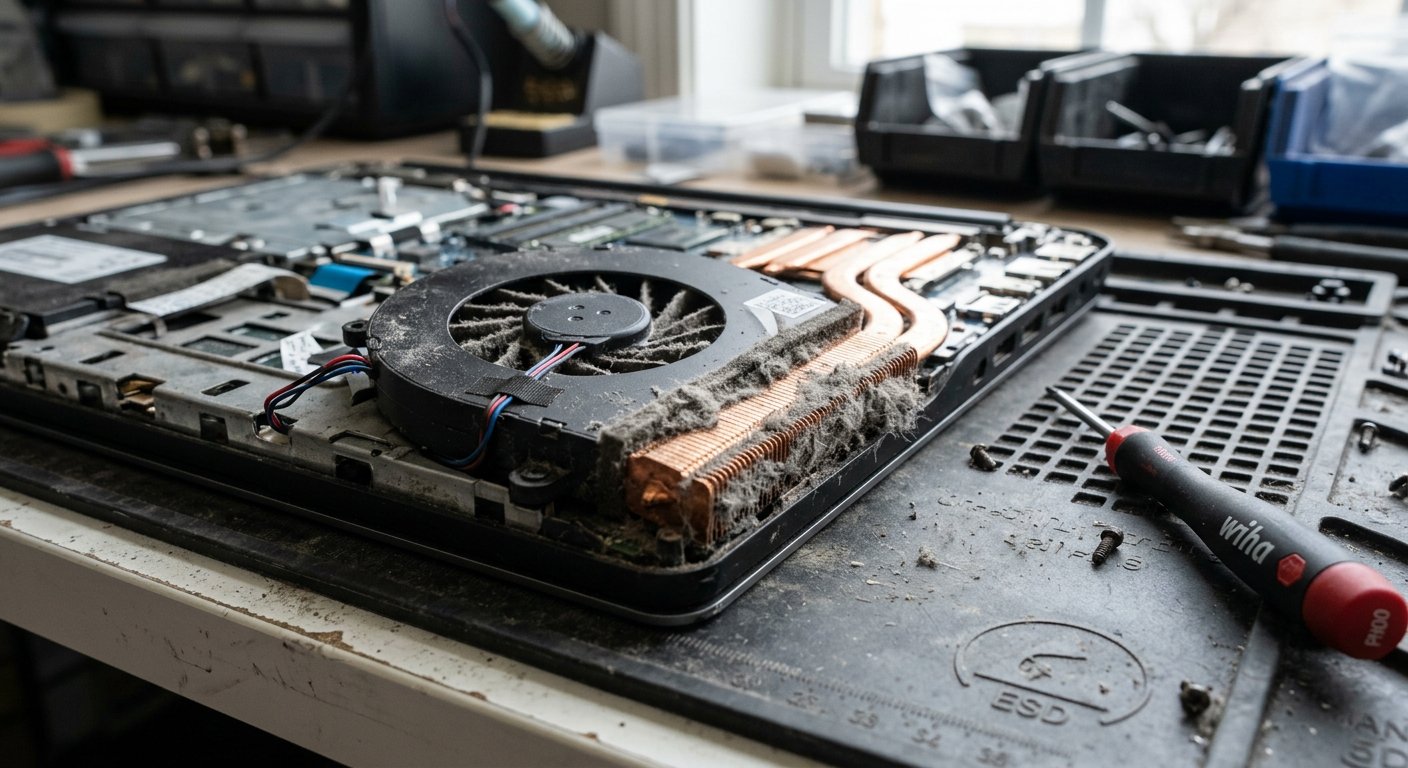
You will see dust gathered along the vent grille, often as a grey mat. That mat is the reason the fan runs at full speed on a task it used to handle silently.
It looks like the fan is failing because it has become loud. The fan is working harder because the path is blocked, and cleaning costs nothing.
Clear the path
- Switch off and unplug the laptop, and let it cool for ten minutes.
- Hold a vent with the brush and loosen the dust along the grille.
- Blow short bursts of air into the vent, keeping the fan from spinning fast.
- Do not use a vacuum cleaner close to the board, which can loosen small parts.
- Clean the vents once a month in a dusty room, twice a year otherwise.
- Never open the case if the machine is under warranty.
The vents will look clear afterwards, with air moving easily when you blow across them. If the noise does not change, the machine needs a professional clean, which includes new thermal paste.
A program's window will show the processor load as a percentage, and a figure near a hundred while nothing is open is the clue. Close that program and the fan drops within a minute.

Habits that keep it cool
- Work on a hard surface, never on a bed or a cushion.
- Raise the back edge with a stand, a book, or a block of wood.
- Keep the laptop out of direct sun, and away from a hot wall.
- Close the programs you are not using, since each one adds heat.
- Avoid charging and working hard at the same time where you can.
- Take a break in a long video call, which is the heaviest ordinary task.
None of this needs a cooling pad with lights. A wooden stand and a clear vent do more than most accessories sold for the purpose.
Do not worry about the fan running during a call. Some noise is normal, and the machine is designed to manage it.
Thermal paste, and when to stop
Repasting means replacing the grey compound between the processor and its metal plate. It helps a machine over five years old, and it is not a first step.
- Try cleaning and raising the machine first, which fixes most cases.
- If it still overheats, a shop can repaste it in an hour.
- The paste is applied as a small dot, not a thick layer.
- Ask for the old paste to be cleaned off properly before the new one.
- Check that the fan spins freely before the case is closed.
- Keep the receipt, since a bad repaste shows within a week.

Troubleshooting
Every one of these is common.
- The machine shuts down suddenly: it is protecting itself. Stop working and clean the vents.
- The fan screams from the moment it starts: something is running, so check the program list.
- The underside is hot enough to sting: stop using it on a soft surface today.
- The fan rattles: a bearing is failing, and a replacement fan is a cheap repair.
- The laptop is under warranty: take it in before opening anything.
- Cleaning did not help: ask the shop to check the paste and the fan together.
Your turn
Clean one vent this week, and change one habit.
- Switch off and let the machine cool.
- Brush the vent grille and blow short bursts of air.
- Raise the back edge with a book or a stand.
- Note the noise before and after.
- Write the date of the next clean in your notebook.
You can now keep a laptop cool enough to last. In the next lesson you will read the sounds a failing drive makes.