Computer skills from scratch·The first sitting·Lesson 1 of 180
Sitting down at a computer for the first time
 Ellis Dennis GrahamFounder, Cyber Elias Academy 2026-01-13 6 min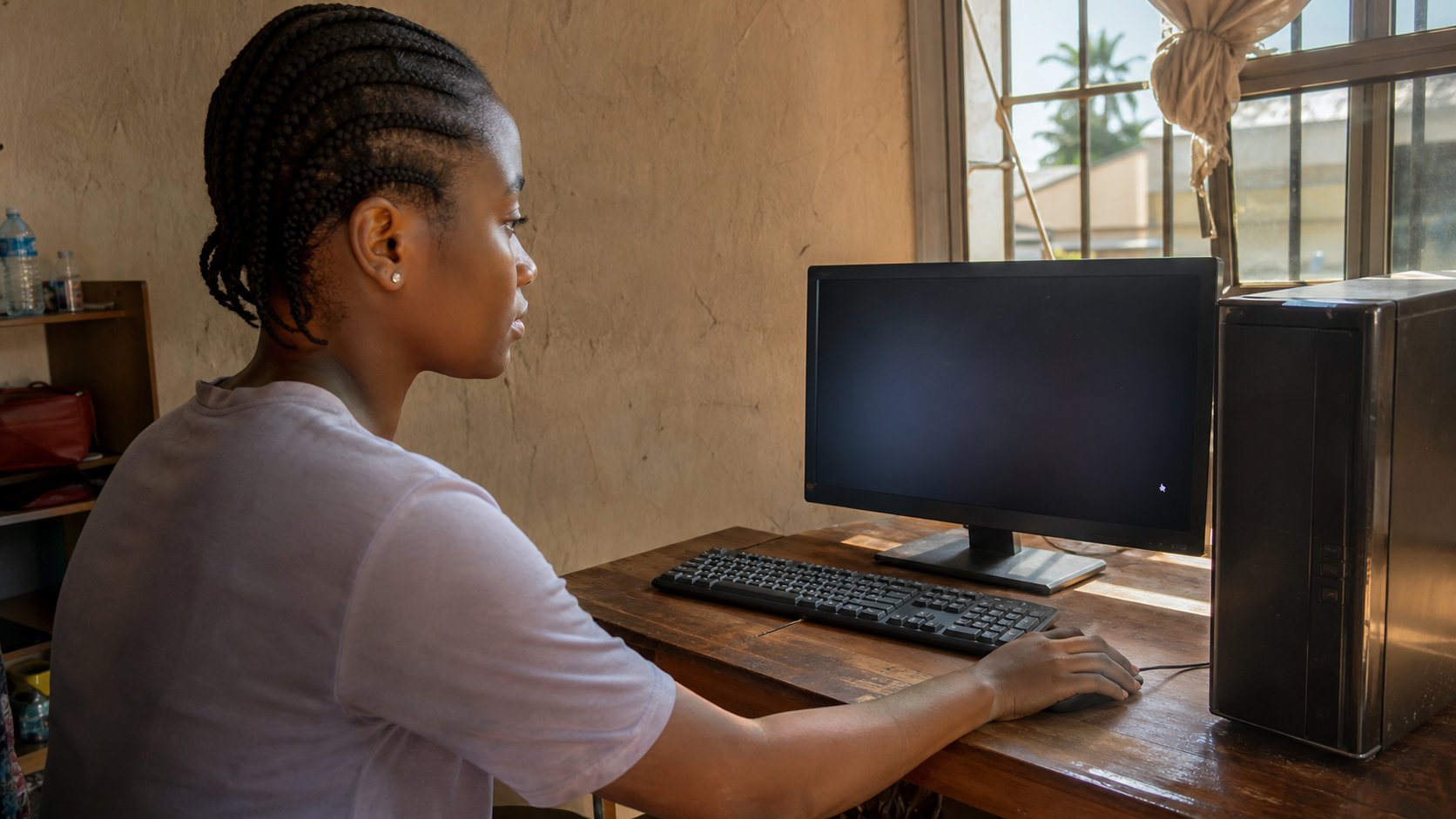
What the box in front of you actually is, how to wake it, and how to move the pointer without fear. The first hour, explained as if someone is sitting beside you.
Most people who say they cannot use a computer are not stupid. They were never given a quiet hour with someone who would name the parts out loud. A phone is a computer you already trust because it lived in your pocket first. A desktop is the same idea, only larger, slower to start, and honest about its pieces. This lesson is that quiet hour.
Picture a wooden desk, a black screen, a keyboard that looks like a typewriter, and a small plastic oval with a wire. That oval is the mouse. The tall box under the desk, or the slim slab of a laptop, is the machine itself. The screen is not the computer. It is a window. Until you press the power button, the window is dark because nothing is happening behind it.
Name the four things in front of you
Hold the names in your mouth as you look. The computer — tower or laptop — stores work and does the thinking. The monitor shows you what the computer is thinking. The keyboard is how your fingers send letters and commands. The mouse is how your hand points. If any one of those four is unplugged, the sitting will feel like a dead room. Check the cables at the back once, the way you check that a generator is fuelled before you blame the house.
On a laptop the four things are already joined. You still treat them as four jobs. The screen can be too dark: look for a brightness key or a small sun symbol. The keyboard can be set to type in CAPITALS because Caps Lock is on — a tiny light, often on the key itself, will tell you. The mouse on a laptop is the trackpad, the smooth rectangle below the keys. Rest one finger on it and slide. The arrow on the screen should move. If it does not, the machine is still sleeping.
Waking the machine
Find the power button. It is a circle broken by a vertical line, or a plain round button. Press it once and take your finger away. Do not hold it. Holding it for several seconds is how you force the machine to shut down, which is a different act. You should hear a fan, see a manufacturer's logo, then a lock screen or a desktop. That wait can be twenty seconds. Sit through it. Tapping the button again will only confuse it.
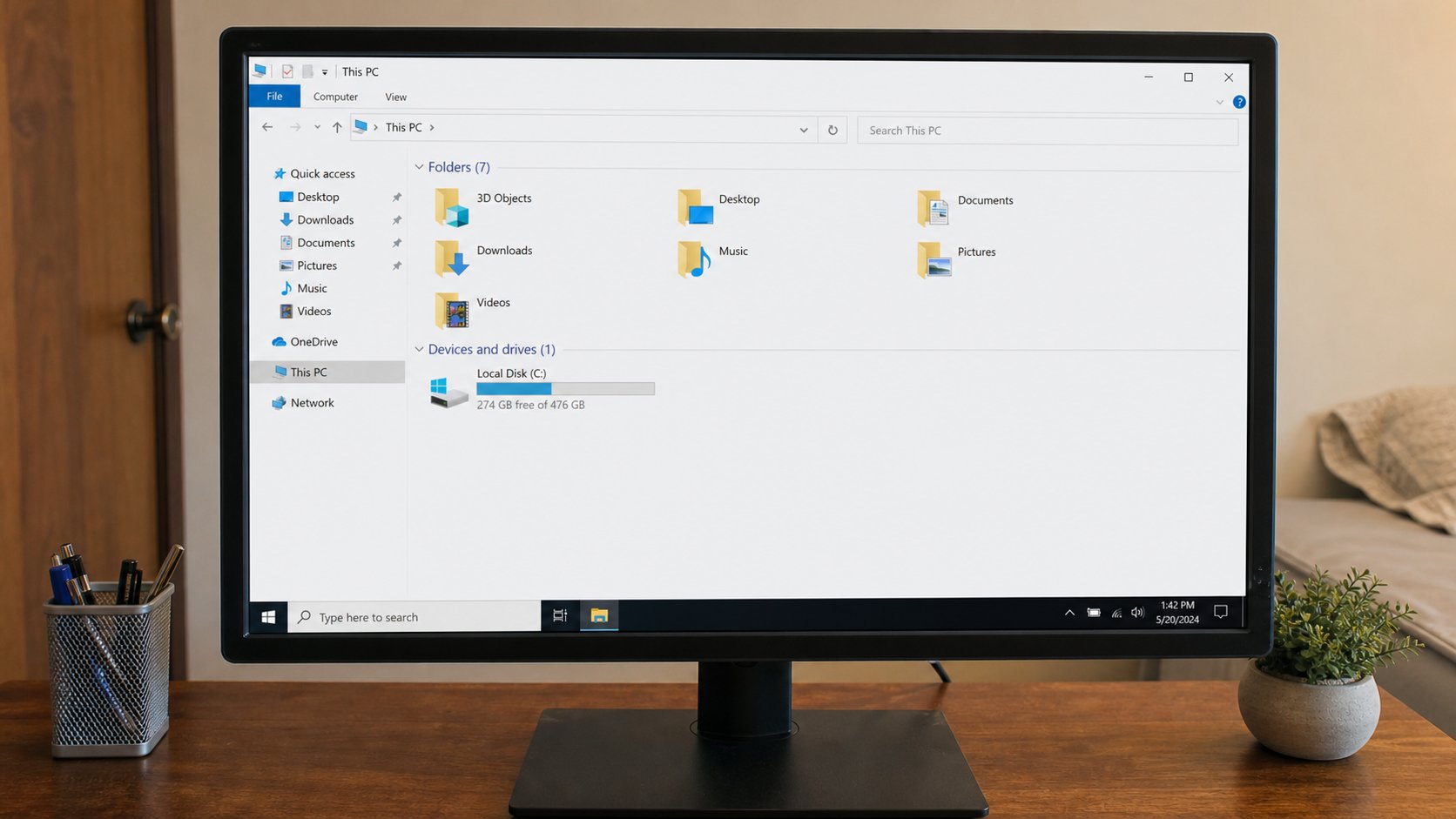
If a box asks for a password and this is not your computer, stop. Ask the owner. Guessing is how people lock themselves out. If it is your computer and you have not set a password yet, there may be a button that says Sign in or a user picture you can click. Click once. Wait. The desktop — a picture, some small icons, a bar along the bottom or the top — is the table you will work on. Everything you open later will sit on that table as a window.
The pointer is your finger
Move the mouse on the desk. Watch the small arrow on the screen. That arrow is called the pointer. It is your finger, drawn. You do not need to lift the mouse like a stamp. Keep the heel of your hand on the desk and slide. If you run out of desk, pick the mouse up, set it back in the middle, and continue. The pointer stays where you left it while the mouse is in the air. That one fact saves people months of frustration.
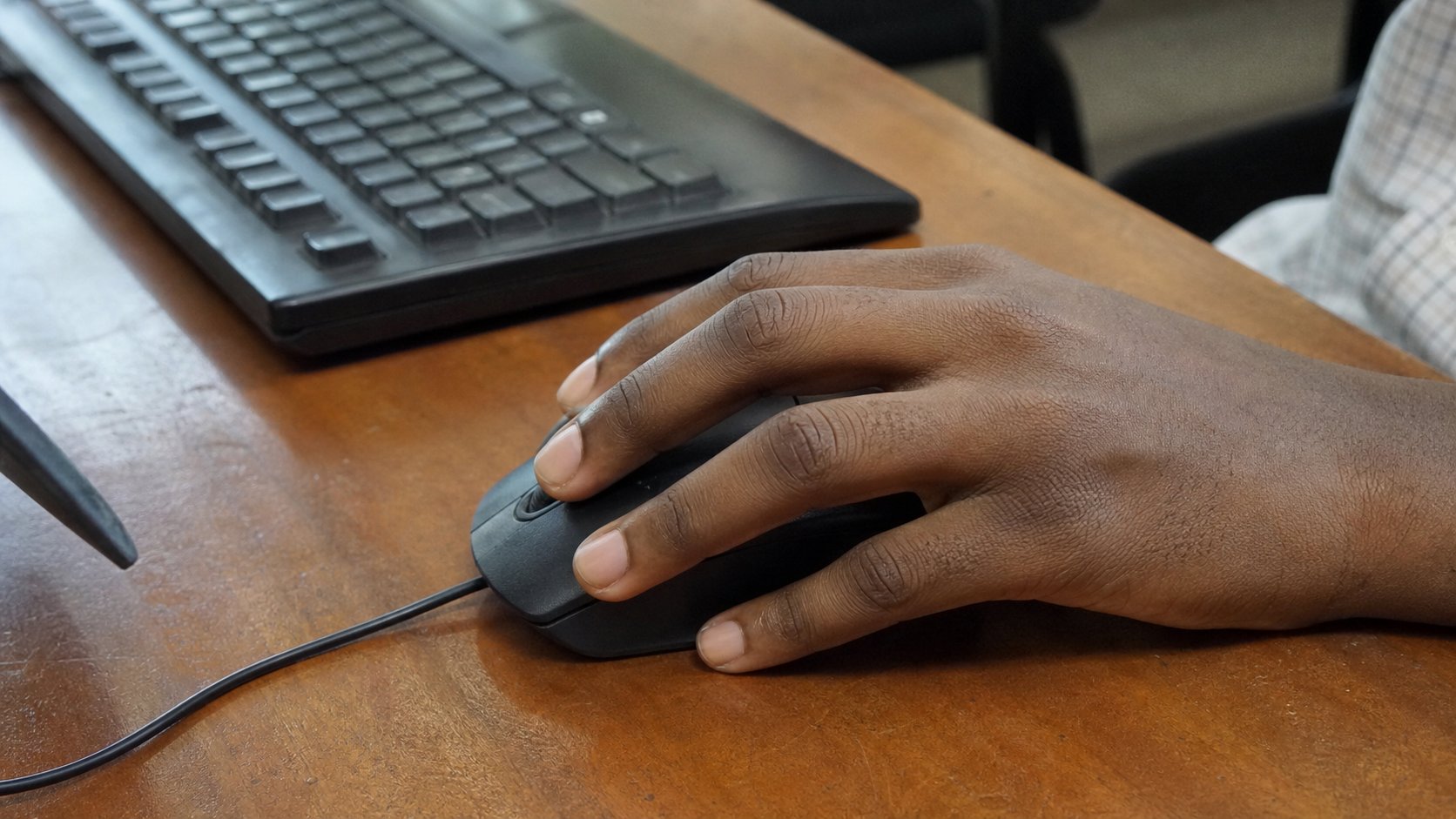
A click is one press of the left button, then release. Aim the pointer at an icon — a small picture with a name under it — and click once. The icon should change colour. That means you have selected it, the way you would rest a finger on a sheet of paper before picking it up. A double-click is two clicks close together on the same spot. That is how you open something. If nothing happens, you paused too long between the clicks. Try again, quicker, without moving the mouse in between.
The right button is a separate language. One right-click on an icon opens a short menu of extra actions: Open, Rename, Delete. You do not need those yet. Know they exist so that a menu appearing does not feel like an error. Click anywhere empty on the desktop to close it. Nothing you have done so far can break the machine. A computer is not a glass cup. Clicking is not pouring water on the floor.
The first thing you will type
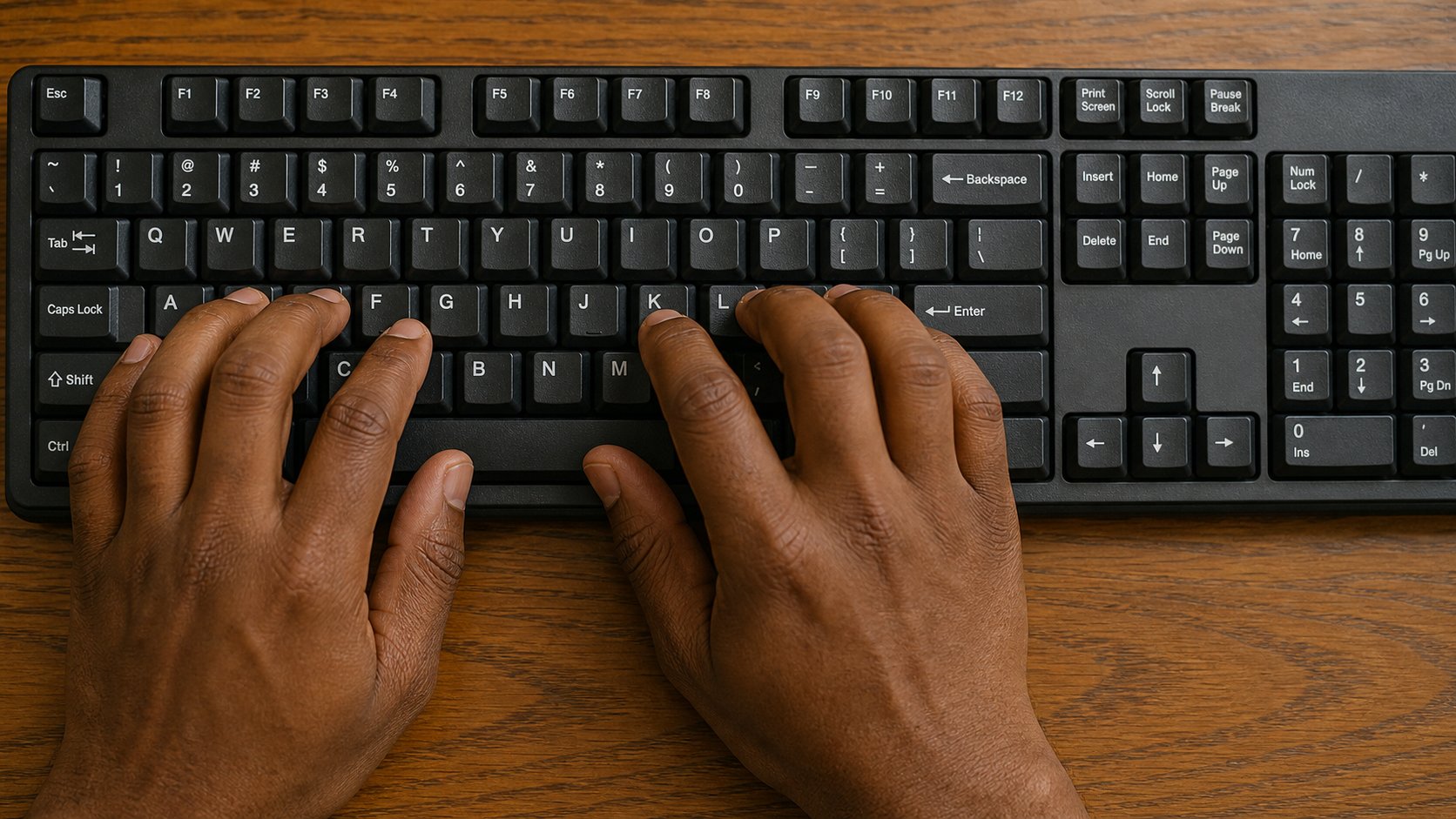
Look at the keyboard. The letters are not in ABC order. They are in an old layout called QWERTY, named for the first six letters on the top row of letters. You do not have to understand why. Find the key that says Enter or Return — usually a wide key on the right. That key means “I am done with this line.” Find Backspace or a left-pointing arrow — that key rubs out the letter behind the blinking line. Find the long bar at the bottom. That is Space. Those three keys, plus the letters of your name, are enough for the first sitting.
- Open a blank page: on Windows, click the Start button (four small squares, bottom-left), type the word Notepad, press Enter. On a Mac, press Command and Space, type TextEdit, press Enter.
- Click once inside the white page so a blinking line appears. That line is the cursor. It is where the next letter will land.
- Type your full name, slowly. If a letter is wrong, press Backspace. If you need a space, press the long bar.
- Look at what you wrote. That is your first file, even if you have not saved it yet. Close the window with the X. If it asks whether to save, choose Don't Save for now. Saving is the next lesson.
What this hour was for
You learned four names, one button, one pointer, and three keys. That is the whole machine, reduced to what a person actually does with their hands. Tomorrow you will put work into folders so it does not vanish. Tonight, if you can, sit down again for ten minutes and only move the pointer. Aim at icons. Click once. Click twice. Right-click and dismiss the menu. The fear leaves through the hands, not through a speech.
If the screen stayed black, check the monitor's own power light, then the wall socket, then the cable at the back. If the pointer did not move, turn the mouse over: a red or blue light should be on. If there is no light, the mouse is unplugged or the battery is dead. These are household problems, not computer science. Treat them as you would a lamp that will not light.