In this lesson you will learn to make a column of numbers read as money: ₦1,500.00 instead of 1500. You will set the format, choose how many decimals to show, and keep the total adding correctly. It takes five minutes, and it makes a sheet look like a record rather than a list.
Formatting changes how a number looks, not what it is. The cell still holds 1500, so formulas still add it. This is the whole reason to use formatting rather than typing the sign yourself.
Before you start
- A spreadsheet with a column of amounts.
- About ten minutes.
Format the column, not each cell
- Type the amounts as plain numbers first: 1500, not N1,500.
- Select the whole column, or only the cells you need.
- Open Format, then Number, then Currency, in Excel or Google Sheets.
- Choose the naira symbol if it is offered, or type it in the format field.
- Set two decimal places for money, or none if you never record kobo.
- Look at the formula bar: it still shows 1500, which proves the number is unchanged.
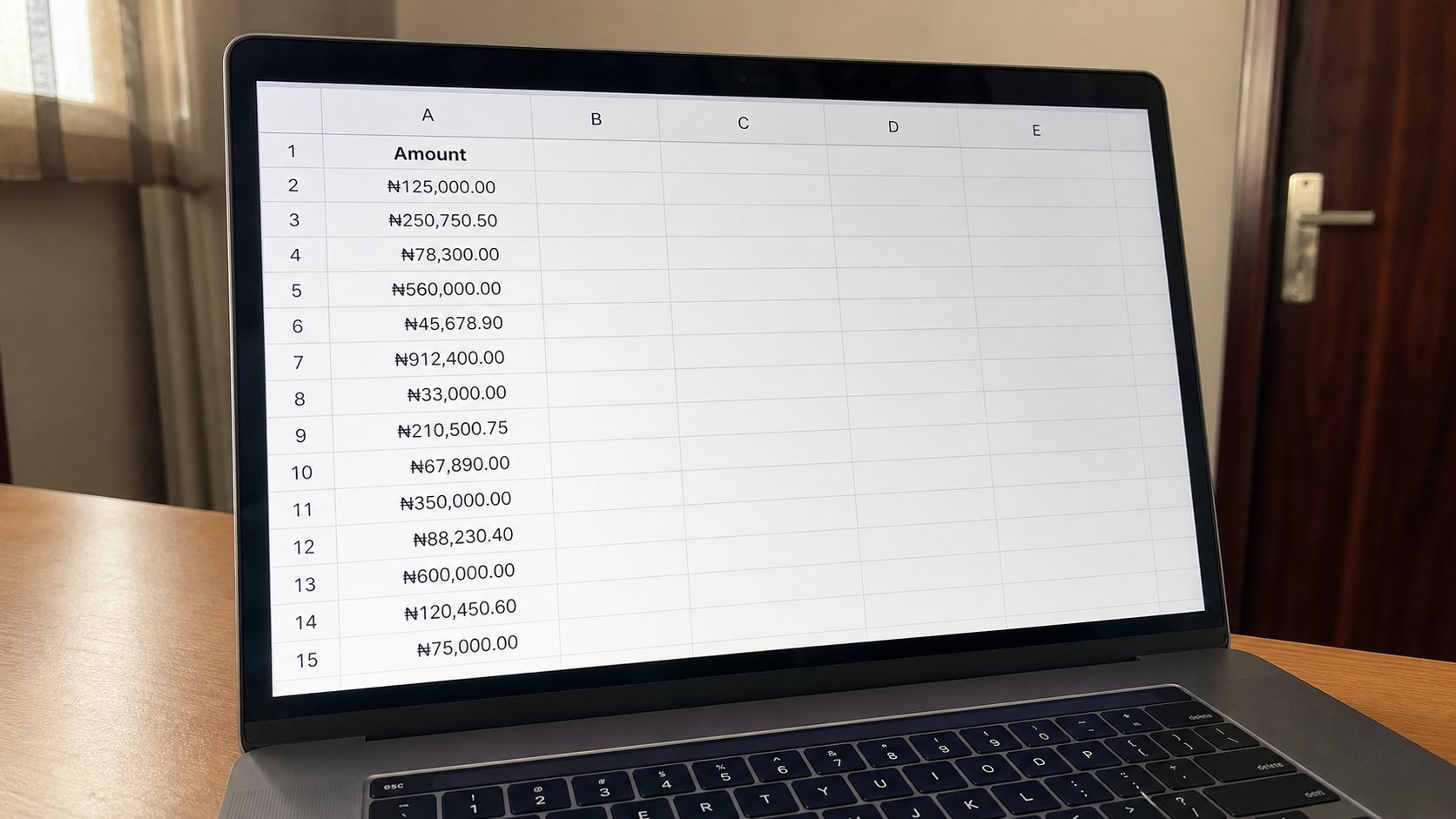
You will see the same figures now displayed with the sign, commas, and decimals, and they stay lined up on the right of the cell. That right alignment is how you know they are still numbers.
The Format Cells box will open with a list of categories down the left side, and Currency near the top of that list. A preview line at the bottom shows exactly how your number will look.
It looks like typing the naira sign shows the sheet is professional. Typing it turns the number into text, the total ignores it, and the change takes a hundred keystrokes instead of one.
Several currencies in one sheet
If you invoice in naira and sometimes receive dollars, the format can hold the distinction without mixing the sums.
- Keep one currency per column, and name the column for it, such as Amount in naira.
- Use a separate column for the exchange rate, so the arithmetic is visible.
- Format the dollar column with a dollar sign, using the same method.
- Never add a naira total to a dollar total, even if the numbers look similar.
- Record the rate you used and the date, because the rate changes.
- Round only at the end, not at every step, or the totals drift.
None of this needs a second sheet. Two columns and one rate cell are enough for a small business, and they keep the record honest.

Decimals, rounding, and kobo
Money needs a consistent number of decimals, and small choices here cause the disagreements.
- Choose two decimals if you record kobo, and none if you round to the naira.
- Keep the same choice in every column of the same sheet.
- A total of 1,500.0000001 means the arithmetic used fractions. Round the display to two.
- Add the sum with =SUM(range) rather than typing it, so the display and the maths agree.
- For a price list, show no decimals, which reads faster at a counter.
- For an invoice, show two, because a customer will check.
Do not worry about the formatting looking different when somebody else opens the file. The format travels with the spreadsheet, and a PDF keeps it exactly.
If it goes wrong
Most of them have a plain fix.
- The total does not include some numbers: those cells are text. Retype one and watch the total move.
- The column shows a strange date: the numbers were read as dates. Reformat the cells as Currency.
- Everything shows many decimals: the format is set to General. Choose Currency with two decimals.
- The sign is missing on new rows: the format applies to selected cells only. Copy the format down.
- The numbers are left aligned: they are stored as text. Clear the cell and retype without a sign or space.
- Printing shows #### instead of the total: the column is too narrow. Widen it.
Practice
One column, formatted once, and the sheet looks like a record.
- Type five amounts as plain numbers.
- Select the column and apply a currency format with two decimals.
- Click one cell and confirm the formula bar shows the plain number.
- Add a total with =SUM and check it displays as money.
- Print or preview the sheet and confirm the sign appears.
You can now present figures that read as money and still calculate correctly. In the next lesson you will keep the heading visible while you scroll through a long list.
Free browser practice lab
Practise formulas in Spreadsheet Lab
Run live SUM, IF, SUMIF, and VLOOKUP drills right in your browser.