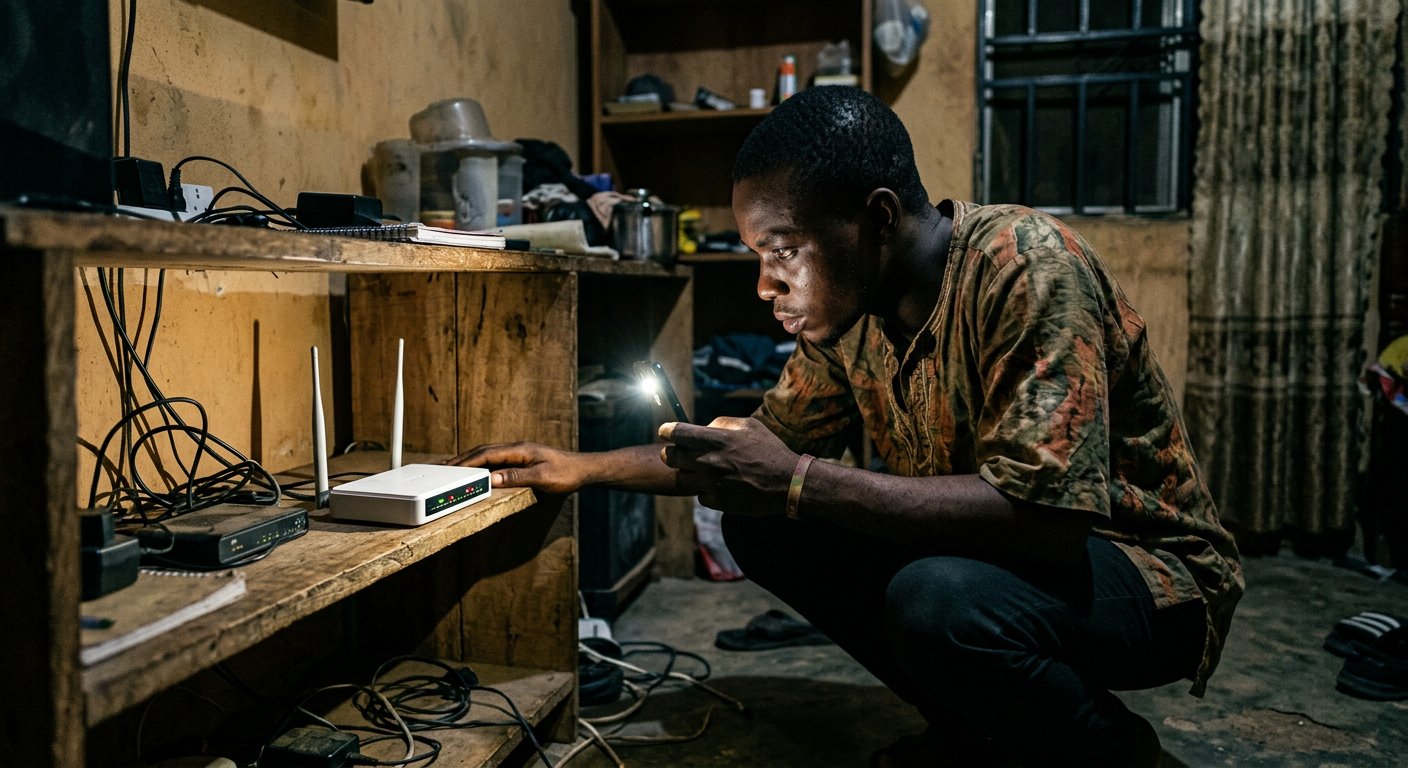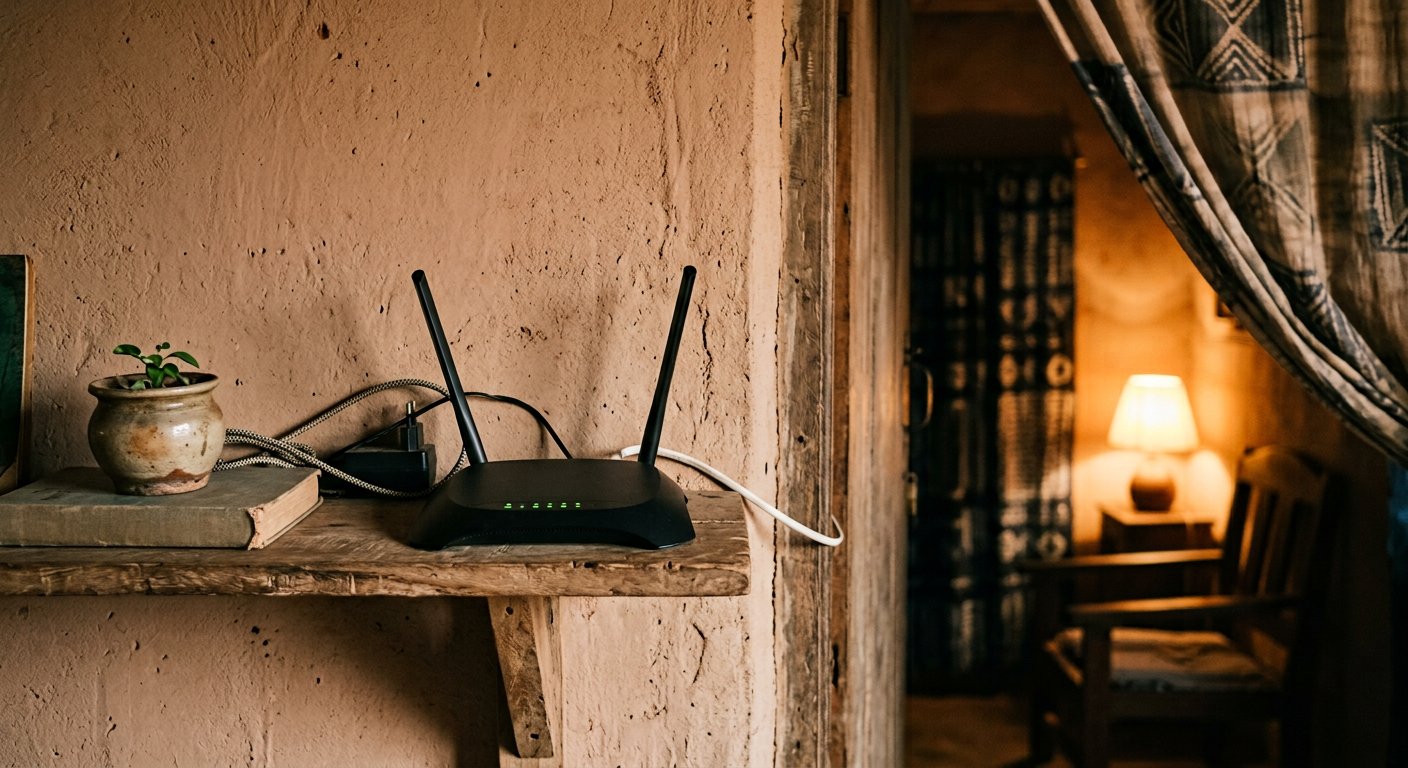
This lesson sets out the lights on a home router and the restart that fixes most problems. You will learn what each light means, the order to switch things off and on, and where the box should sit.
A router is a small computer with a modem inside. The lights are its way of telling you which part is working, and reading them takes ten seconds.
Before you begin
- The router, and a moment to look at it.
- The provider's support number.
- About fifteen minutes.
The five lights
- Power: solid when the router has electricity.
- Internet or globe: solid when the provider's line is working.
- DSL or WAN: solid when the line is connected, flashing while it trains.
- Wifi: solid or flashing when the wireless signal is on.
- LAN: one light per cable port, lit when a cable is connected.
- Any light that is red, or off when it should be on, is the one to report.
You will see the internet light go off during an outage, while the power and wifi lights stay on. That pattern tells you the fault is outside the house.
The router's settings page will show the connection state as connected or disconnected, with an uptime figure beside it. A short uptime that keeps resetting means the line is dropping and reconnecting.
The wifi menu will open with a list of every device attached, each with a name and an address. Reading that list is how you find the guest who never left, and the device somebody forgot to remove.
It looks like a red light means the router is broken. A red internet light usually means the provider's line is down, which the router cannot fix.
The restart that works
The order matters, which is why a quick switch off and on often does nothing.
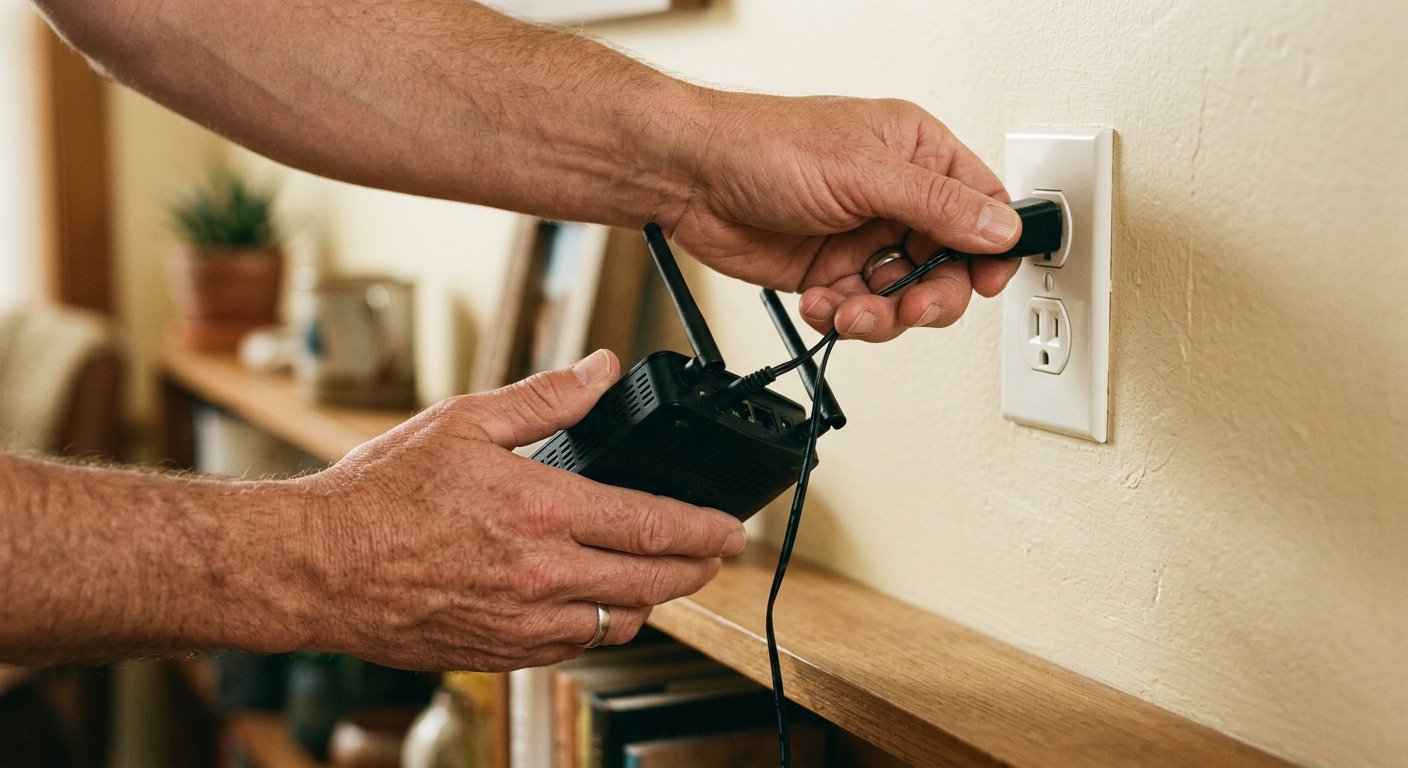
- Switch the router off at the wall and unplug it.
- Wait thirty seconds, which lets the provider's side notice the disconnection.
- Plug it in and switch on, then wait two minutes without touching it.
- Watch the lights come on in order, ending at the internet light.
- Test one page on one device before trying everything.
- Repeat once only, since a third attempt changes nothing.
The lights will settle in a sequence, and the internet light is the last to stop flashing. Until it is steady, nothing in the house will load, so waiting is part of the fix.
Where the box should sit
- Put it high and central, not shut in a cabinet or behind a television.
- Keep it away from a microwave, which interferes while it runs.
- Keep it away from water and from the floor, where it collects dust.
- Do not stack books on it, since the vents need air.
- Point the antennae upward if it has them.
- Put it where you can see the lights, which saves a walk during every fault.
None of this needs a new router. Position and a restart fix the majority of home network complaints.
Do not worry about pressing the reset hole on the back. Avoid it unless you are told to, since it erases the settings the provider installed.
When it fails
Take these one at a time.
- No lights at all: check the socket and the adapter before calling anybody.
- Power on and internet off: the provider's line is down. Call with the account number.
- Internet light red: report a line fault, since it is not a setting in the house.
- All lights on and no page loads: try another device, then another website.
- The wifi light is off: somebody pressed the wifi button. Press it again.
- The router restarts every hour: the adapter is failing, or it is overheating.
Try it now
Learn your own lights, so a fault takes ten seconds.
- Photograph the router while everything works, so you know the normal pattern.
- Label each light with a small sticker and a word.
- Practise the restart, timing it with a phone.
- Move the router if it sits inside a closed cabinet.
- Write the provider's number on the router's label.
You can now read a router at a glance. In the next lesson you will choose between wifi and a cable.