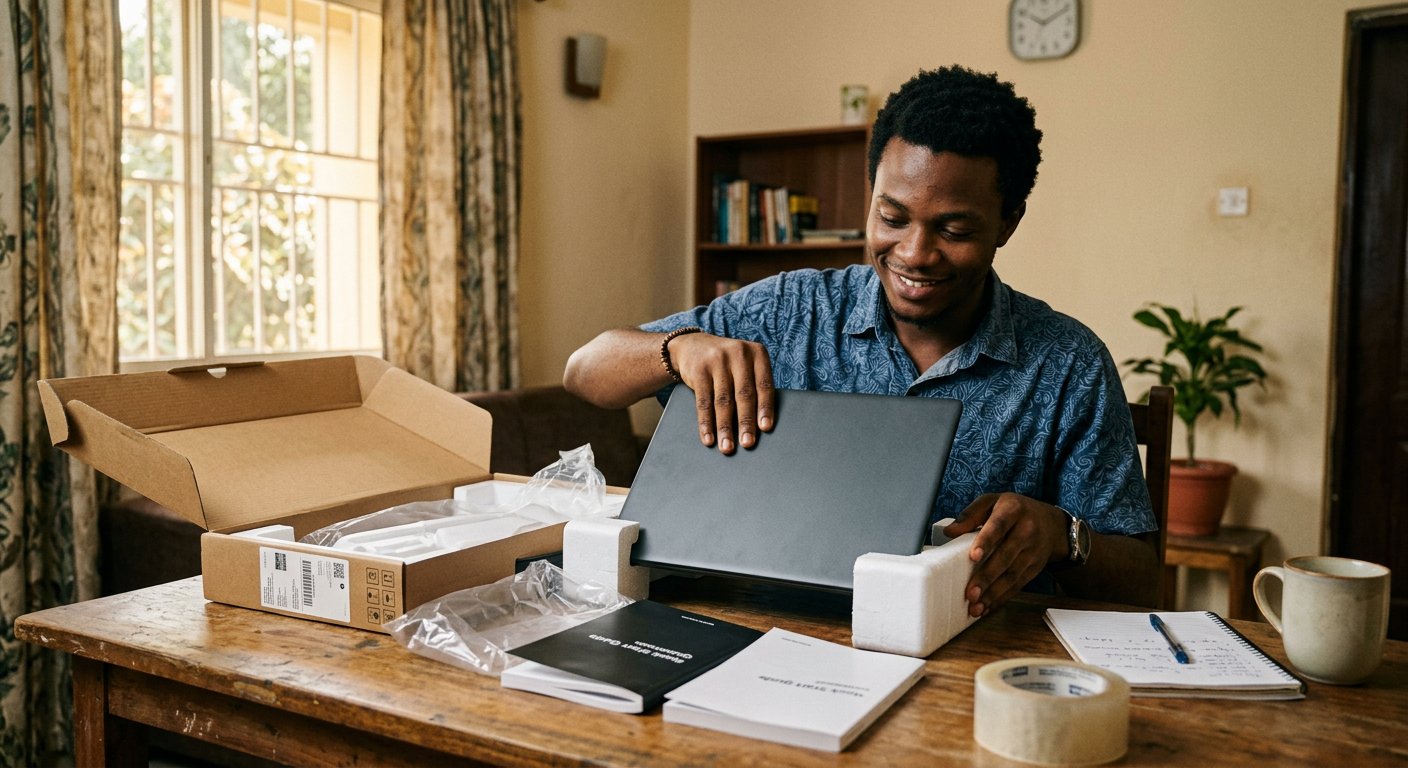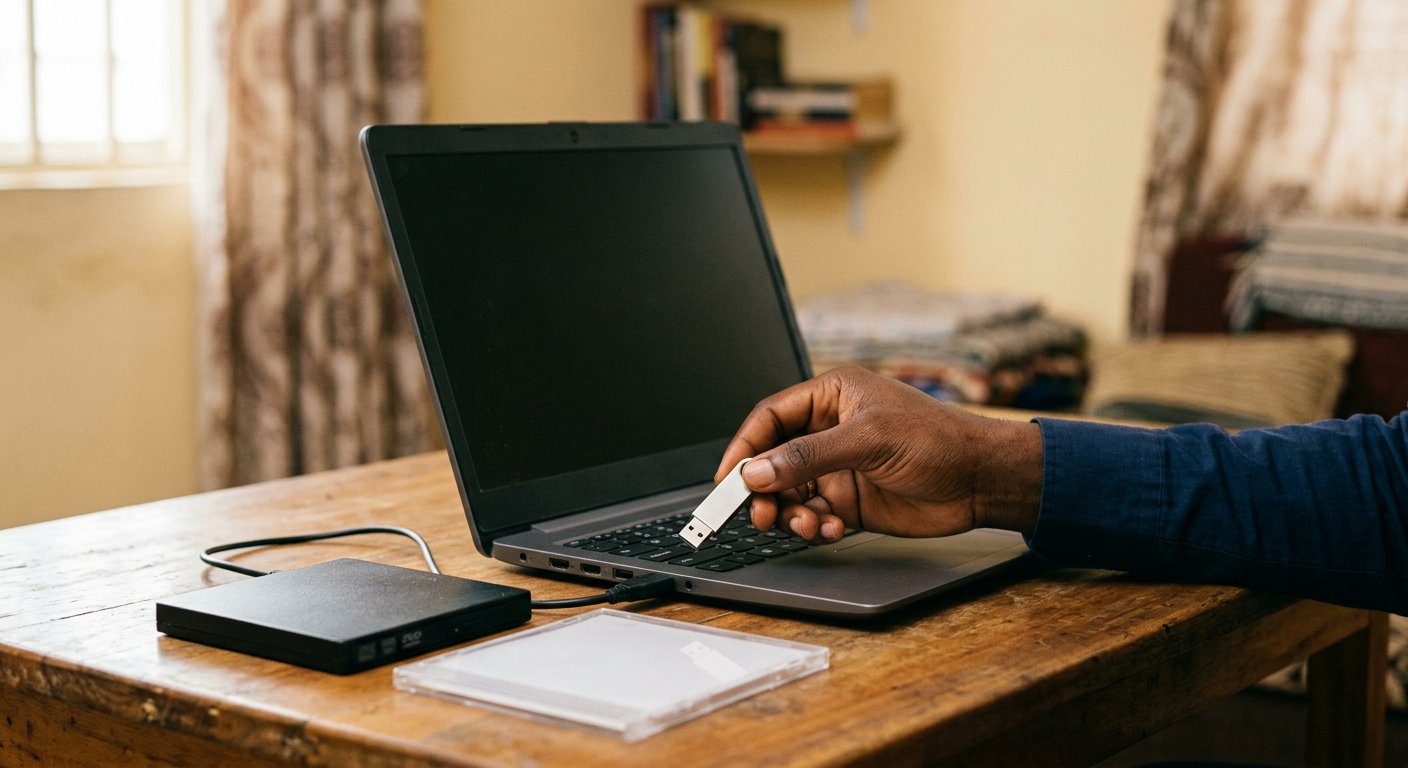
This lesson looks at resetting a machine honestly. You will learn what to say before you start, what to copy, how to keep the licence and drivers, and how to hand the machine back without surprises.
A reset erases the disk and installs a fresh system. It fixes most software faults, and it removes everything the owner had, which is why the conversation comes before the work.
Before you begin
- An external drive with enough space.
- The installer drive and the licence key.
- The owner's agreement in writing, by message if needed.
The conversation
- Say plainly that everything on the machine will be erased.
- List what will be copied: documents, photographs, and the desktop.
- Ask about programs that cannot be replaced, such as a work tool or an old driver.
- Ask for the passwords the machine will need, or plan to reset them.
- Say what will not be copied, such as saved game progress or a browser's open tabs.
- Agree a time to return the machine.
The ownership screen will show who set the machine up, and the account name is often the only record of a licence tied to that account. Note it before the reset, since it disappears with the disk.
It looks like a reset restores the machine to new. It restores the system, and the owner's files return only if somebody copied them first.
You will find that the conversation is the hard part and the installation is the simple part. Once the owner understands what will go, you can work without watching the door.
Copying before the reset
- Copy the user folders: documents, pictures, videos, downloads, and desktop.
- Export browser bookmarks to a file.
- Copy any mail stored on the machine rather than the server.
- Copy program settings where the program offers an export.
- Write down the names of installed programs before they vanish.
- Check the copy by opening three files from the external drive.
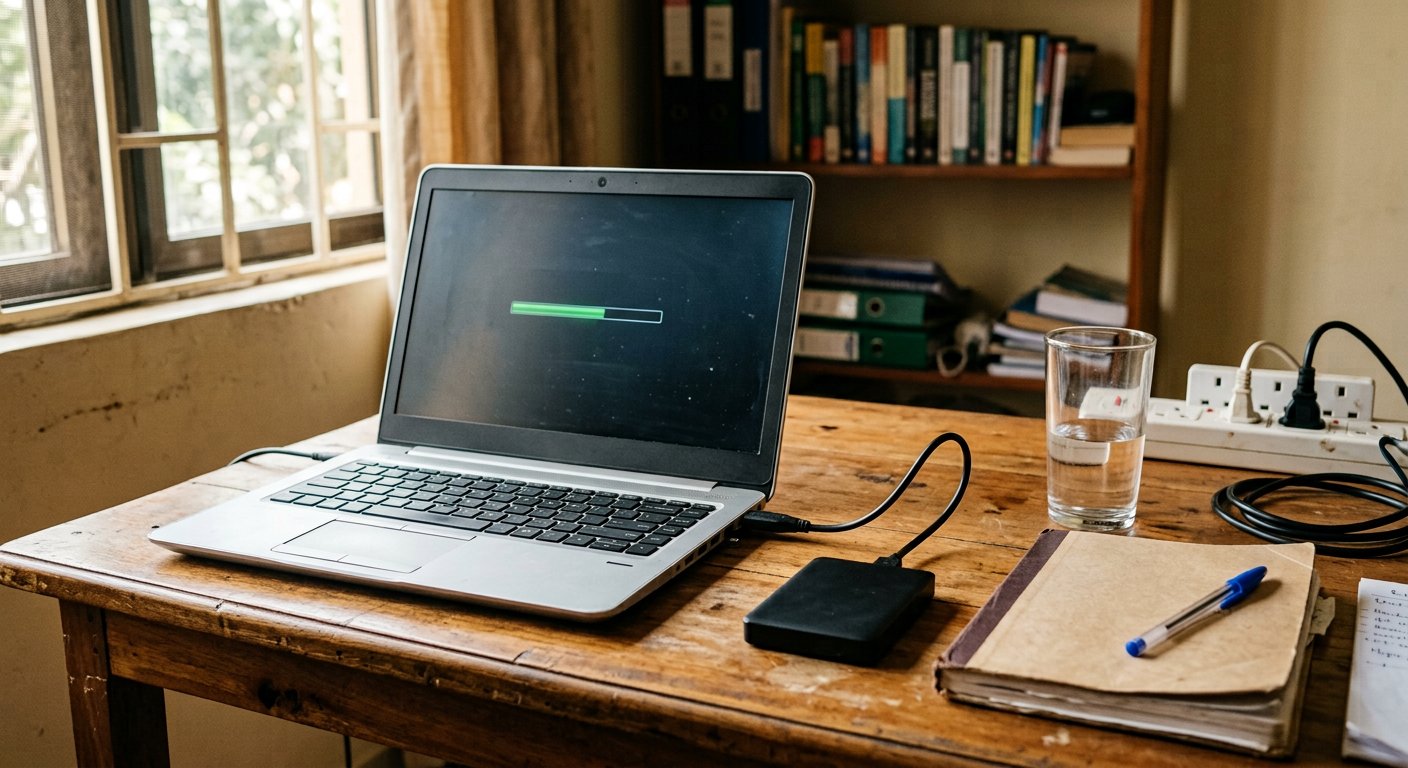
The external drive will show the copied folders with the same names, and the file count should match. A copy nobody has opened is a hope rather than a backup.
The copy window will show a progress bar and a remaining time, and you should watch the file count rise. If the count stops rising for ten minutes, stop the copy and look at the drive.
After the reset
- Install the drivers the machine needs, starting with the network adapter.
- Connect to the internet and let the system update.
- Install the programs from your written list, newest versions first.
- Restore the files into the same folders.
- Set up the printer and the email account.
- Test the three things the owner uses most before handing it over.
None of this needs a workshop. A list, a drive, and one careful afternoon return a machine that feels new and keeps the owner's history.
Do not worry about the machine looking empty at first. That emptiness is the reset working, and the files come back in the next step.
When it fails
Work through the list below.
- The installer will not boot: check the boot order in the machine's settings.
- The licence is rejected: the key belongs to a different edition.
- The network driver is missing: download it on another machine and carry it across.
- Files are missing after the restore: check the other user folders before saying they are gone.
- The owner's program will not install: find the version that matches the system.
- The machine is slower than before: the updates are still running, so give it a day.
Try it now
Rehearse the reset on a machine nobody depends on.
- Write the list of installed programs.
- Copy the user folders to an external drive.
- Open three files from the copy to prove it works.
- Install the system and the network driver.
- Restore the files and compare the counts.
You can now reset a machine without losing a life's photographs. In the next lesson you will back up somebody else's computer.
Free browser practice lab
Check readiness in Self-Assessment Studio
Take a quick browser diagnostic and get instant feedback.