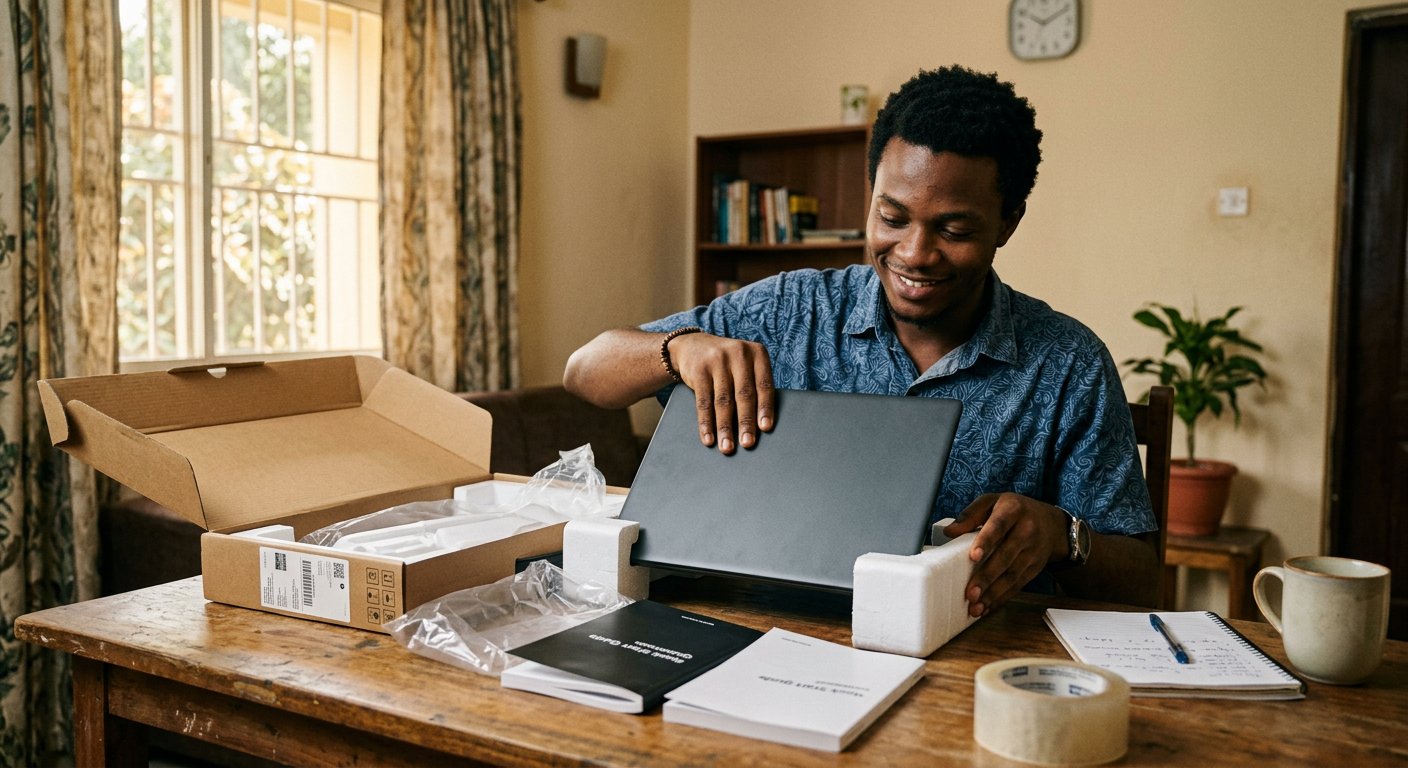
This lesson sets up a new computer for somebody else. You will learn the order that avoids trouble, how to remove what slows a new machine, and how to hand it over so the owner can use it alone.
A new machine is not ready when it comes out of the box. It needs updates, a sensible name, and a short session with the person who will use it.
What you will need
- The machine, its charger, and the network password.
- An hour, plus time for updates.
- A notebook for passwords and settings.
The order that works
- Charge the machine before starting, since an update can take an hour.
- Connect it to the network and let the first setup finish.
- Run all updates until the machine says it is current.
- Name the machine after the person, not after the shop.
- Remove trial software the owner did not ask for.
- Install the programs they will actually use.
You will see the update screen restart the machine two or three times, which looks alarming and is normal. Do not close the lid while it works, since the update will pause and start again later.
It looks like a new machine should be fast from the first minute. The first day is spent updating, and the machine settles after that.
Accounts and names
- Create one account for the owner, with a name they recognise.
- Make a second administrator account for repairs, with its own password.
- Write both passwords in the notebook you will leave with them.
- Turn on the screen lock with a short code they can type without looking.
- Set the language and the keyboard to what they actually use.
- Skip any account that ties the machine to a shop's email.
The sign-in screen will show the owner's name in large letters, and that detail matters more than it sounds. A machine that greets you by name feels like yours.
The handover
The setup is finished when the owner can do three things without you.
- Switch it on, sign in, and open a browser.
- Find the folder where their files will live.
- Save a document and find it again.
- Connect to the wifi if the password changes.
- Ask for help with the notebook open, so the answer gets written down.
- Shut it down properly at the end of the day.
The desktop will show a few icons and not forty, and you should resist adding more. A short desktop is a map the owner can learn in a week.
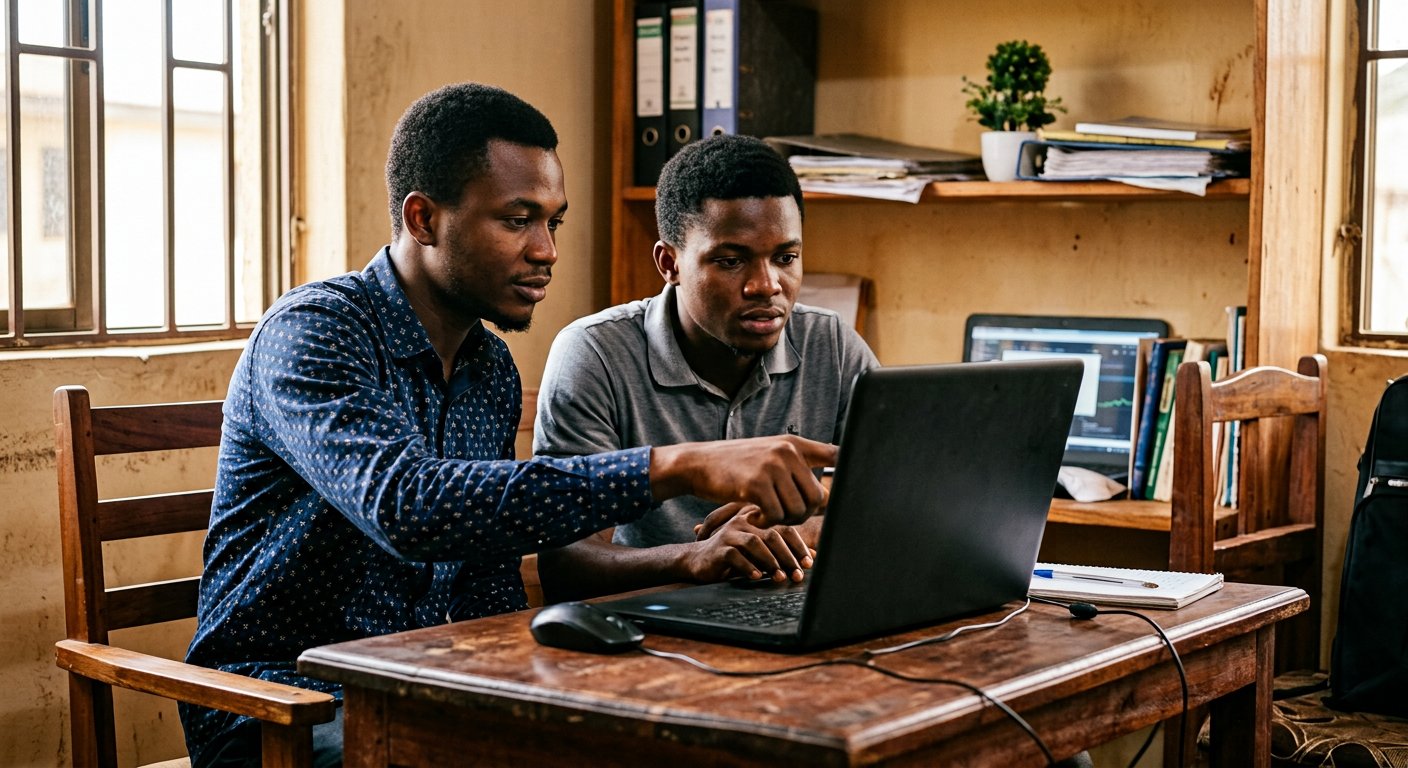
None of this needs a paid service. Updates, a name, and twenty minutes of teaching turn a box into a working machine.
Do not worry about explaining everything. Three tasks and a notebook cover the first week, and the rest can wait for a question.
Troubleshooting
Take these one at a time.
- The update stalls at a percentage: leave it an hour before touching anything.
- The owner forgets the password: the notebook is the backup, so write it down.
- The machine runs hot during updates: put it on a hard surface and let the vents breathe.
- A program will not install: check the version the shop sold, since some are older.
- The printer will not connect: install the driver before blaming the cable.
- The owner is nervous about breaking it: tell them what cannot be broken by tapping.
Your turn
Write your own setup checklist and use it twice.
- Charge, connect, and update.
- Name the machine after the owner.
- Remove the trial software.
- Create the two accounts and write the passwords down.
- Teach the three tasks and watch the owner do them.
You can now hand over a machine that is genuinely ready. In the next lesson you will put a job on paper before you start.
Free browser practice lab
Check readiness in Self-Assessment Studio
Take a quick browser diagnostic and get instant feedback.