This lesson covers backing up somebody else's computer. You will learn which folders matter, how to rescue photographs from a phone, and the check that turns a copy into a backup.
A backup is a copy that has been opened and checked. Without the check it is a hope, and hopes fail at the worst moment, usually the evening before a repair.
You are the person who will be remembered for this, either for the copy or for its absence. Doing it once, properly, is a better gift than a promise to do it later.
Before you start
- An external drive larger than the data you will copy.
- The person's permission to look through their folders.
- About two hours.
The folders that matter
- Documents, which hold work, school, and official letters.
- Pictures and videos, which cannot be recreated.
- Desktop, where most people keep the file they are using.
- Downloads, which sometimes hold the only copy of an application form.
- The browser's bookmarks, exported to a file.
- Anything the person names when you ask what they would miss.
You will see the external drive fill with folders that carry the same names as the machine's own. That mirroring is what makes the copy understandable to the owner later.
The drive's window will show the folders in a column, with a size beside each one, and you can compare those sizes with the machine's own. A folder that shows zero is one you have not copied yet.
It looks like the important files are the ones in Documents. For most families the photographs matter more, and they are the folder nobody remembers to copy.
The phone in the drawer
- Connect the phone by cable and choose file transfer on its screen.
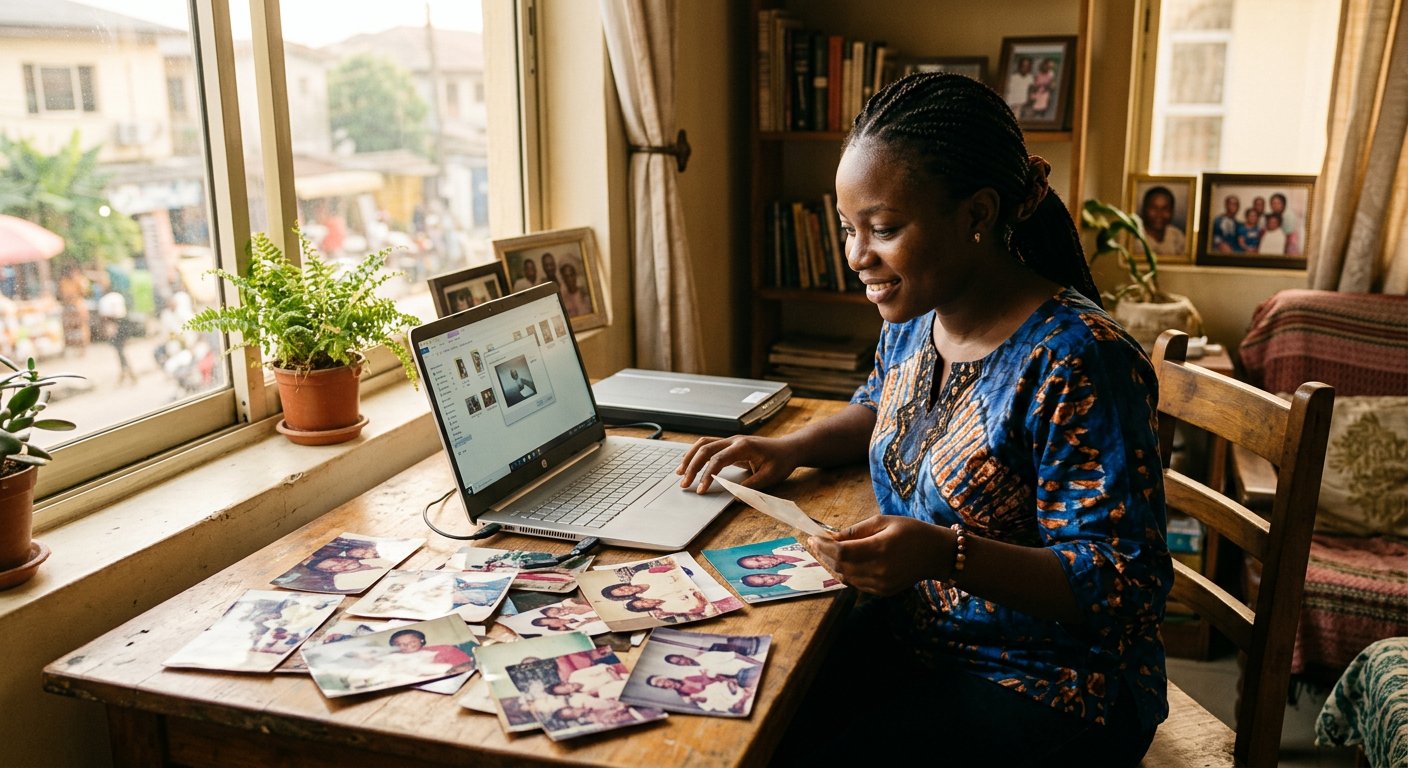
- Copy the camera folder and any messaging folder that holds photographs.
- Copy the voice notes folder if the person uses it.
- Name the destination folder with the person's name and the date.
- Leave the phone charging while the copy runs.
- Check three photographs open from the drive.
The phone's screen will ask what the computer may do with it, and file transfer is the option that allows a copy. Choosing charging only will leave the folders invisible, which looks like a broken cable.
Making the copy real
- Compare the file counts in each folder.
- Open three files from different folders on the drive.
- Play ten seconds of one video.
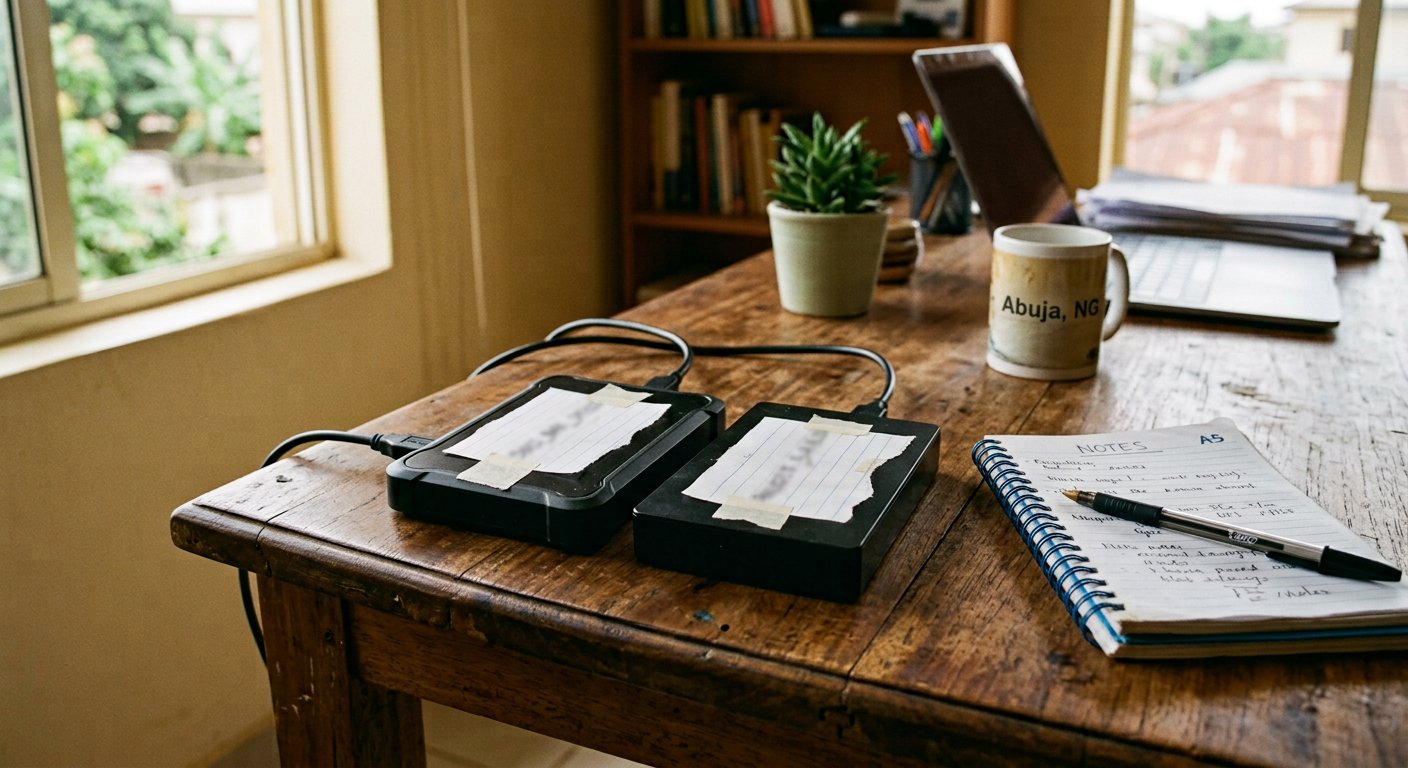
- Write the date and the folder names in a notebook.
- Keep a second copy if the data is precious, on another drive or online.
- Tell the owner where the drive is and what is on it.
None of this needs paid software. The file manager, an external drive, and three opened files cover a family machine.
Do not worry about the time it takes. A first copy is slow, and every later copy is faster because it only adds what is new.
If it goes wrong
You can deal with each in turn.
- The drive will not open: try another port and another cable before another drive.
- The copy stops halfway: the drive may be full, so check the space.
- Files are refused: they are in use, so close the program and copy again.
- The phone shows no folders: the cable carries power only, or the mode is wrong.
- The count does not match: hidden files are excluded, so compare visible ones.
- The drive is dropped: replace it, since a dropped drive is no longer a backup.
Practice
Back up one family machine this month.
- Ask what the owner would miss most.
- Copy that folder first.
- Copy the remaining user folders.
- Open three files from the drive.
- Write the date and the contents on a label.
You can now protect somebody's history in an afternoon. In the next lesson you will set up a new computer for a person who has never had one.
Free browser practice lab
Check readiness in Self-Assessment Studio
Take a quick browser diagnostic and get instant feedback.