In this lesson you will learn to use Do Not Disturb so a phone stops buzzing without being switched off. You will set it for an hour, let one important contact through, and schedule it for the night.
Do Not Disturb silences notifications and calls for a set period. Alarms still ring, and the phone still takes messages, which arrive quietly and wait for you.
Before you start
- A phone with notifications switched on.
- About ten minutes.
Turn it on for an hour
- Swipe down from the top of the screen to open quick settings.
- Tap the crescent moon symbol, which is Do Not Disturb.
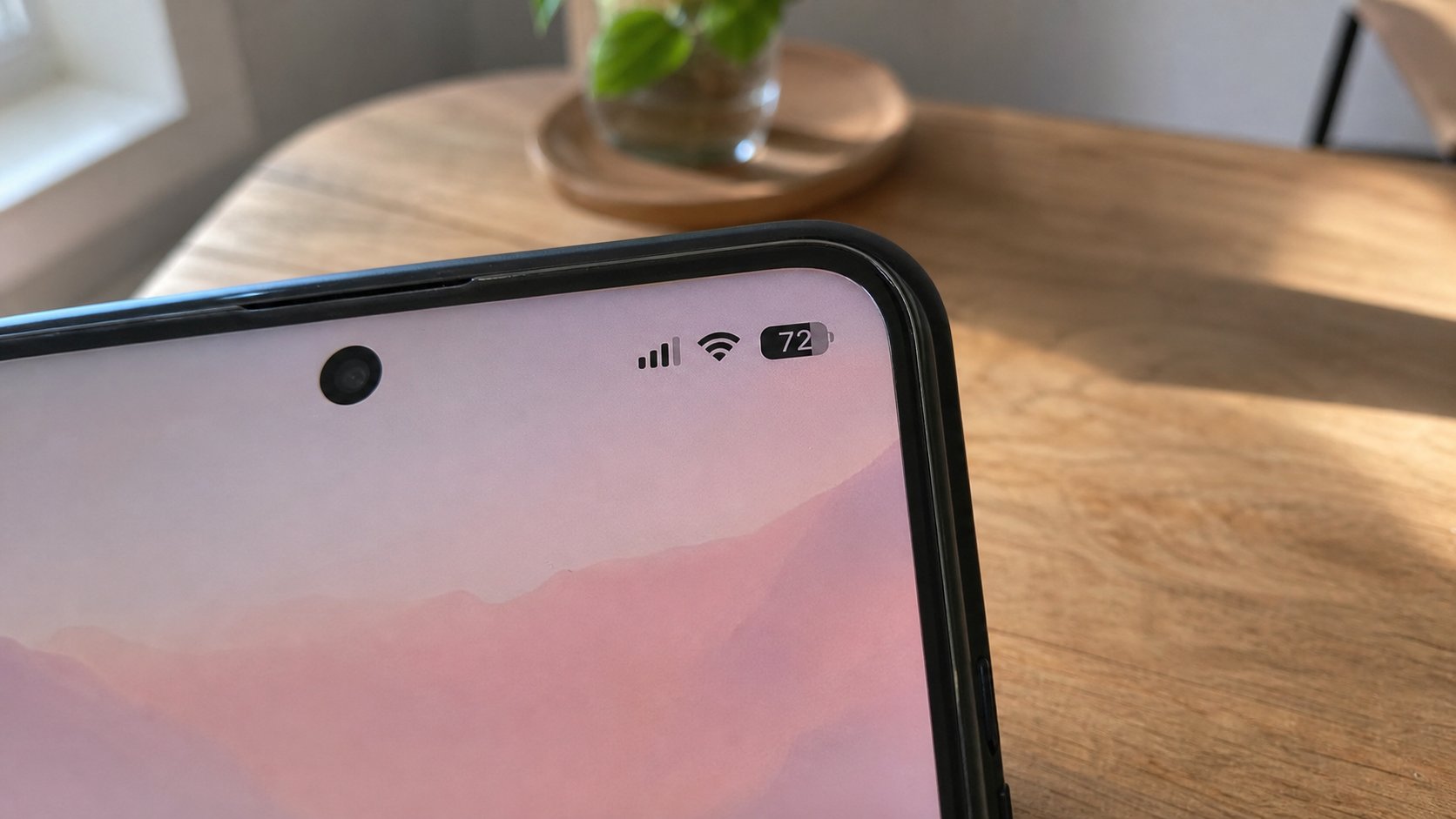
- Look for the small moon in the status bar, which confirms it is on.
- Send yourself a test message from another phone, or ask somebody to call.
- The screen stays dark and no sound plays.
- Tap the symbol again to switch it off.
You will see the moon icon beside the battery and the network bars. Notifications still arrive in the shade, so nothing is lost while the phone stays silent.
It looks like silencing the phone means missing an emergency. You can let chosen contacts through, which is the setting most people never find.
Let the important calls through
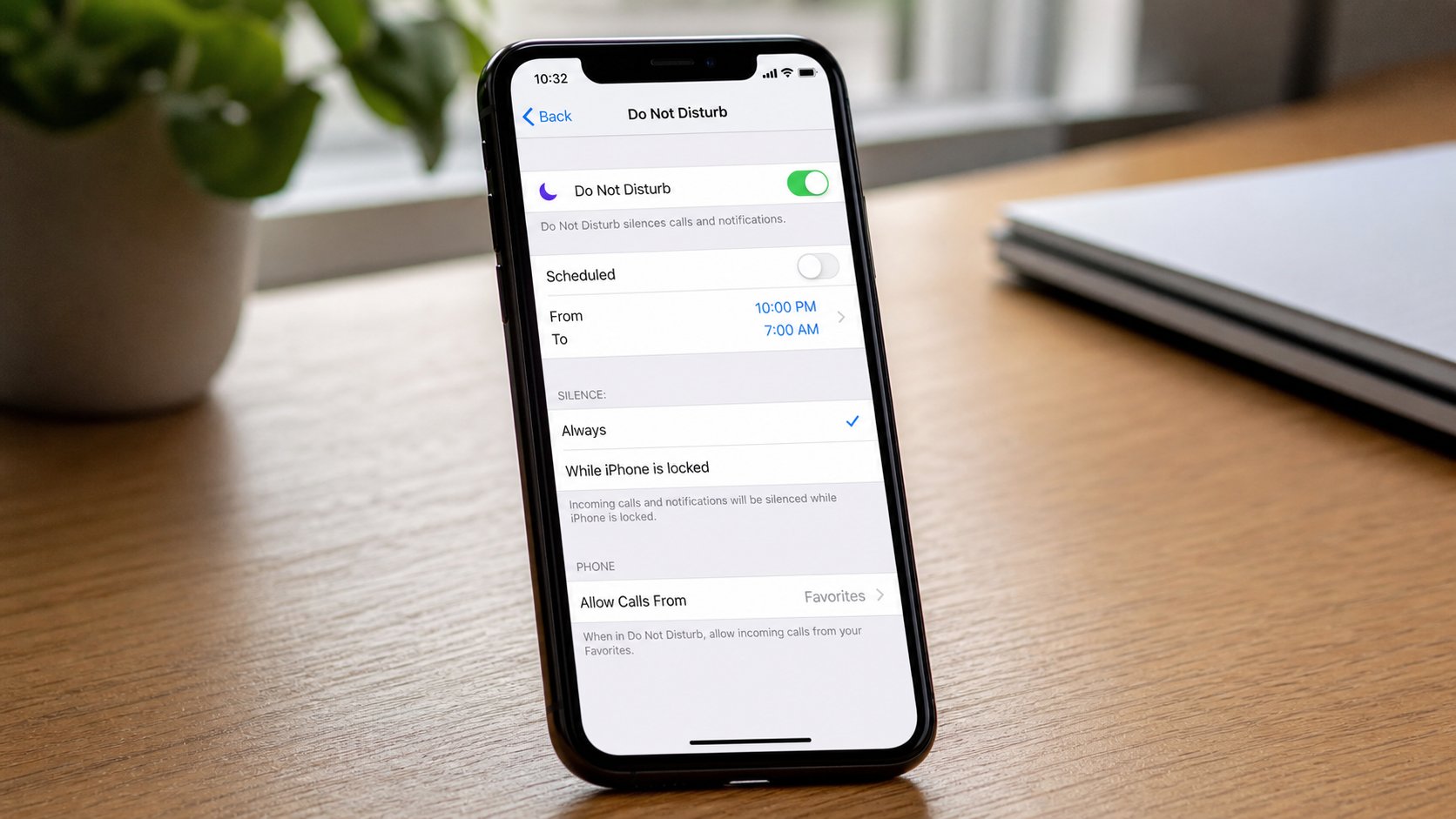
- Open Settings, then Sound, then Do Not Disturb.
- Choose Calls and allow calls from starred or favourite contacts.
- Turn on repeat calls, which lets a second call within fifteen minutes ring.
- That last setting is the one that catches emergencies, because people call twice.
- Add family numbers to favourites so they pass through.
- Leave unknown numbers blocked, which is most of the noise.
A call from a favourite contact will now ring with sound, and the screen lights up as normal. Everything else stays quiet.
The screen will light up with the caller's name and a green answer button, even though everything else stays dark. A crescent moon appears at the corner of the notification shade, reminding you why the phone is silent.

Schedule it for the night
The scheduled version is the one that improves sleep, because nobody remembers to switch it on at eleven.
- In the same settings screen, choose Add schedule or Turn on as scheduled.
- Set it from 22:00 to 06:00, or whatever matches your household.
- Allow alarms, which is a separate switch and should stay on.
- Allow favourite contacts, as above.
- Check the schedule before a night when you expect an important call.
- Switch the schedule off temporarily rather than deleting it.
None of this turns the phone off, so your alarm still rings and updates still download. Only the interruptions stop.
Do not worry about messages piling up. They arrive quietly in the notification shade, and the count waits for you.
If it goes wrong
There is a way through each one.
- Calls do not ring at all: the exception list is empty. Add your favourites.
- The alarm did not ring: alarms were switched off inside Do Not Disturb.
- The phone still buzzes: another app has a bypass permission. Remove it in the app's settings.
- You missed a delivery call: turn on repeat calls, or add the driver's number for the day.
- Do Not Disturb will not switch off: a schedule is active. Turn the schedule off.
- Nobody can reach you for a whole day: check the moon icon before you leave the house.
Practice
One silent hour, one important call allowed through, and the setting makes sense.
- Turn Do Not Disturb on and confirm the moon icon.
- Ask somebody to call and note that nothing rings.
- Add that person to favourites and try again.
- Set a nightly schedule for the hours you sleep.
- Switch it off and confirm the icon disappears.
You can now protect your attention without going off the grid. In the next lesson you will turn a phone into a wifi hotspot for a laptop.
Free browser practice lab
Check readiness in Self-Assessment Studio
Take a quick browser diagnostic and get instant feedback.