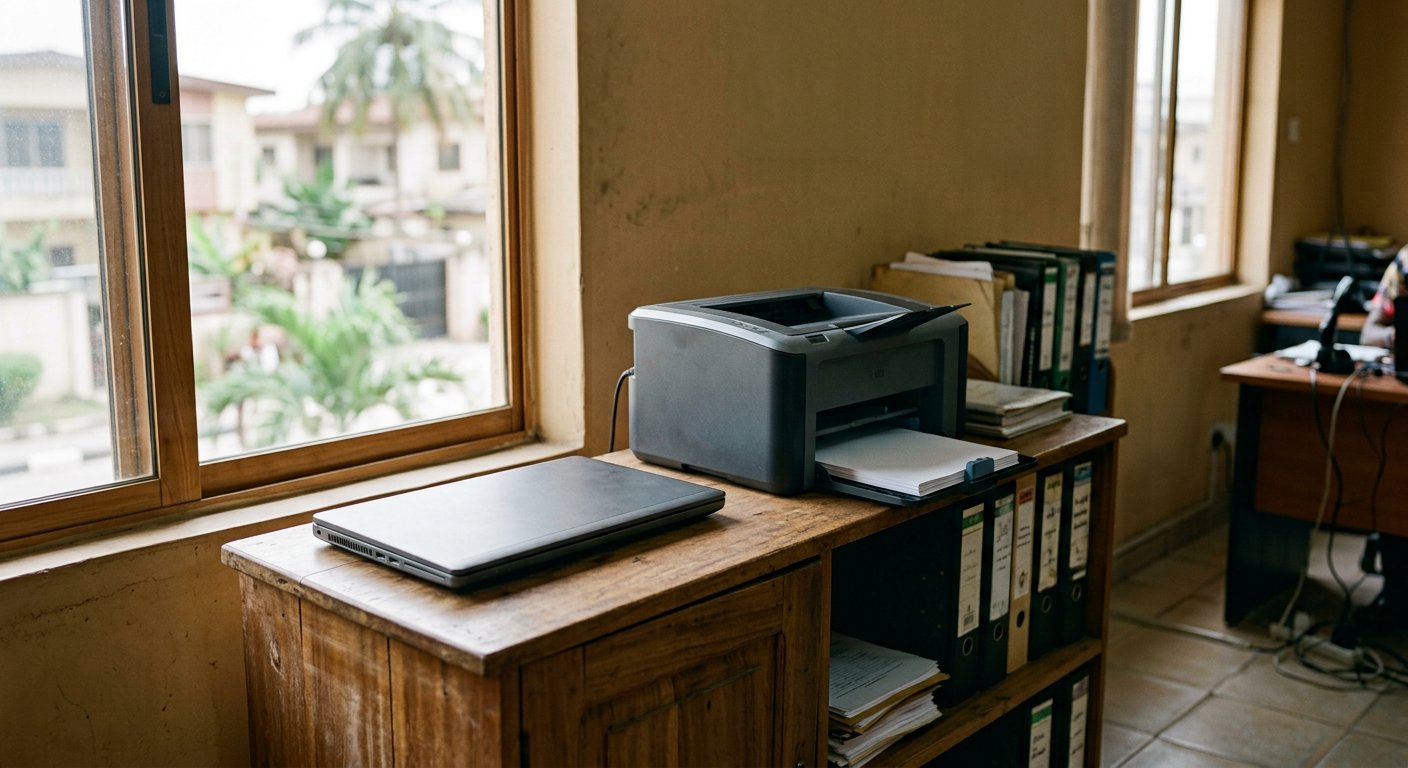
This lesson shows you how to share a printer and a folder across a small office. You will learn what to share, who should be able to open it, and how to remove access when somebody leaves.
Sharing is a permission rather than a copy. The file stays on one machine, and other machines are allowed to read it, which is why a wrong setting can expose more than you meant.
What you will need
- Two machines on the same network.
- The printer, and its driver if you have it.
- About thirty minutes.
Sharing a printer
- Connect the printer to one machine and install its driver there.
- Open the printer settings on that machine and turn on sharing.
- Give the shared printer a clear name, such as FrontDesk-HP.
- On the second machine, add a printer and choose the network option.
- Select the shared printer and let it install.
- Print one test page and keep it as proof that the setup works.
The printer list will show the shared name under a network heading, and the second machine will treat it as its own. A test page from the far machine is the only proof worth having.
It looks like a shared printer needs its own network cable. Most small offices share one attached to a single machine, and that machine must stay awake.
Sharing a folder
- Create a folder named for its purpose, not for a person.
- Right-click and open the sharing settings.
- Choose the people who may open it, and give them read access first.
- Add write access only to the people who must change files.
- Send the network path, which looks like two backslashes and a name.
- Test it from the second machine before telling anybody else.
The folder window will show a small icon of two people once it is shared, and the permissions box will list each name with a level beside it. If the list is empty, nobody else can open it.

A permissions box will show read and write as separate choices. Giving both to everybody is the mistake that turns a shared folder into a place where files disappear.
What not to share
- A whole drive, since one mistake exposes every folder on it.
- Payroll, medical, or identity documents on a shared folder.
- A folder on a personal machine that leaves the office.
- Guest access without a password.
- Anything with a name that tells a stranger what is inside.
- Write access for people who only need to read.
None of this needs a server. A folder, a short list of names, and two levels of access cover most small offices.
Do not worry about getting it wrong on the first try. Access can be removed at any time, and removing it is the part most people never practise.
Troubleshooting
Go through them in order.
- The printer disappears: the host machine went to sleep or restarted.
- The folder asks for a password: the guest account is off, which is safer.
- Files vanish from the folder: somebody with write access moved them.
- The second machine cannot see the share: the two are on different networks.
- A former staff member still opens it: remove the name, then change the password.
- Printing is slow: the host machine is busy, and a direct network printer is faster.
Your turn
Build one small share and check it from the other side.
- Create a folder called Shared-Documents.
- Share it with read access for two people.
- Open it from the second machine using the network path.
- Try to delete a file there and watch the refusal.
- Remove one name and confirm that person can no longer open it.
You can now share without exposing everything. In the next lesson you will deal with the neighbours on your wifi.