Here you will learn how to use a phone as a rescue wire. You will learn the difference between a hotspot and a cable, how to set either up in a minute, and how to keep the bundle from disappearing.
A phone with data is a small router. Sharing that data is called tethering, and it is the reason a working phone can carry an office through an outage.
Before you start
- A phone with data and a charged battery.
- A USB cable, if you want the steadier option.
- About fifteen minutes.
Two ways to share
- A hotspot sends wifi from the phone, and several devices can join.
- A USB cable shares the connection with one machine and charges the phone.
- Bluetooth sharing works, though it is slower than either.
- A hotspot drains the battery quickly, so keep the phone plugged in.
- A cable is steadier for a video call, since it does not drop.
- Both use the same bundle, which is the part people forget.
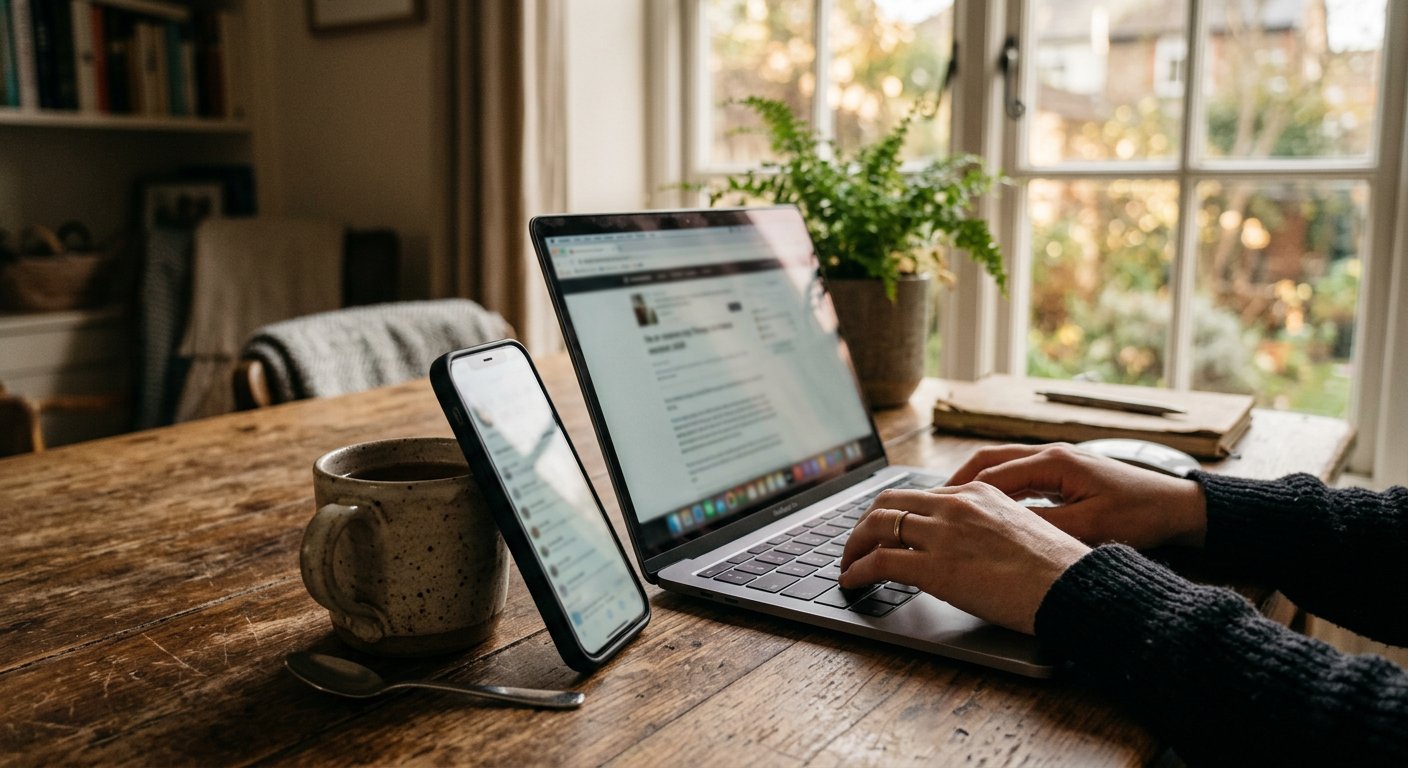
You will see a new wifi name appear in the laptop's list, named after the phone. Joining it takes the password shown on the phone's hotspot screen, which you can change to something you will remember.
It looks like tethering is free because the phone already has data. The data is the same bundle, and a laptop uses it faster than a phone ever does.
Setting up a hotspot
- Open settings and find the hotspot or tethering option.
- Set a name that does not include your full name.
- Set a password of at least eight characters.
- Turn on the hotspot and join it from the laptop.
- Set a data limit in the phone's settings if it offers one.
- Turn the hotspot off when you finish, since it stays on otherwise.
The hotspot screen will show how many devices are connected and how much data has passed. That figure is the check to watch, since a connected device keeps using data in the background.
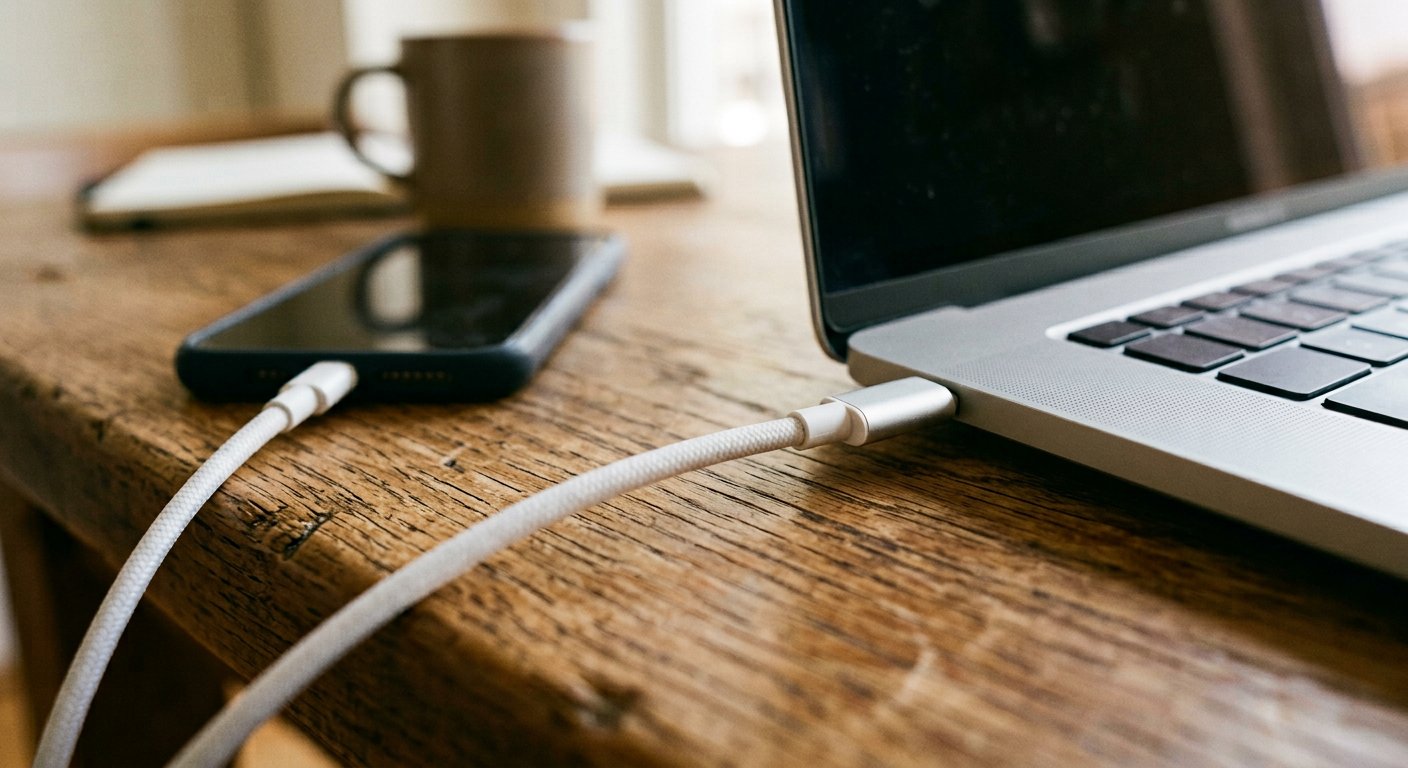
The laptop will show a cable connection instead of a wifi one when tethering by USB. There is no password to type, and the phone gains charge rather than losing it.
Keeping the bundle alive
- Turn off automatic updates on the laptop before connecting.
- Close cloud sync for photographs and large folders.
- Set the laptop to use less data for video calls.
- Watch the phone's data counter during the session.
- Disconnect when the urgent task is done.
- Keep a small bundle for rescue only, separate from the daily one.
None of this needs a special plan. Two settings, updates and cloud sync, are the difference between a rescue and a bill.
Do not worry about the setup taking long. Once the hotspot name and password are set, a rescue takes under a minute.
If it goes wrong
Each has a cause you can find.
- The laptop cannot find the hotspot: the hotspot band may be set to the newer one only.
- The hotspot keeps dropping: the phone is saving power, so keep the screen awake.
- The bundle finishes in a day: an update or a sync ran in the background.
- USB tethering does nothing: the cable carries power only, so try another cable.
- The phone becomes hot: a hotspot uses the radio hard, so let it cool and plug it in.
- The carrier blocks tethering: check the plan's terms before relying on it.
Practice
Test the rescue before you need it.
- Set the hotspot name and password.
- Note the phone's data counter before connecting.
- Connect the laptop, load one page, then disconnect.
- Note the counter again, and see what a page cost.
- Repeat with a USB cable and compare the steadiness.
You can now keep working when the line fails. In the next lesson you will build a small network for a shop.