This lesson explains how machines find each other by name. You will learn what an address does, why names exist at all, and how the names in your router's device list help you spot a stranger.
Every device on a network has a number called an address. Names exist because people remember words better than long strings of digits, and a name service translates one into the other.
Before you start
- About twenty minutes.
- The router's settings page, if you can reach it.
- A notebook for two addresses.
Two kinds of name
- A domain name is the word you type, such as a bank's website.
- The name service turns that word into a number the network can route.
- An address is the number, and it can change when the provider reassigns it.
- A device name is what your own machine calls itself, such as Acer-Laptop.
- An address on the home network is private, and only the house uses it.
- The public address is the one the world sees, and the router holds it.
The router's device list will show a name beside each address, and many of the names will be cryptic strings from the factory. Those strings are normal, since manufacturers set them before the phone ever reaches a shop.
It looks like a name and an address are the same thing. They are two records of one machine, and either can be wrong while the other is correct.
Why a name fails and a number works
When a page will not open, the name lookup is often the part that fails. The line is fine, and the name cannot be resolved.
- Test one page by its address if you know it, which skips the lookup.
- Restart the router, which clears a stale lookup table.
- Change the name service in the router's settings to a public one.
- Check the date and time on the device, since a wrong clock breaks secure lookups.
- Try the same page on another device, which tells you whether the fault is local.
- Report it only after the other steps, since a name fault looks like a dead line.
A browser will show a message about the server's address not being found, and the page will stay blank while other sites open. That message is about the lookup rather than the connection.
Reading your own device list
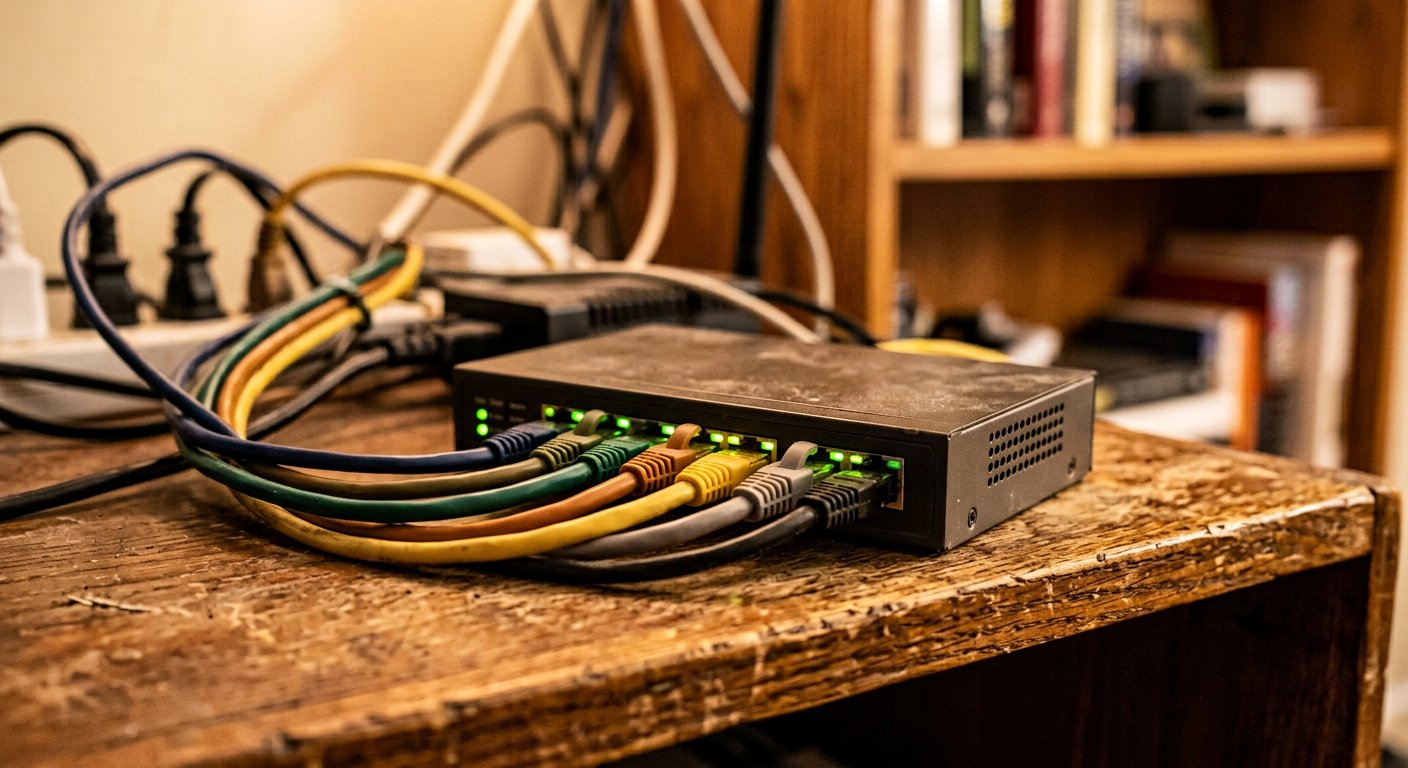
- Open the router's page and find the list of attached devices.
- Count them, and compare with the number of devices you own.
- Rename your own devices so the list becomes readable.
- Look for a device that is attached and unfamiliar.
- Change the wifi password if a device does not belong.
- Reconnect your own devices one by one afterwards.
The list will open with a column of addresses and a column of names, and a count at the top. Reading it once a month is enough to catch a device that should not be there.
Do not worry about the factory names looking strange. Renaming your own devices takes five minutes and makes the list useful from then on.
If it goes wrong
Every one of these is common.
- One site fails and others open: that site's name record is broken, so try again later.
- Every site fails: the lookup is down, so restart the router and check the clock.
- A device has two addresses: one is old and has not expired yet.
- A name you renamed has changed back: the device renewed its old name on reconnecting.
- The router page will not open: check the address printed on its label.
- A stranger appears in the list: change the password and reconnect your own devices.
Practice
Make your own list readable.
- Open the router's device list.
- Count the devices and compare with your own.
- Rename two devices with names you recognise.
- Write the private address of one device in your notebook.
- Repeat the count in a month.
You can now read a network by its names. In the next lesson you will share a printer and a folder across an office.